Appearance
Constraints
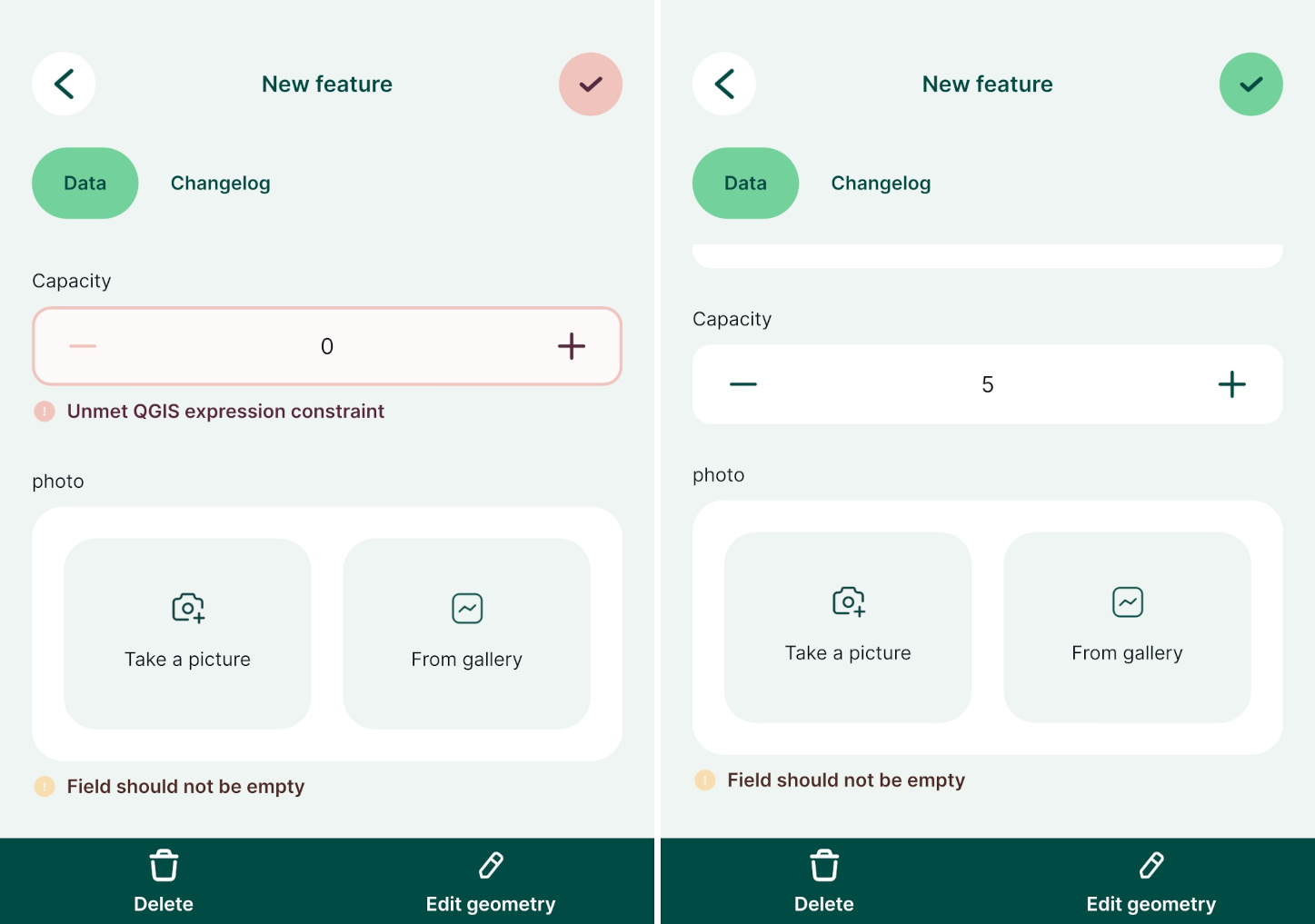
Constraints help to avoid mistakes when filling in the values or to highlight mandatory fields. Fields with constraints have a warning displayed next to them in the form.
There are multiple options of setting up constraints in  QGIS, such as Not null (the field has to be filled in), Unique (the field has to have a unique value), or using a custom expression.
Check the enforce constraint option ✔️ to use a hard constraint, meaning that the feature cannot be saved if the constraints are not met.
Using hard and soft constraints in the form
Example project available
Constraints are used in this project  documentation/form_setup. Clone or download it to try it to see how it works.
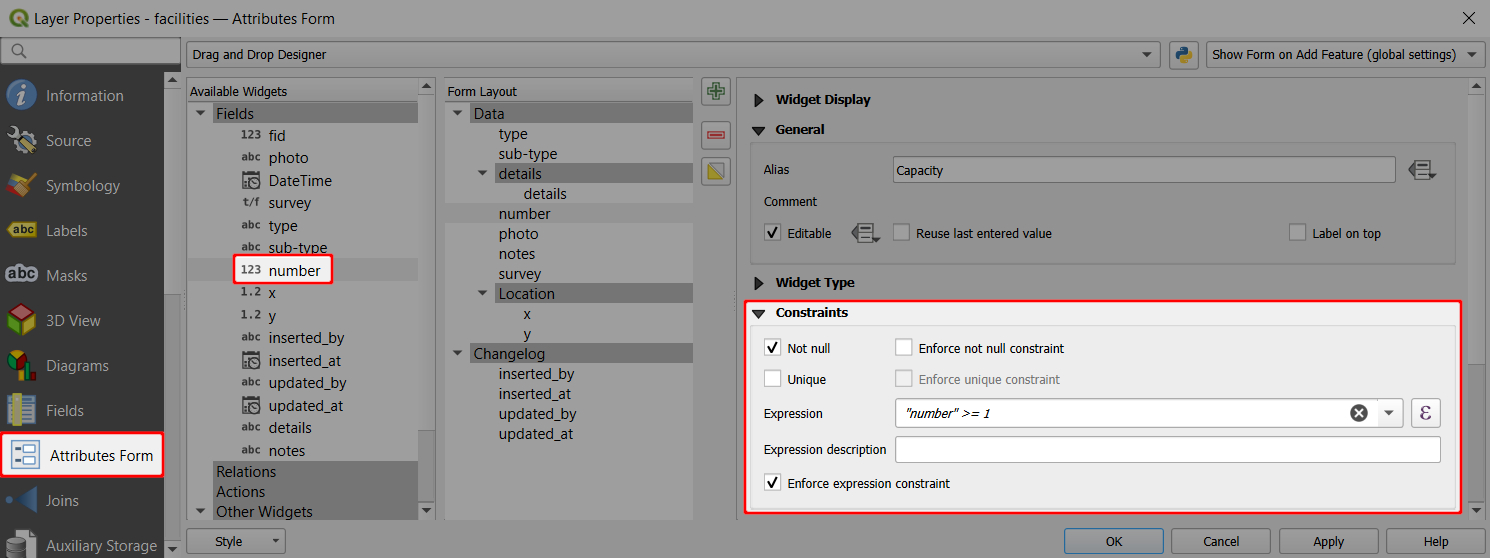
Here, we will first set up a constraint to a field that represents the facility capacity. The value has to be a number that is higher than 0. This will be a hard constraint: if the value is not higher than 0, the feature cannot be saved.
- Right-click on a survey layer and select Properties
- In the Attributes form tab, select a numeric field in the Available Widgets column that you want to use (here:
number) - In the Constraints tab:
- Use the following Expression:
"number" >= 1 - Check the Enforce expression constraint option ✔️
- Use the following Expression:
Now we will set up a soft constraint to a photo field. A photo should be taken during the survey, but the feature can be saved without one.
- In the Attributes form tab, select a photo field in the Available Widgets column (here:
photo) - In the Constraints tab:
- Check the Not null constraint ✔️
In the mobile app, you will be unable to save a feature unless the field value meets the enforced constraint (here: Capacity). If the constraint is not enforced (here: photo), there will be a warning, but the feature can be saved regardless.