
Appearance
Map Themes
In QGIS, you can define different map themes for your project to easily switch between different background maps, combinations of visible layers or their styles, and use them in your Mergin Maps project in the mobile app.
Example project available
Download or clone our public project  documentation/map-themes to see how this setup works.
Prefer a video? Here is a short tutorial about map themes:
Setting up styles and map themes in QGIS
Here, we will define different symbology for survey layers depending on the displayed background map using styles. Then we will set up map themes so that we can switch between the basic and the satellite background maps along with the corresponding layers' styles.
Note that you can use the map themes without defining custom styles for layers, simply to switch between different combinations of visible layers.
You can read more about  styles and map themes in the QGIS documentation.
Custom layers style
Styles store also attributes forms
Note that a style includes more than symbology: the style also stores labels, attributes form, display and other properties of a layer. The complete list can be found in QGIS documentation.
This means that you can have different attributes form setup for various styles of the same survey layer. However, this can also mean that there may be discrepancies in input data, say if these forms use different widgets or default values for the same fields.
Therefore we recommend setting up styles after configuring the attributes form.
First, define the symbology (or other properties) for your survey layers. This will be stored as the default style that each layer has by default.
Here we have a point layer Survey and a polygon layer Survey_polygons that use simple symbols with a non-transparent fill so that they are clearly visible on the basic background map.
Now we will define a new style named satellite for survey layers:
Right-click on a survey layer and select Styles > Add...
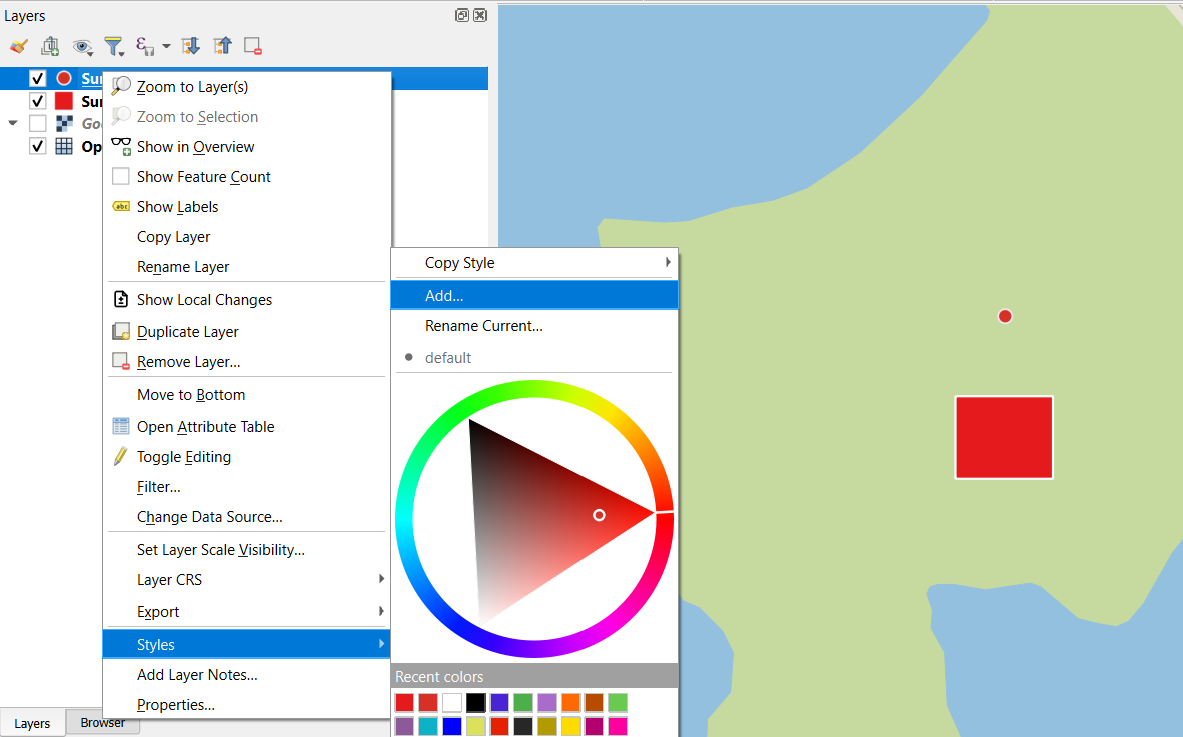
Enter the name of the style, here:
satelliteDefine the symbology of a feature (or other properties) for the new style.
Here we use a transparent fill so that the outline of a feature is visible on to the satellite background map.
Repeat these steps for each survey layer that should have different styles. One layer can have multiple styles.
Now you can easily switch between the default and satellite style by right-clicking the survey layer: 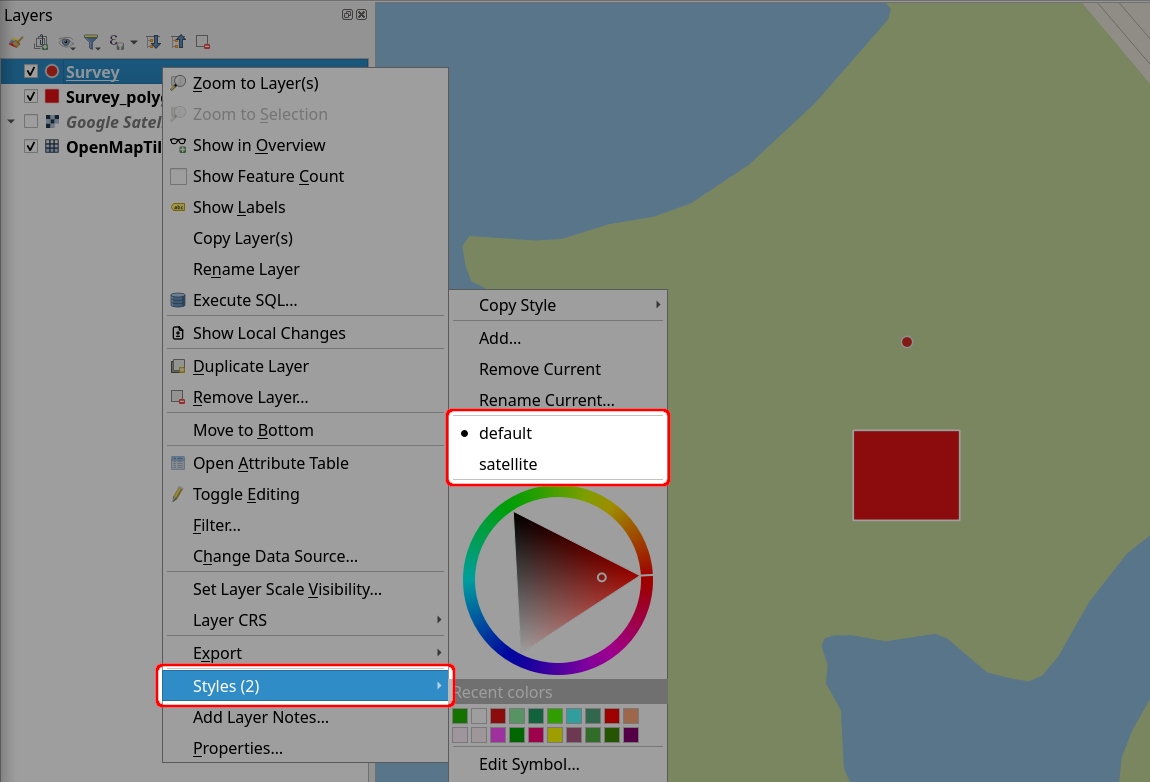
Map themes
A map theme records the visibility of layers and their styles.
To define the default theme:
In the Layers panel, make sure that:
- the survey layers are set to the default styles (optional)
- the survey layers and the basic background map are displayed (hide the satellite background map or other layers)
Use the Manage map themes button to Add Theme....
This theme will be named default.
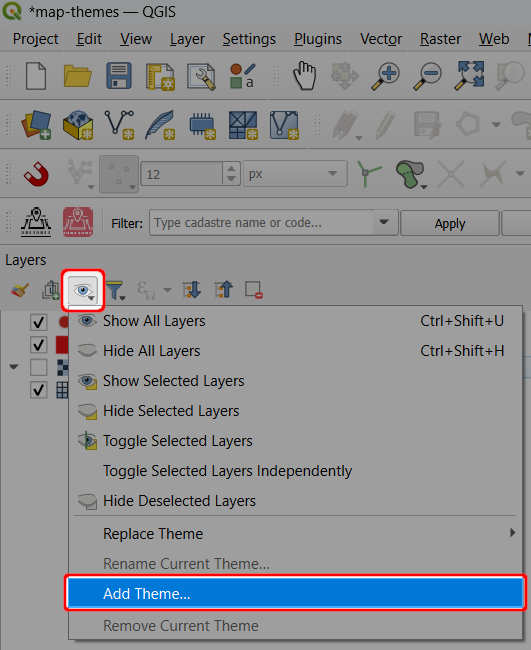
For the satellite theme:
- In the Layers panel, make sure that:
- the survey layers are set to the satellite styles (optional)
- the survey layers and the satellite background map are displayed (hide the basic background map or other layers)
- Use the Manage map themes button to Add Theme... and name this theme satellite
Themes can be easily switched using the Manage map themes button. 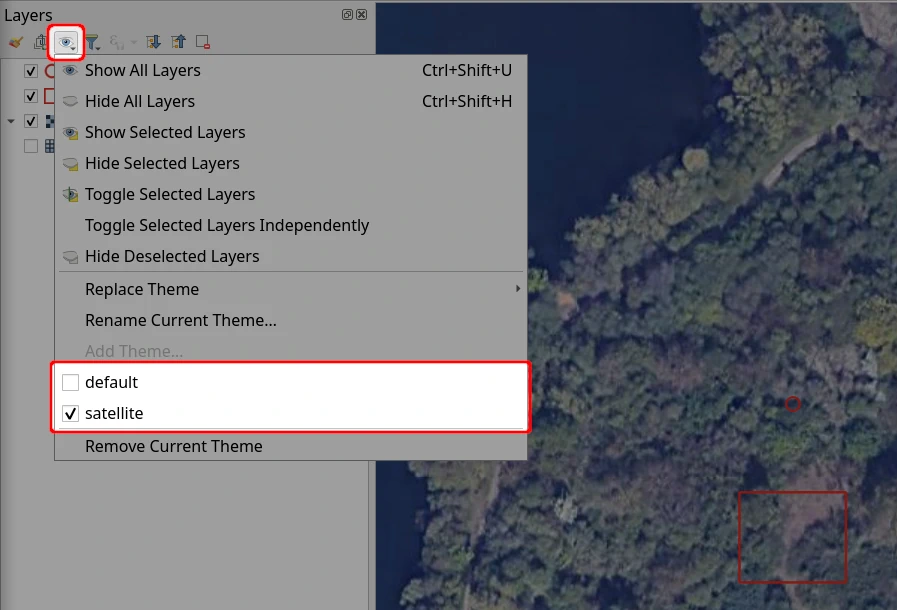
Don't forget to save and synchronise the project.
Using themes in QGIS
In QGIS, themes can be renamed, removed or replaced using the Manage map themes button.
To modify an existing theme, make the desired changes in the Layers panel and use the Replace theme option.
Map themes in Mergin Maps mobile app
In the mobile app, tap More and select the Map themes option.
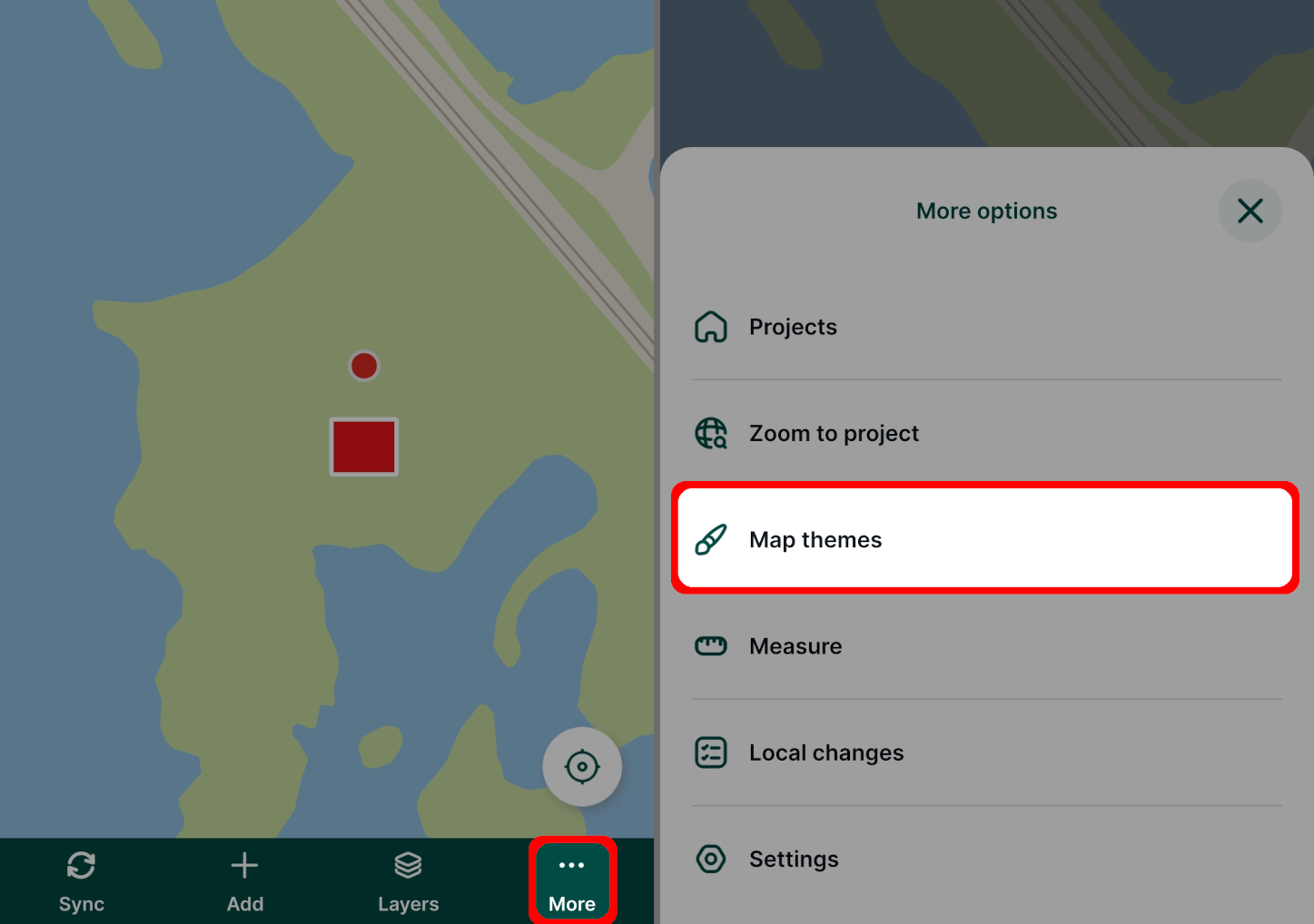
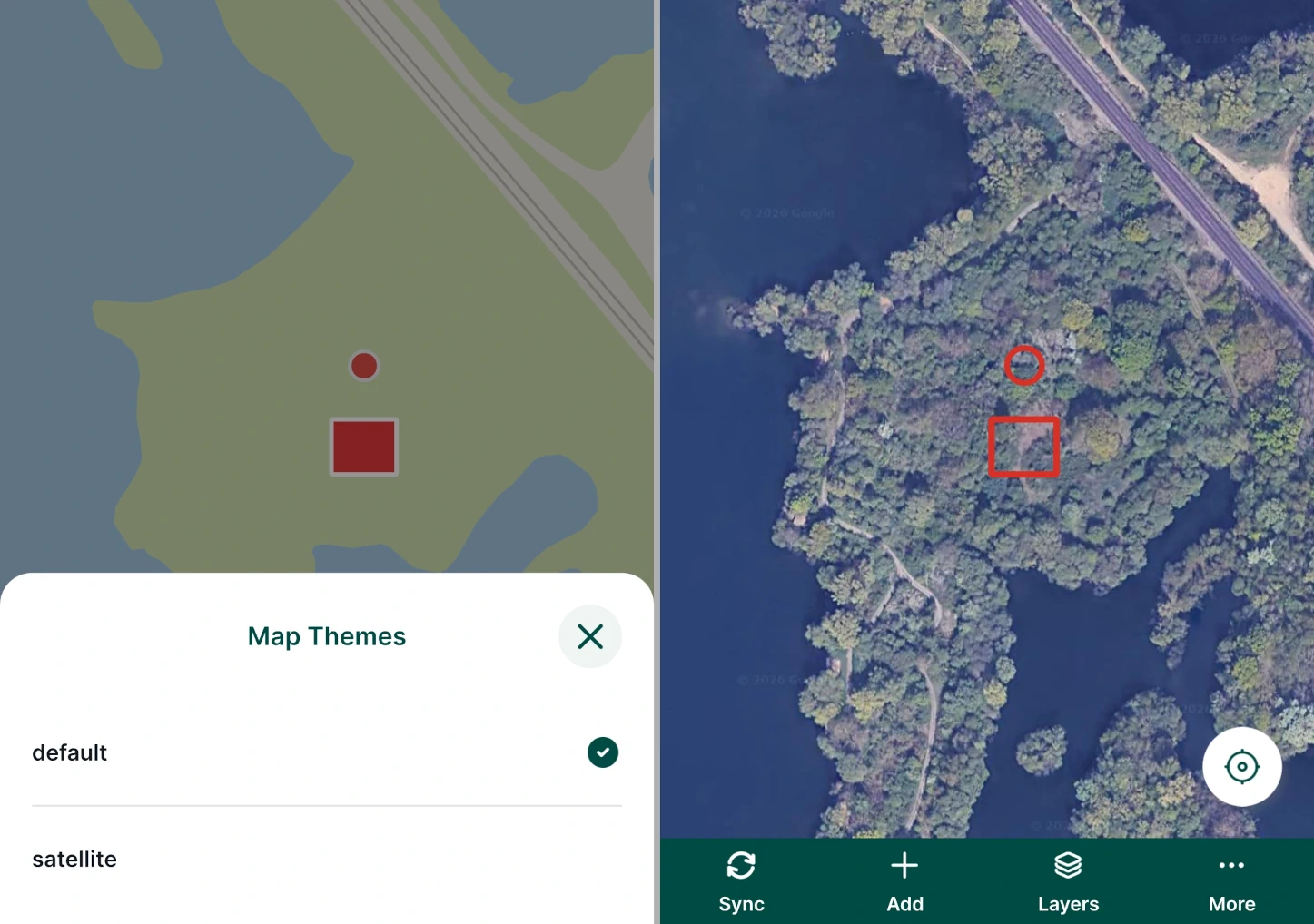
Now you will see the map themes that are available in your project. To switch the map theme, tap on it.
Here, we switched from default to satellite.
It may be useful to define a default map theme for your project. Then, If you change the visibility of layers through the Layers option in the mobile app during the survey, you can use this map theme to get back to the default setup.