

Appearance
Webmaps Overview
The spatial data of your project can be displayed and explored on the dashboard. As an early access feature, webmaps can also be shared via URL.
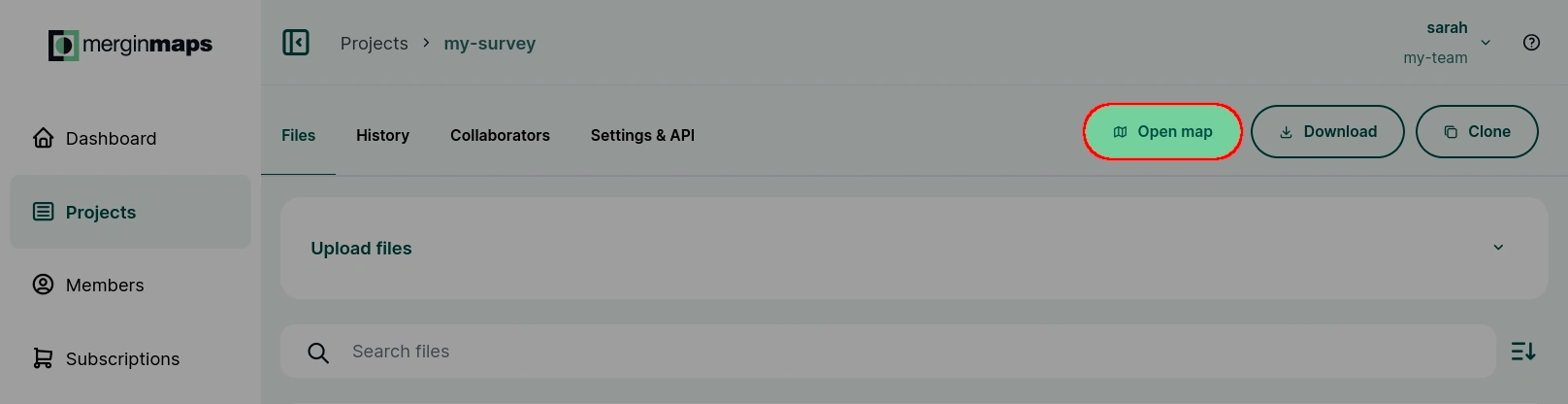
To open the webmap, navigate to your project and click the Open map button.
On the webmap, you can see your survey layers or raster layers that are packaged with the project.
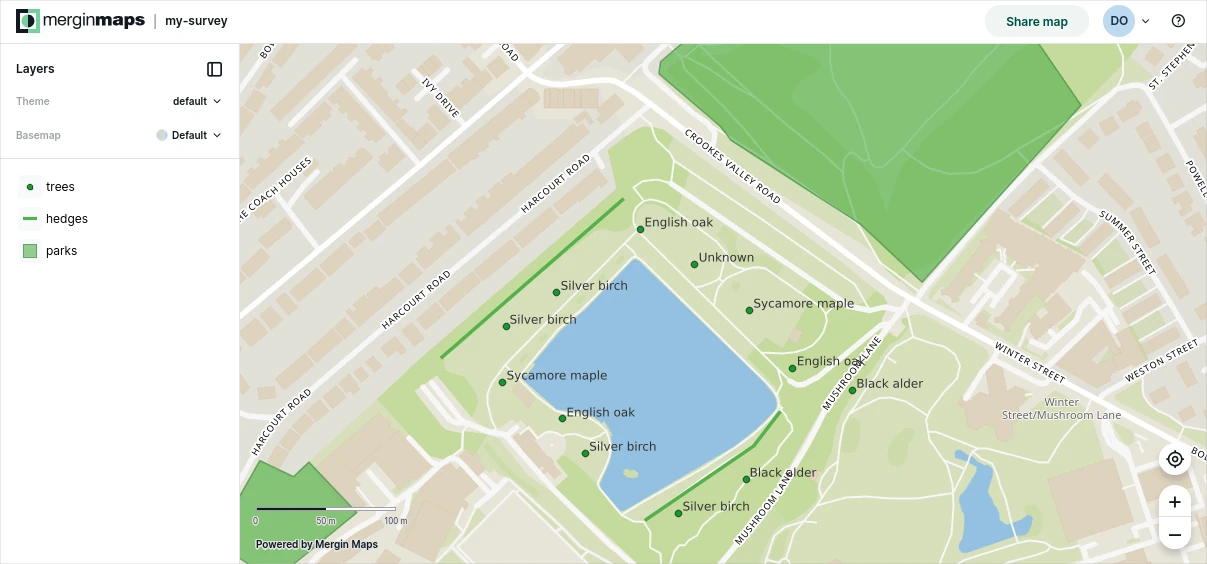
In the Layers panel, you can control the visibility of the layers, switch map themes and basemaps. The default extent of maps is defined by the extent set in the QGIS project.
The webmap is refreshed automatically, so you always see the latest version of your project without needing to reload the page.
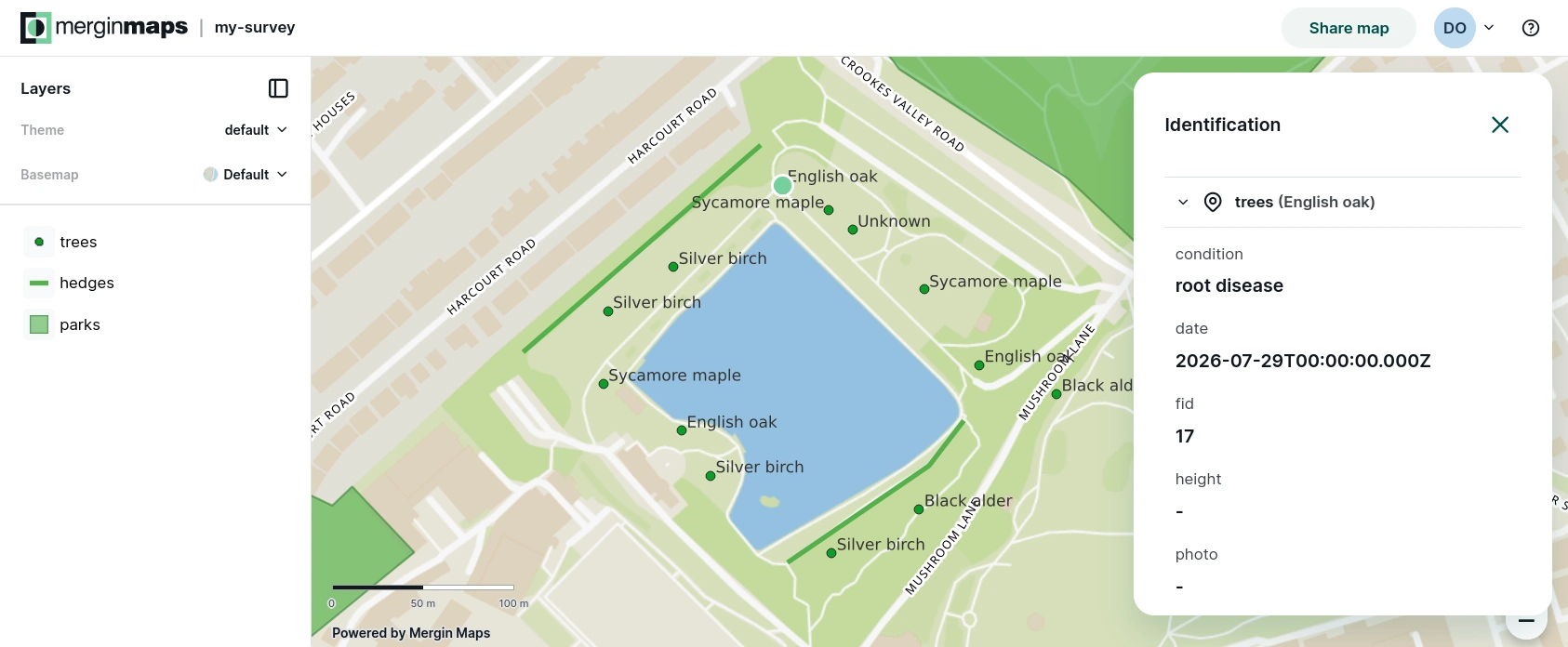
Features can be explored on the map: click on a feature to display its attributes form.
Usage requirements
Webmaps are available for Mergin Maps cloud and Mergin Maps EE users.
Webmaps are not available for Mergin Maps CE.
Layers
Webmaps show layers that are packaged with the project (loaded from project files) by default. These are usually GeoPackage or Shapefile layers, as well as background maps made available for offline use (e.g. mbtiles, GeoTIFF).
Layers requiring a network connection (e.g. PostgreSQL layers or online background maps) are excluded from the webmap by default due to potential performance and connectivity problems. However, certain network layers (such as satellite background map) can be added manually, read more in the custom background maps section.
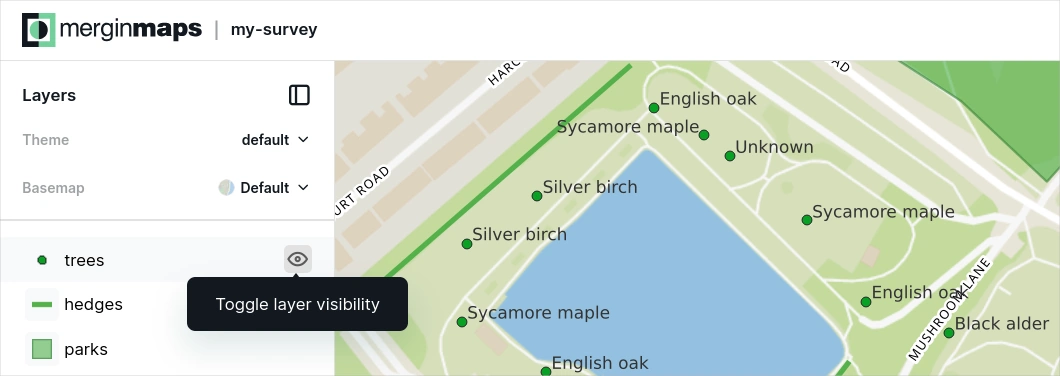
The Layers panel lists all available layers displayed on the map, together with their legend as defined in QGIS.
The eye icon next to a layer toggles its visibility.
Map themes
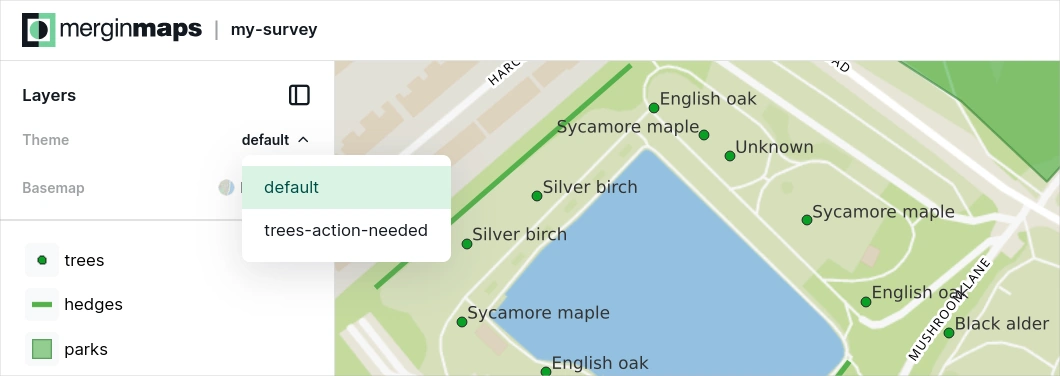
If you have defined map themes for your project, you can switch between them in the Layers panel.
Background maps
By default, all webmaps include the Mergin Maps vector tile service as a background map.
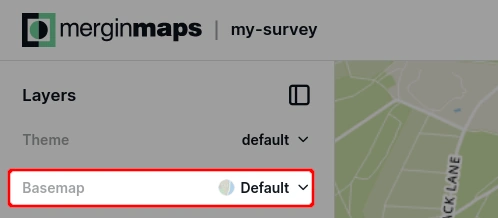
You can switch between three styles: default, light, and dark. 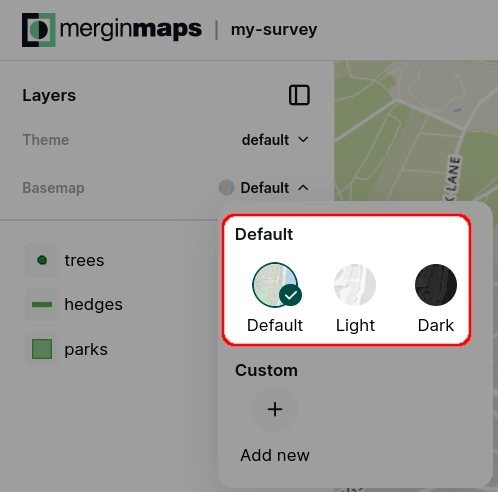
Add custom background maps
If you prefer a different background map than the default options, you can add a custom one in the basemap selection.
In the Layers section, click on the top-left basemap selection item, then select + Add new.
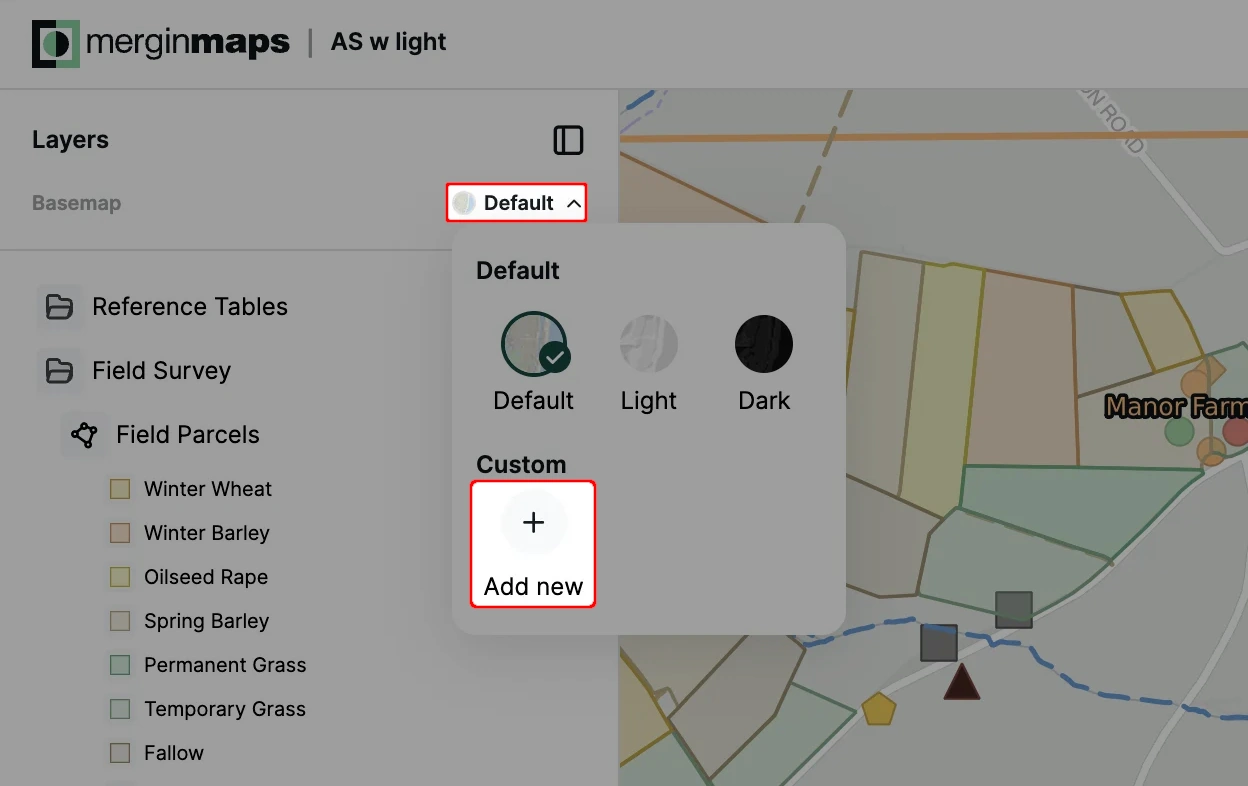
Enter the connection details for your background map and click Add basemap to confirm.
Please note that raster tiles and vector tiles are supported.
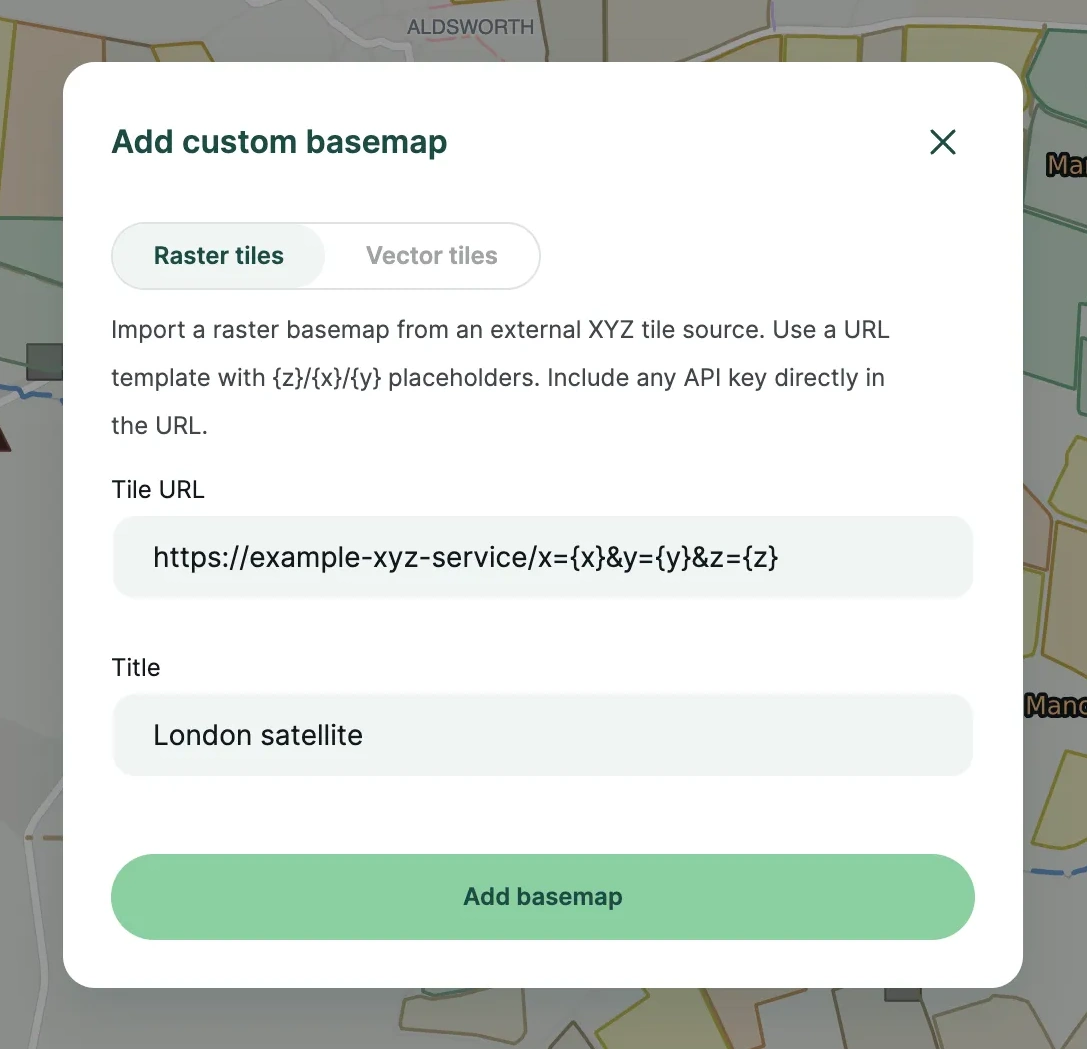
If available, your basemap will be enabled automatically.
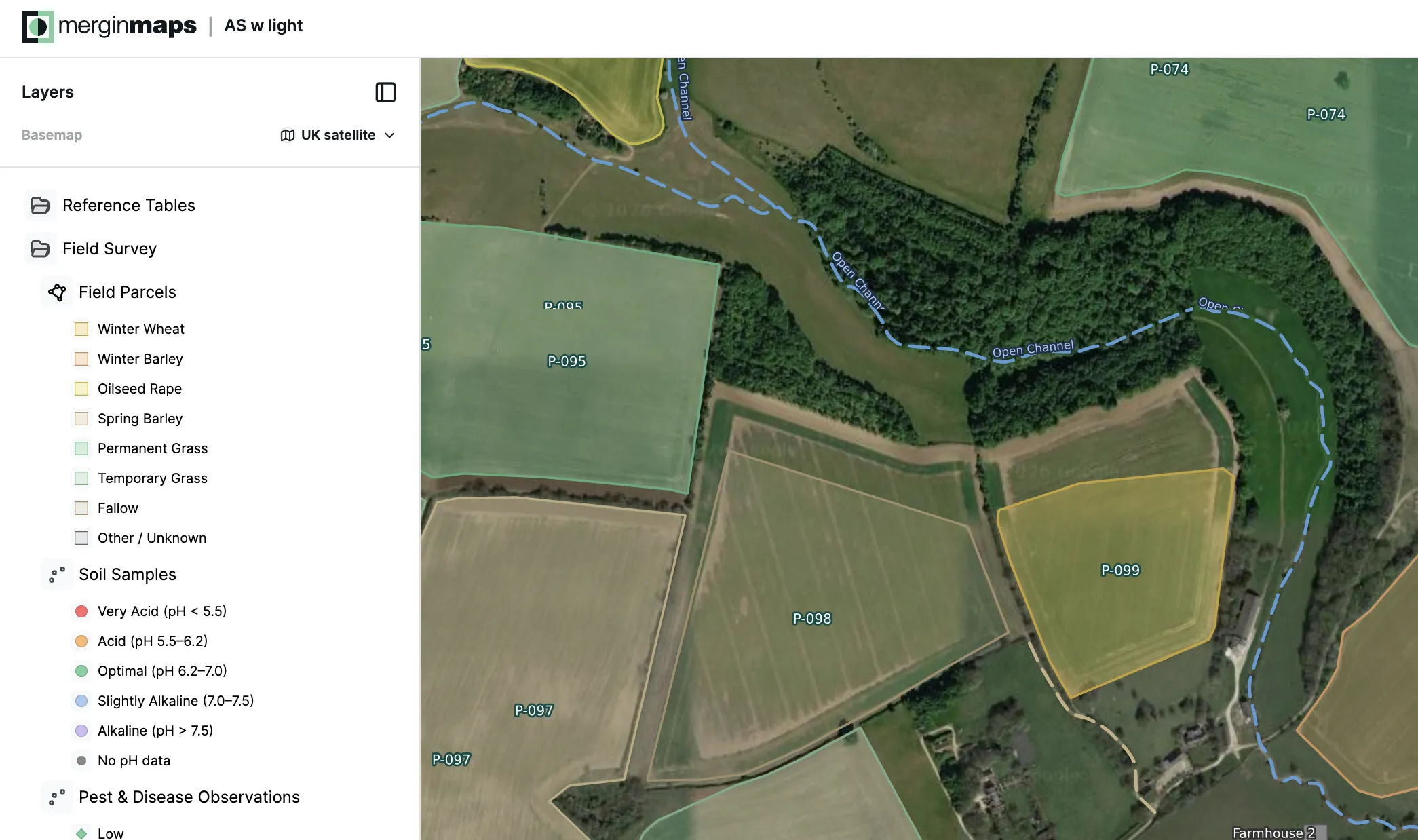
Background maps licensing
Keep in mind that background maps services and data sources come with their own terms of use, especially if they are to be publicly shared. You should comply with any terms and conditions of the services of your choice.
Extent
Webmap extent is defined in QGIS in the Project Properties.
When displaying webmaps, Mergin Maps primarily uses the project full extent defined in the View Settings tab.
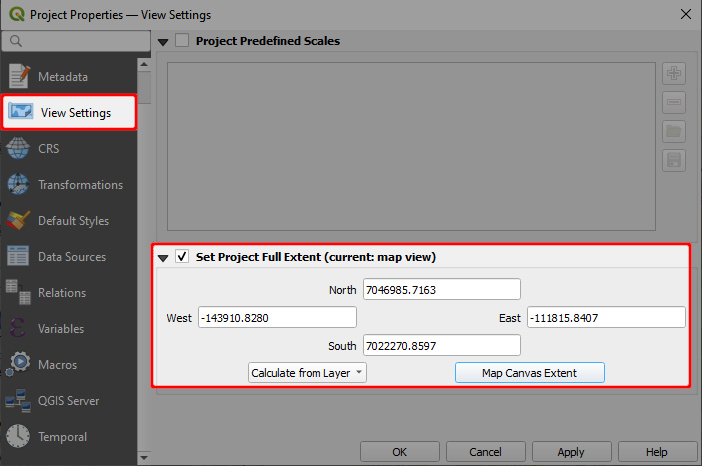
If this is not defined, the map extent defaults to the Advertised extent from the QGIS Server tab.
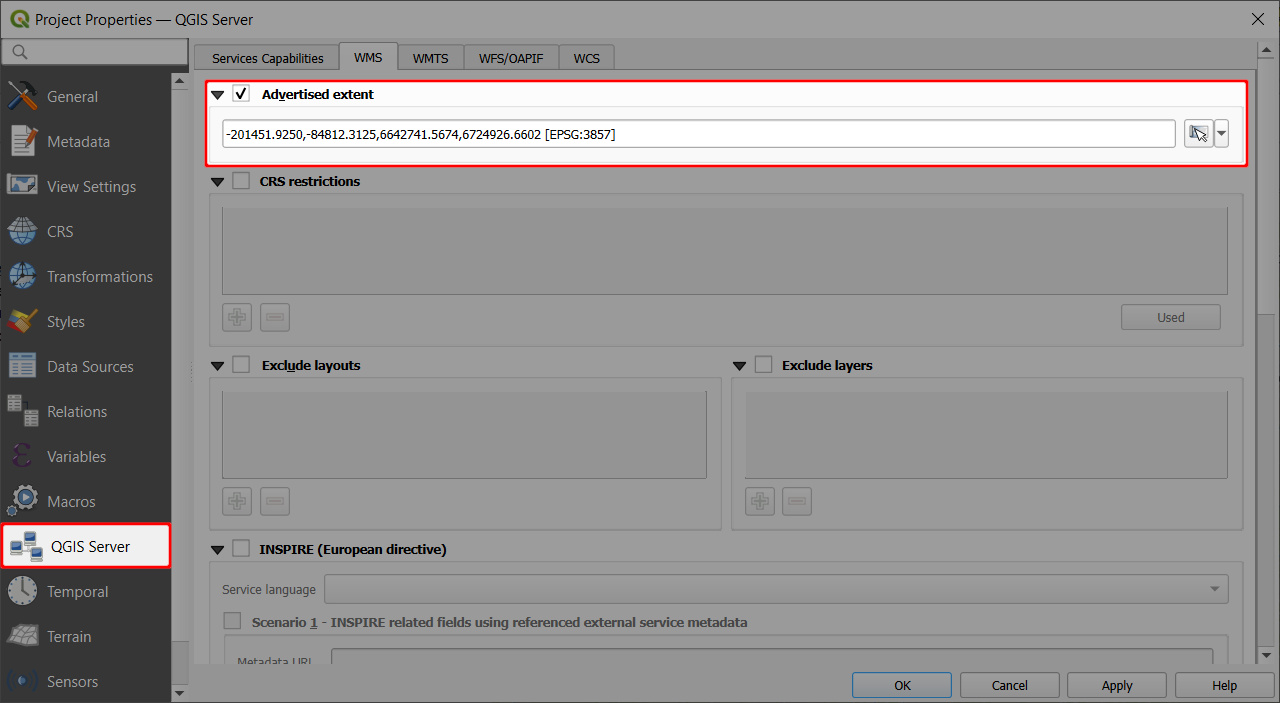
If there are no extent settings in the QGIS project, Mergin Maps will calculate the extent from layers in the project.
Sharing maps via URL early access
You can share webmaps via URL or embed them on a website. More details about this early access feature can be found in Sharing and Embedding Webmaps.
Custom webmap applications Experimental 🧪
You can further customise webmaps programmatically using map-script to build custom webmap applications. This feature can be used to add layers, alter visual and functional elements, and more. Read more here.
Troubleshooting
Troubleshooting tips for webmaps are available here.