
Appearance
Date and time
Fields with Date or Date and Time data type can be used to record date and time. The most common use is to record when a feature was created or updated. This can be done manually or automatically by using default values.
Widget | Preview in the mobile app |
|---|---|
| Date/time | 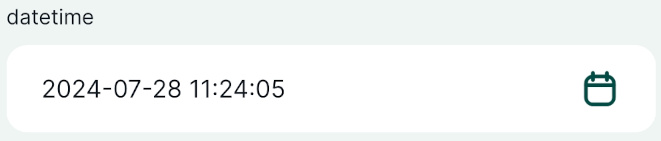 |
Example project available
Various options of setting up Date and Date&Time fields are included in this public project:  documentation/form-widgets. Download or clone it to explore it in more detail.
Prefer a video? Here is a short tutorial about date widgets:
Date/Time widget
To set up the Date/Time widget:
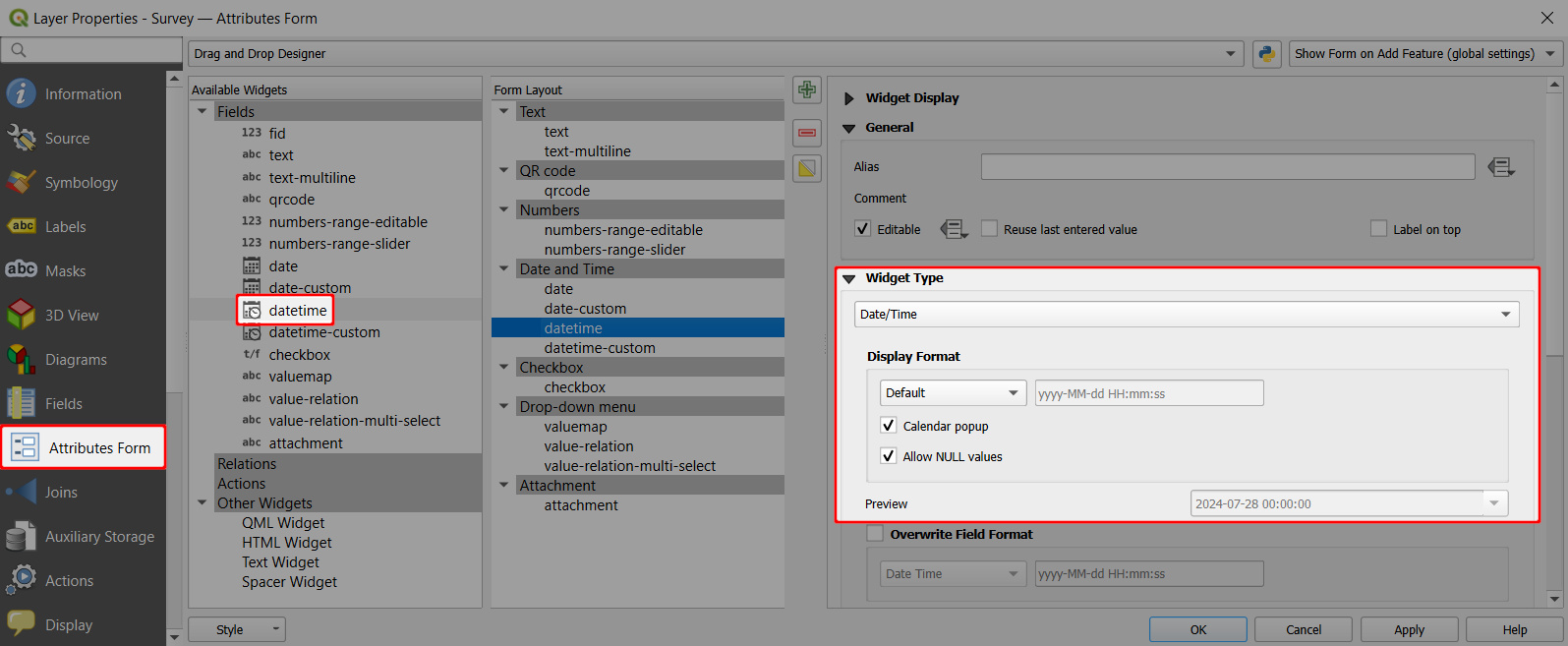
Right-click on a layer, select Properties and go to the Attributes form tab.
In the list of Available Widgets select the Date and Time field you want to work with (here:
datetime).In the Widget Type tab and select the Date/Time widget.
- use the default display format or set a custom display format (see custom date and time formats)
- check the Calendar popup option ✔️
- use the preview to confirm that this is the format you want to use to store your timestamps
If you want to automatically insert the date (or date and time) when the feature is created, use
now()as a default value in the Defaults tab.Apply the changes. Don't forget to save and sync your project!
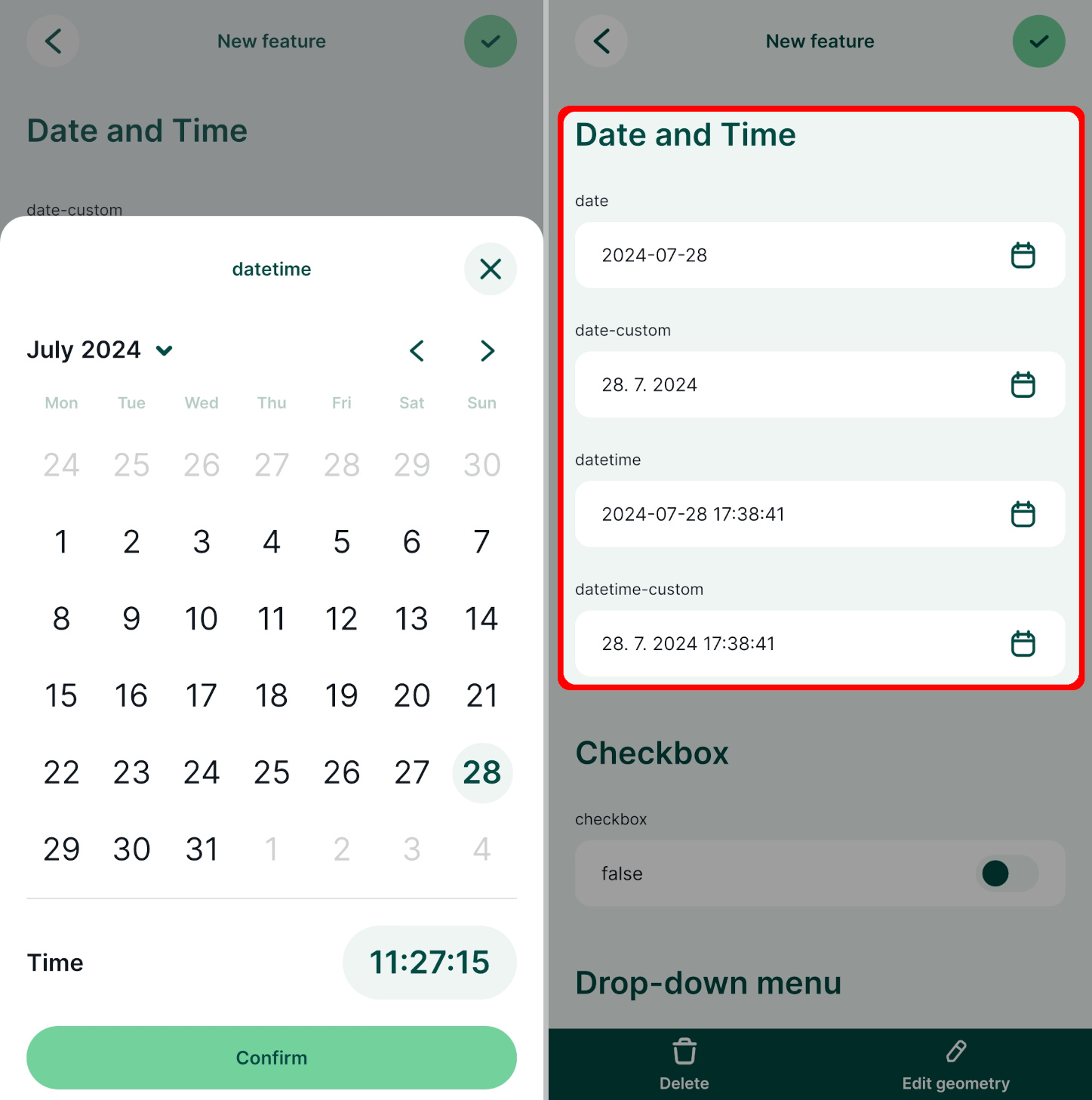
In the mobile app, the date can be edited using a calendar pop up. If you tap the icon next to the field, the current date and time will be filled in.
Custom date and time formats
Date and time fields can use custom display format.
Here are some common examples:
| Custom Display Format | Preview |
|---|---|
dd.MM.yyyy | 12.01.2024 |
MMMM d yyyy | January 12 2024 |
HH:mm:ss | 12:34:56 |
yyyy-MM-dd HH:mm:ss | 2020-09-09 12:34:56 |
dd/MM/yyyy HH-mm-ss | 09/09/2020 12-34-56 |