Appearance
Default values
Default values can be used to automatically record, e.g. the name of the surveyor, date and time of the survey, latitude and longitude of a feature or to have frequently used values filled in advance (see  QGIS documentation).
Fields with default values can be hidden from the attributes form if they are used to store data that are not expected to be modified manually.
The default value can be a text, number or a QGIS expression. The data format of the field has to match the result of the default value expression you want to use.
In QGIS, default values can be set up in the Attributes Form tab in Layer Properties. In the Defaults tab, you can enter the default value of the selected field (manually or using an expression).
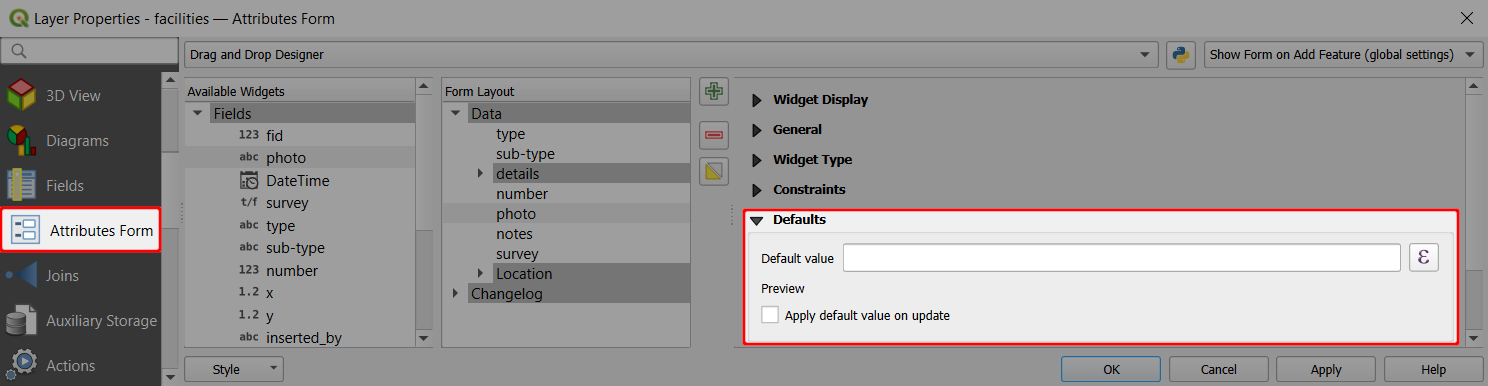
Check the option Apply default value on update ✔️ to update the field value after every change of a feature. Note that this means that the value of this field cannot be changed manually in QGIS or in the mobile app as any user input will be overwritten by the default value.
This option is therefore useful for fields that can be recorded automatically without the need of modification, such as parameters derived from geometry (e.g. coordinates, length, area) or usernames, dates, times.
Example project available
Various usage of default values can be explored in more detail by downloading or cloning this public project  documentation/form_setup.
Useful default values examples
There are some commonly used default values that can be useful in your field survey.
uuid()function generates a unique identifier that is needed to correctly setup 1-N relations or value relationsIt is convenient to know when a feature was created and when it was last updated. Use fields with Date or Date&Time data types with the
now()function to record this information. You can change the formatting using the Date/Time widget.The name of the Mergin Maps user who created or modified the feature can be recorded using the
@mm_usernamevariable. These fields should use Text (string) data type. There are also other project and user variables related to your Mergin Maps account or service that can be used as default values.The coordinates of a point feature can be recorded as well using the
$xand$yfunction in QGIS. To record the coordinate accurately, these fields should have the Decimal number (real) data type. If the coordinates are in metres, values can be rounded to, say, 2-3 decimal places. When working with geographic coordinates that use degrees, you may want to round the coordinates to 8 decimal places. Use the apply default value on update option so that you have correct values when the position of the point feature changes.Parameters such as length of a line feature or area of a polygon feature can be calculated from the geometry. These fields should have the Decimal number (real) or Integer data type. Use the apply default value on update option to update the field in case there is a change in the feature.
Position Variables can be used to record GPS information from your mobile devices
Here are some examples:
| Variable name | Sample value | Apply default value on update | Description |
|---|---|---|---|
uuid() | {9d0150eb-a36f-40f1-a768-540db8a36f7c} | no | Generates UUID (Universally Unique Identifier). |
@now | 2024-06-30 10:00:00 | no | The timestamp of when the feature was created. |
@now | 2024-06-30 10:30:00 | yes | The timestamp of when the feature was last updated. |
@mm_username | sarah | no | Name of the user who created this feature. |
@mm_username | jack | yes | Name of the user who updated this feature last. |
round($x,2) | 1898789.92 | yes | The X coordinate of a point feature, rounded to 2 decimal places. |
$length | 123.45 | yes | The length of a line feature. |
$area | 1234.56 | yes | The area of a polygon feature. |
Recording usernames, dates and times automatically
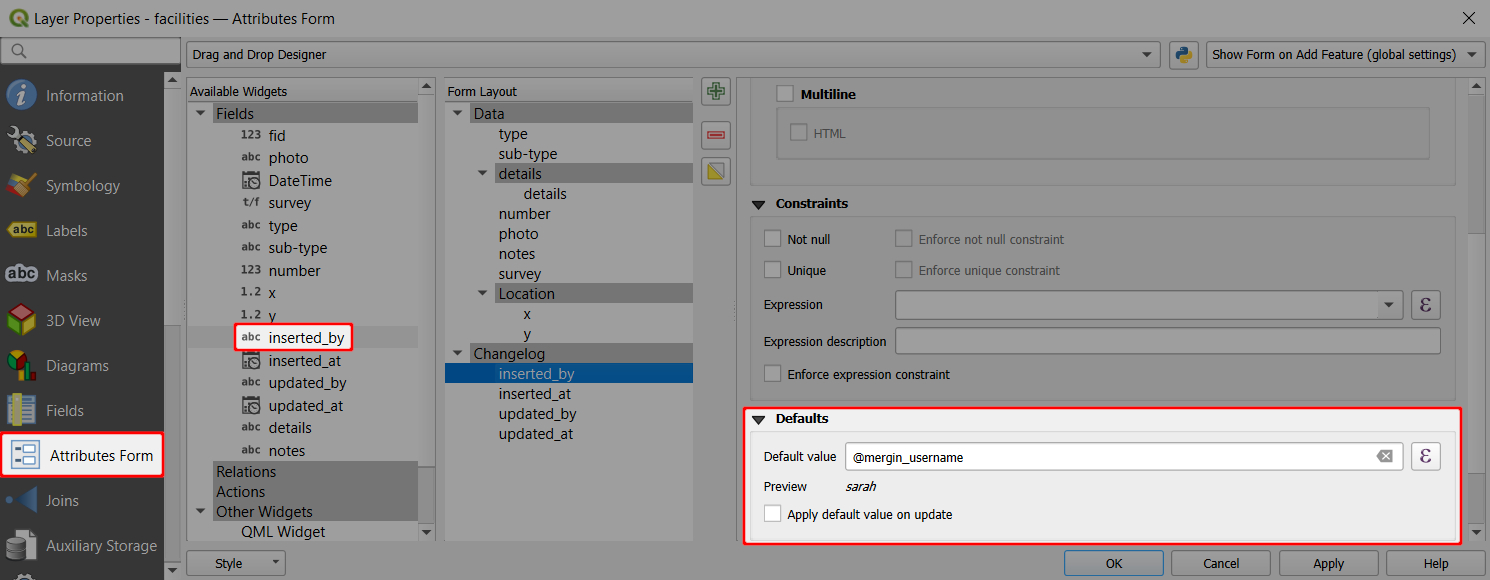
Let's set up an attributes to record the Mergin Maps username of the surveyor who created a feature:
- Right-click on a layer, select Properties and go to the Attributes form tab.
- In the list of Available Widgets select the text field you want to use (here:
inserted_by) - In the Defaults tab, define the Default value as
@mm_username. Do not check the Apply default value on update option ⬜.
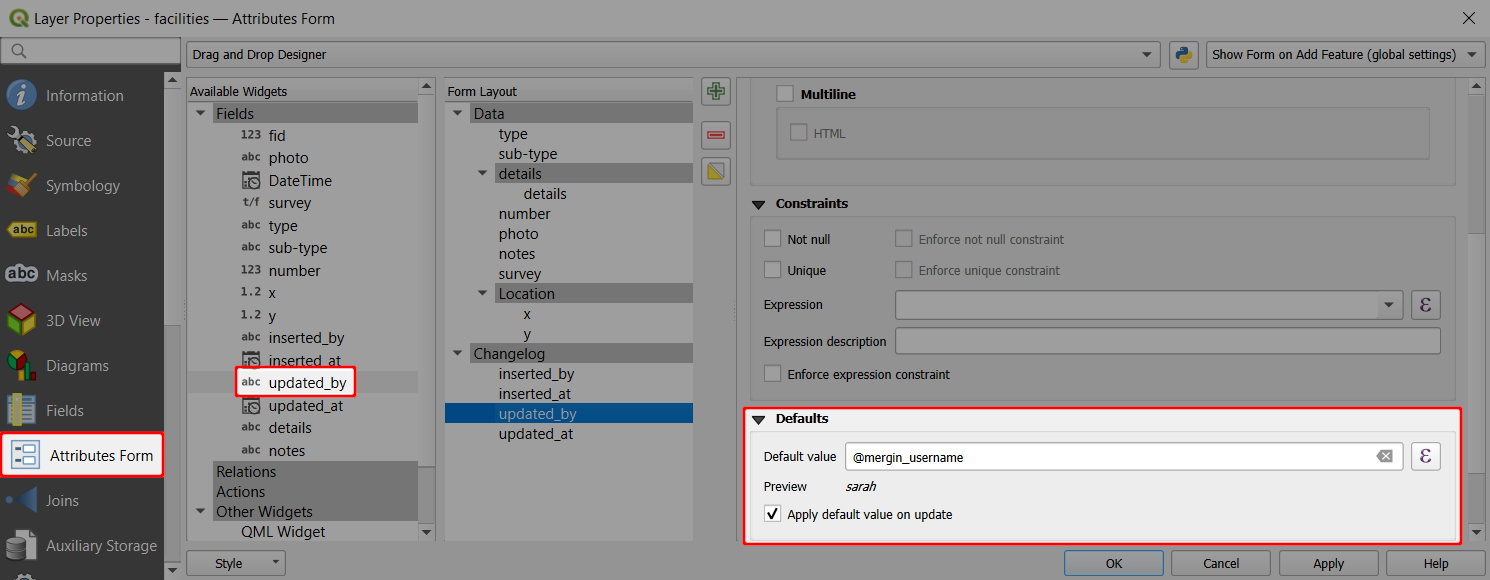
To save the Mergin Maps username of the surveyor who modified this feature, the steps are similar:
- In the list of Available Widgets select the text field you want to use (here:
updated_by) - In the Defaults tab, define the Default value as
@mm_username. Check the Apply default value on update option ✔️. The field will be updated anytime the feature is modified, saving the name of the surveyor who made the changes.
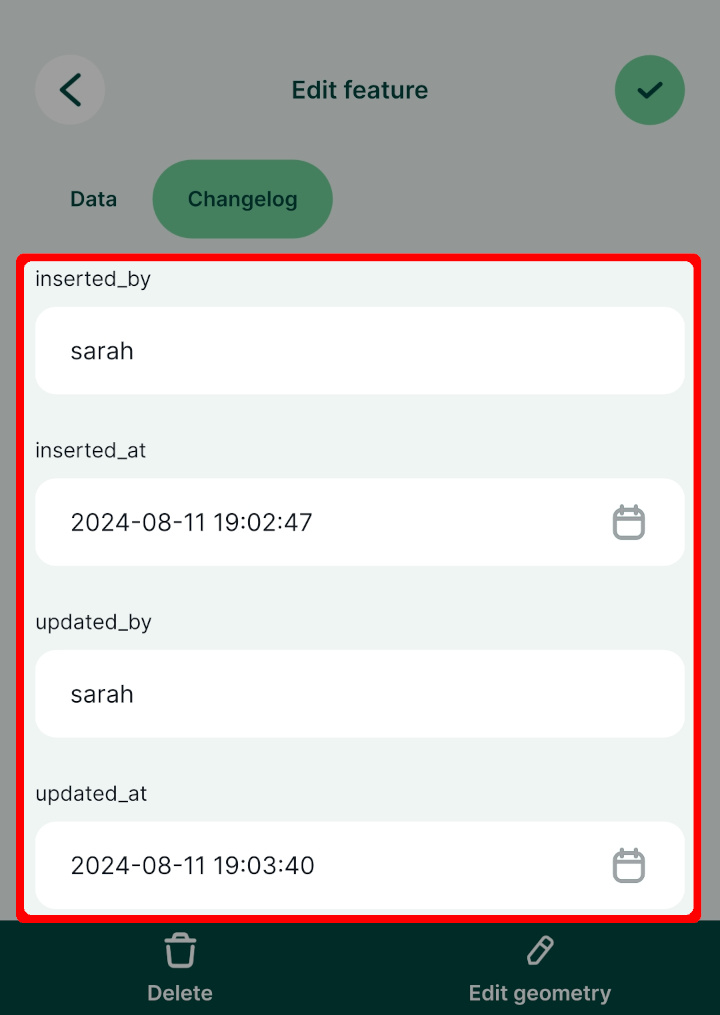
Follow the same steps for attributes to store the timestamps of when the feature was created and updated (here: inserted_at, updated_at), using the now() expression as Default value.
When the form is opened in the mobile app, the default values are automatically filled in:
Automatically transform and record coordinates of a point
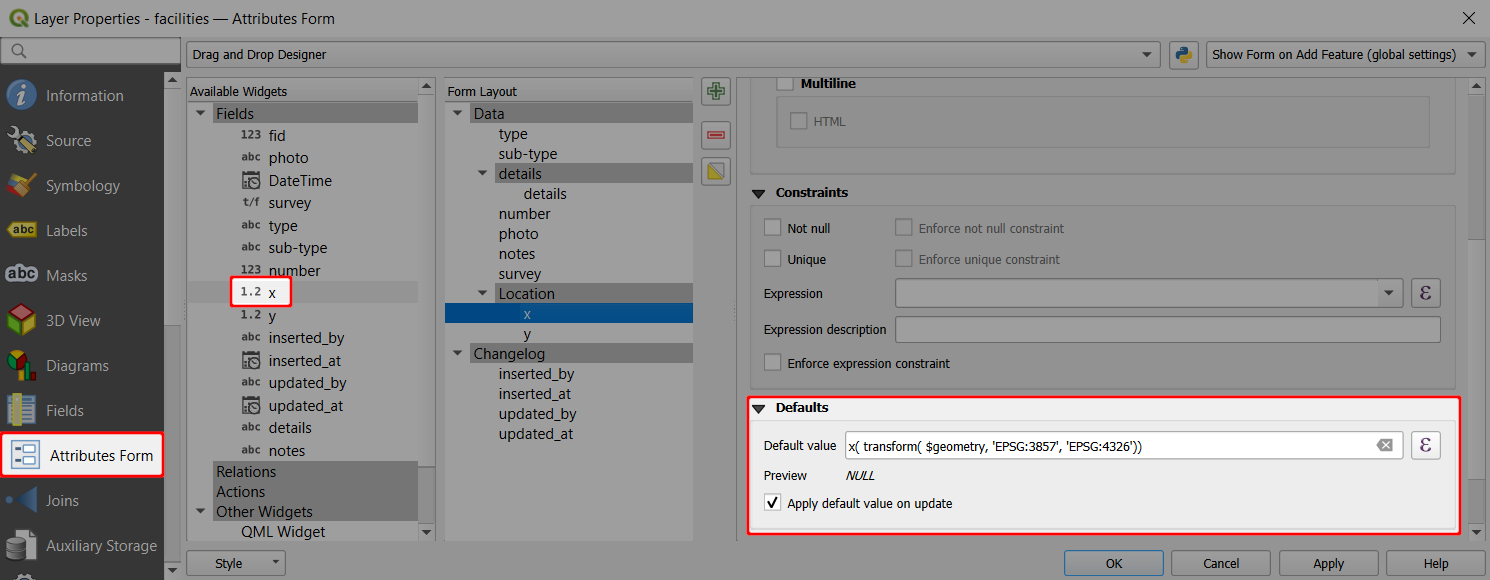
Here we are going to set the default values for x and y field to be longitude and latitude.
- Right-click on the survey layer and select Properties
- In the Attributes form tab, select the
xfield in the Available Widgets column on the left - In the Widget Display, set the Alias to Longitude
- In Defaults tab, define the Default value as:Note that the expression transforms the point from EPSG:3857 (map and layer coordinate reference system) to EPSG:4326.
x( transform( $geometry, 'EPSG:3857', 'EPSG:4326')) - Check the Apply default value on update option ✔️.
Repeat the same steps for y field and setting the Alias to Latitude and the default value to
y( transform( $geometry, 'EPSG:3857', 'EPSG:4326'))Don't forget to save and synchronise your project!
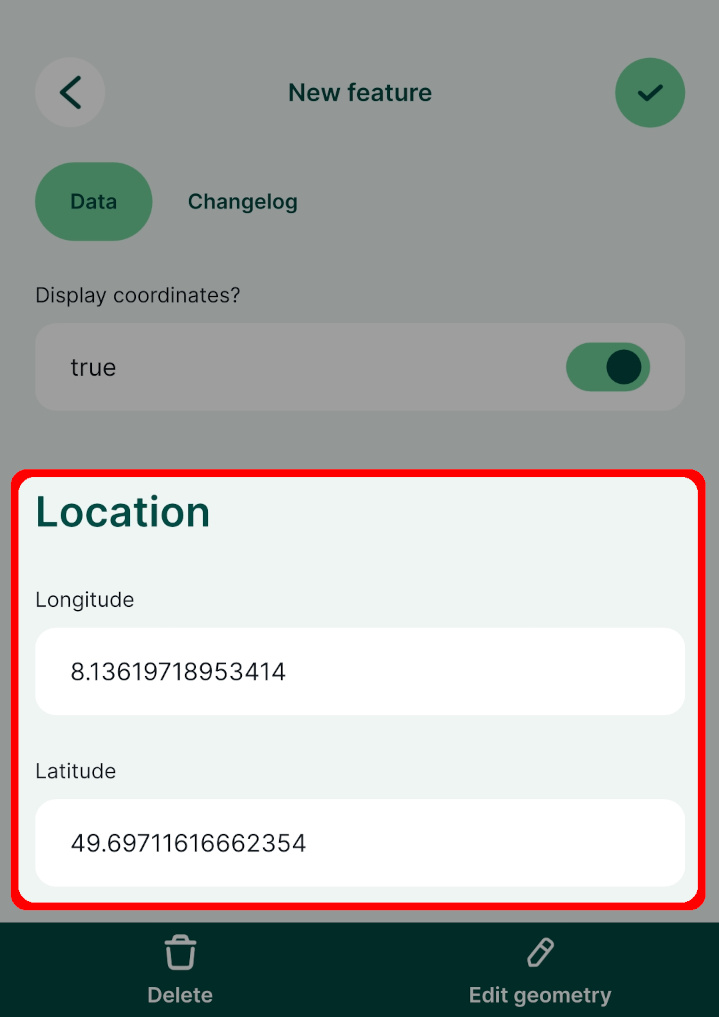
When adding or editing features in the mobile app, the coordinates are automatically filled in: