Appearance
Informational Widgets
 QGIS also offers widgets that can be added to the form to display values or text, but are not connected to a specific field of the layer, such as the Text or HTML widget. These widgets are also supported by Mergin Maps.
 HTML and Text widgets can be used, e.g., to display instructions in the form. They can include expressions and field values as well. The HTML widget supports various HTML tags, so it can also be used, for instance, to display online images, phone call link or open local files.
Widget | Preview in the mobile app |
|---|---|
| Text |  |
| HTML Widget | 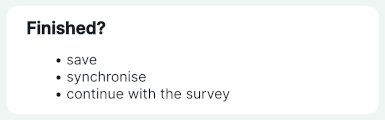 |
These widgets can be found in Available Widgets in the Other Widgets section when using the Drag and Drop Designer. Simply add them to the form layout and double click to configure them as needed.
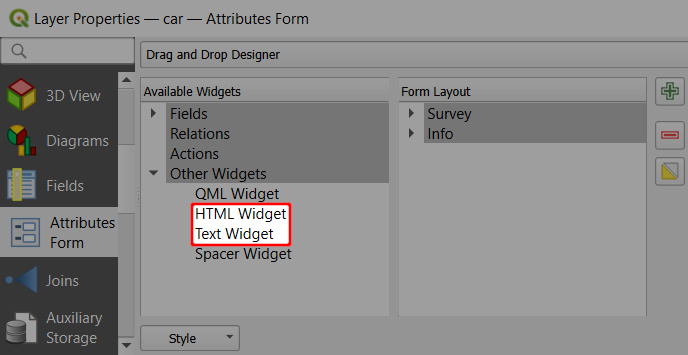
Text widget
To configure the Text widget, enter the text you want to display in the form. On the right, you will see the preview. 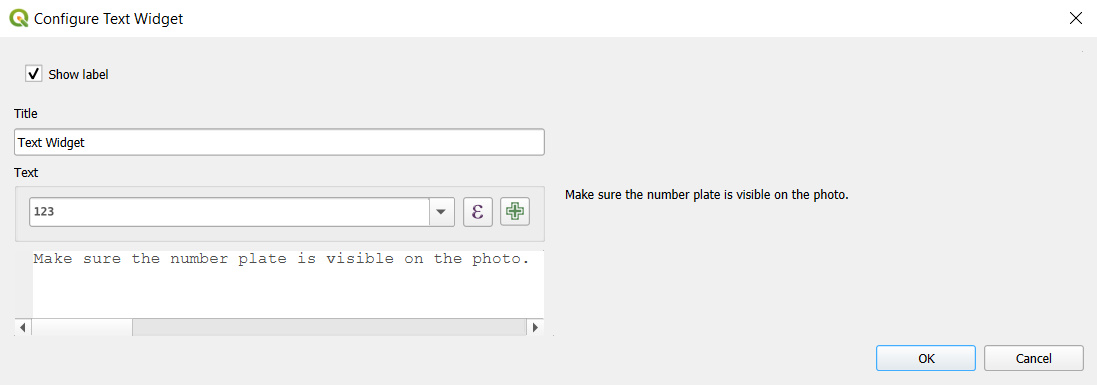
...and this is how the Text widget looks like in the form in QGIS (left) and in the mobile app (right): 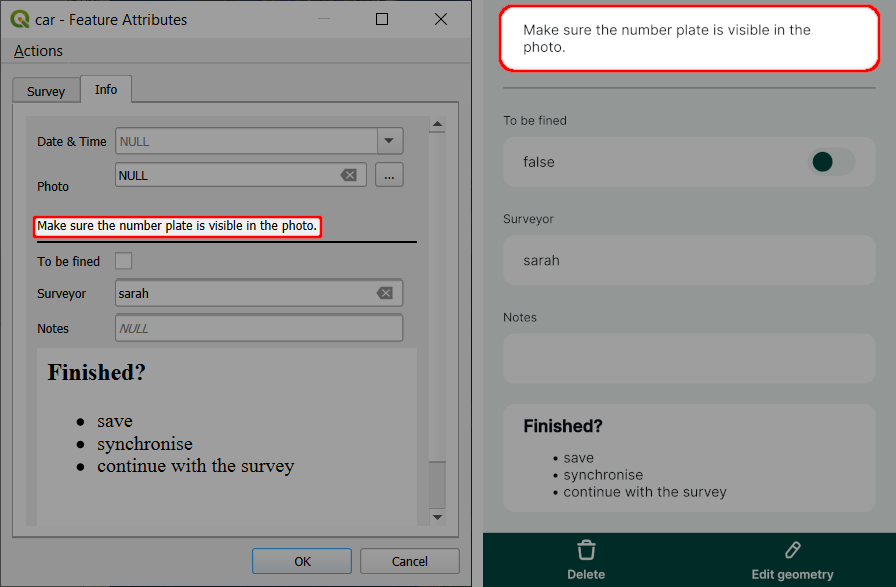
HTML Widget
The HTML widget offers the option to format the text as needed. HTML widget supports these HTML tags.
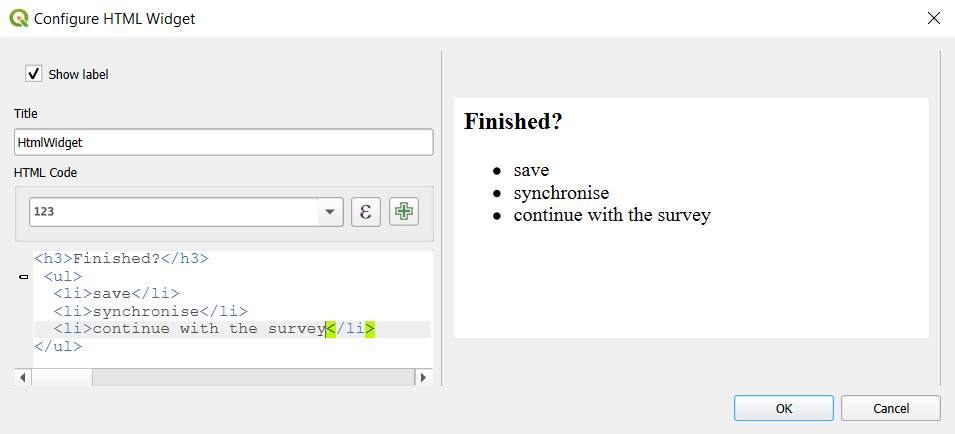
...and this is how the HTML widget looks like in the form in QGIS (left) and in the mobile app (right): 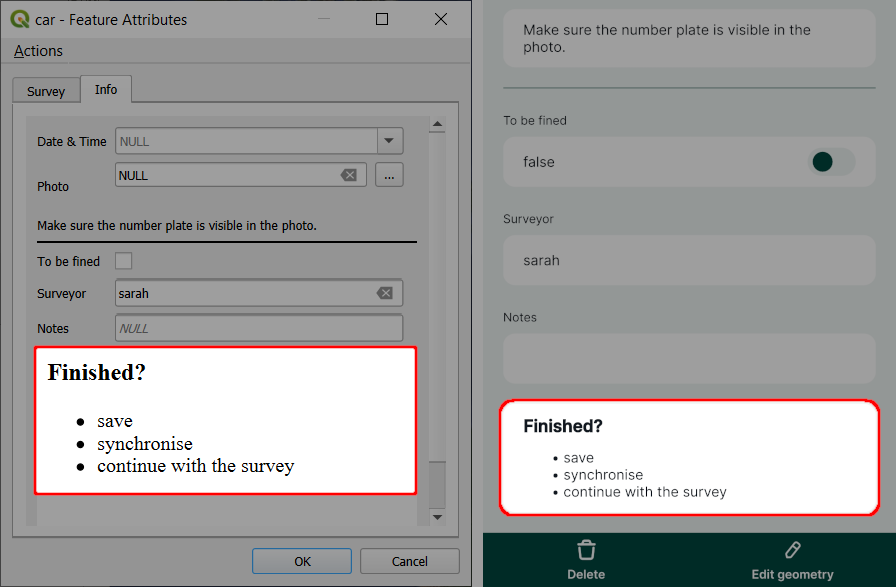
Using expressions in Text and HTML widgets
Expressions and variables can be used in the Text and the HTML widget.
Example project available
Clone  documentation/form_cascade to follow this example.
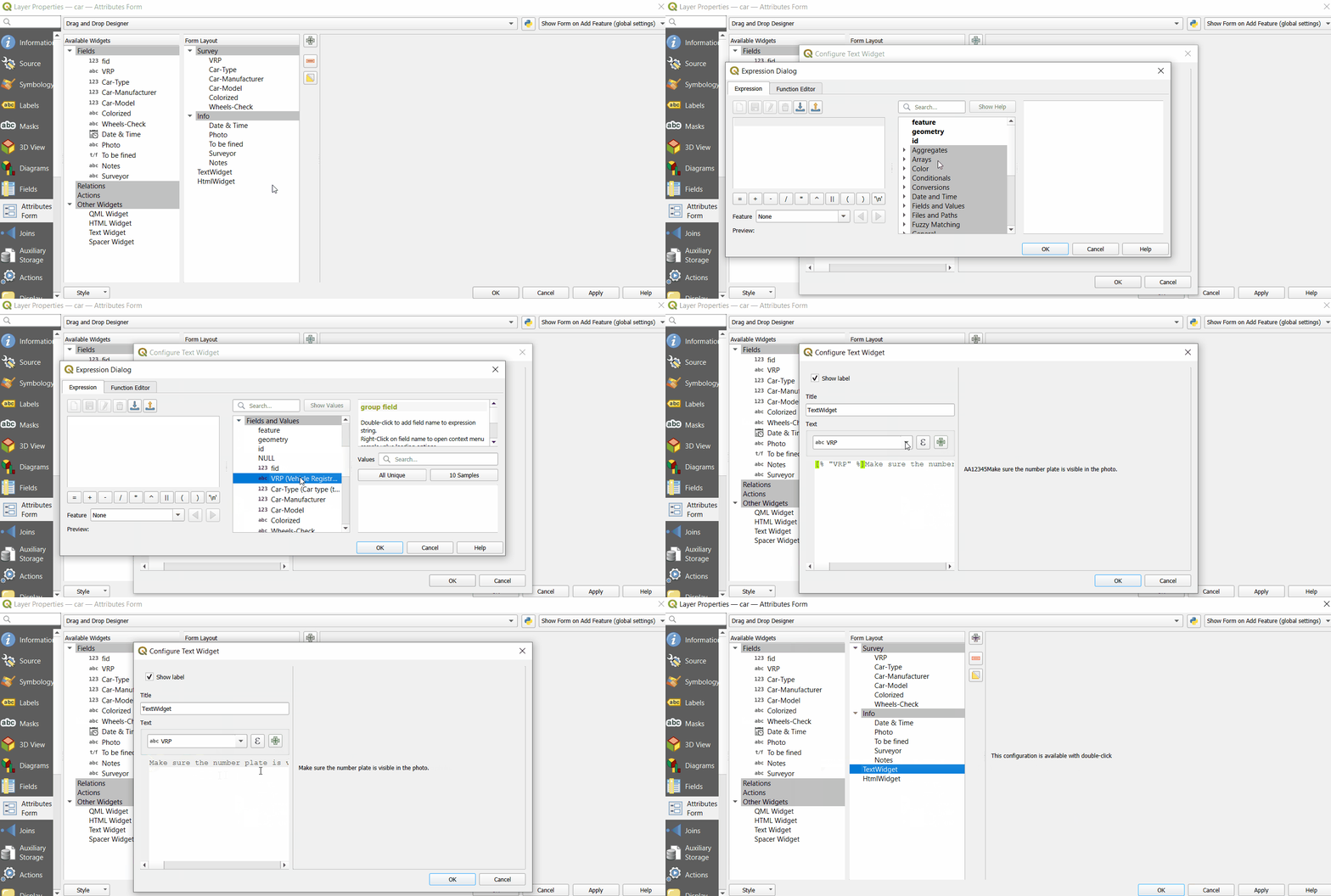
When configuring the Text or HTML widget, click on the Expression Builder button
Enter the expression that will be used in your text and click OK.
Field values can be selected from the Fields and Values list. There are other variables and expressions that can be used.
Click on the + button to add the expression to the text.
Here, we configured the widget with this text:
Make sure the number plate [% "VRP" %] is visible in the photo.In this case,
VRPis the name of a field aliased asVehicle Registration Platein the form.Save and synchronise your project.
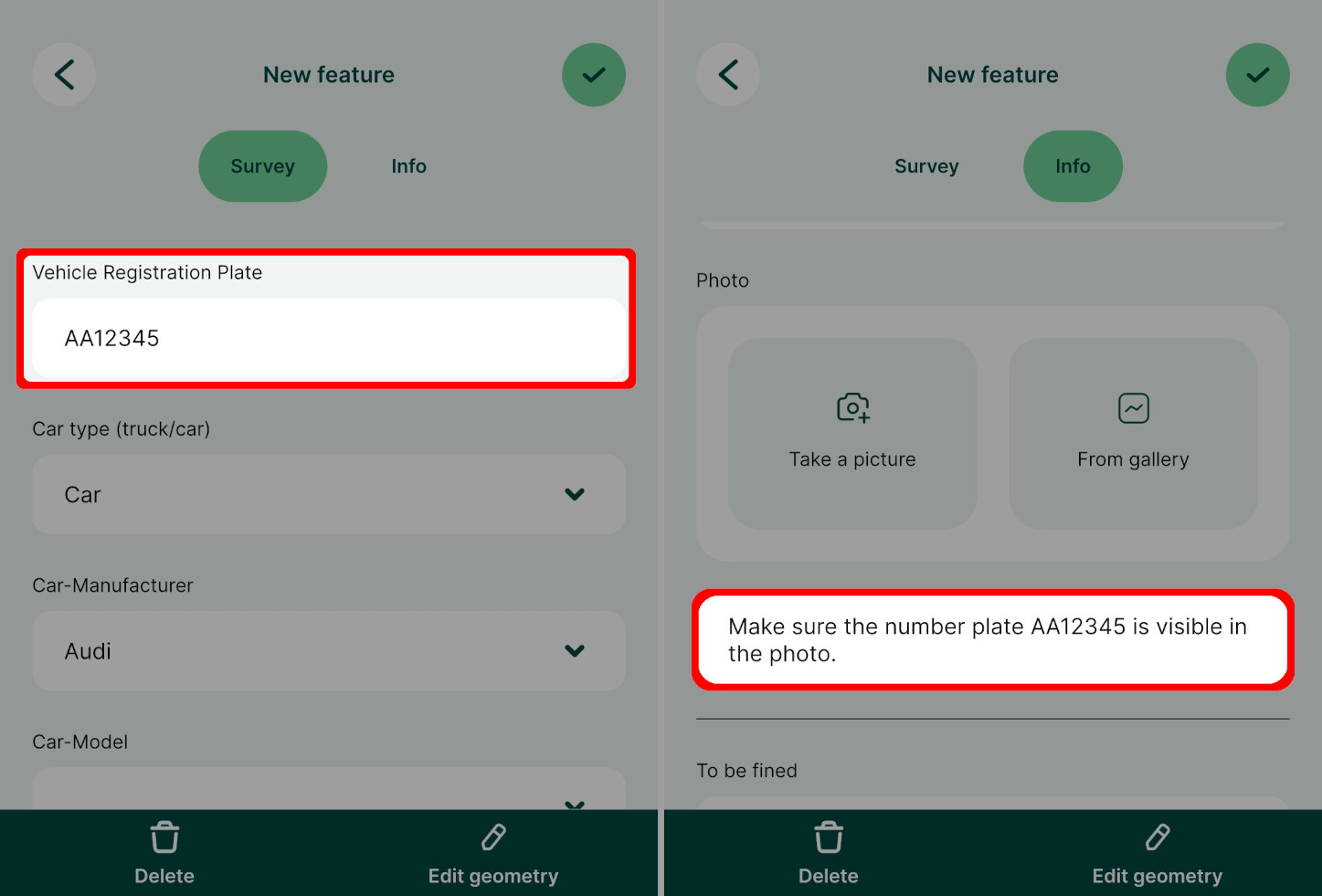
... and this is how it works during the field survey. [% "VRP" %] expression displays the current value of the Vehicle Registration Plate field.