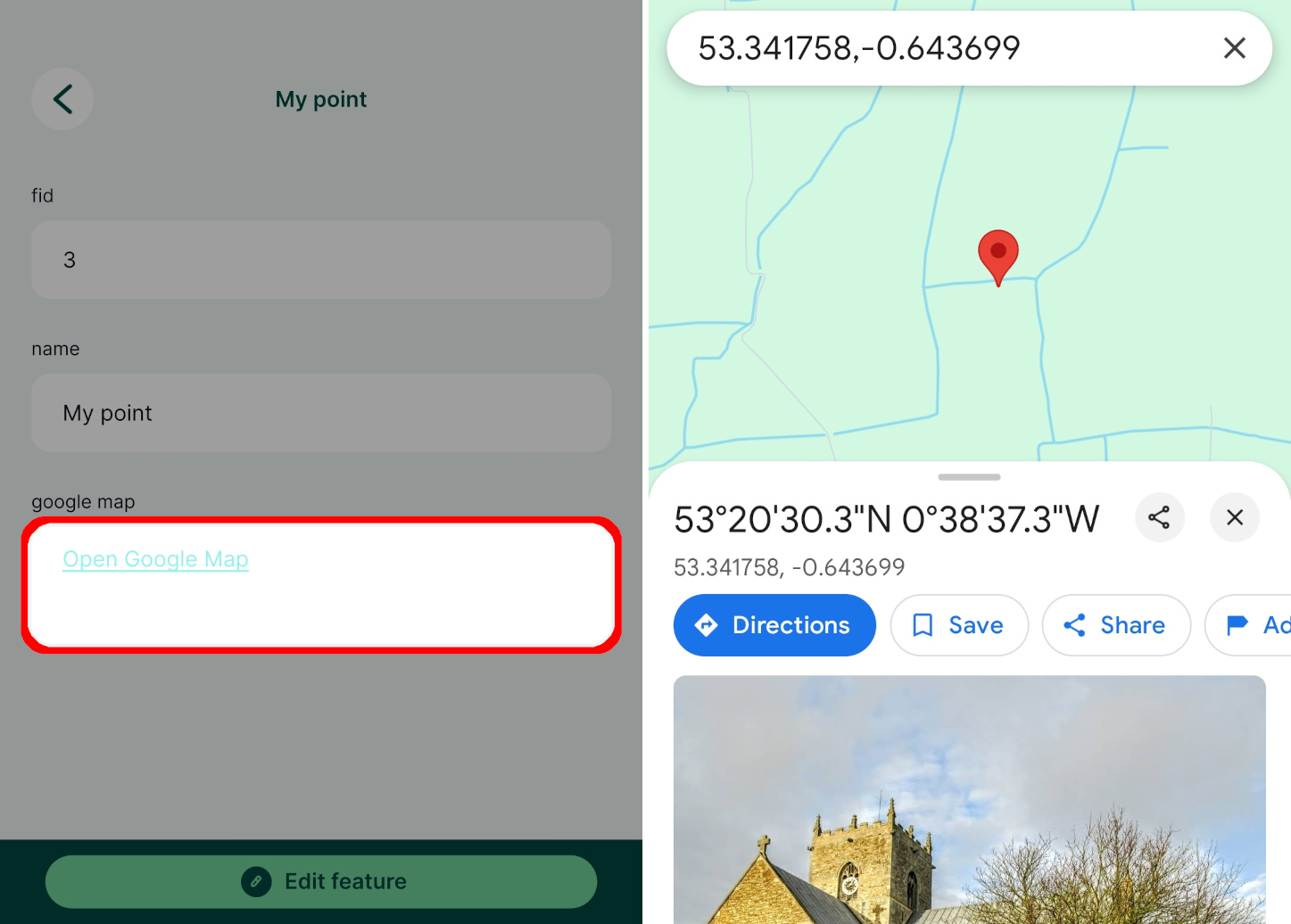
Appearance
How to Open a Link to a Navigation App
Attributes forms can include clickable links that can be used to open a navigation app directly from the form in Mergin Maps mobile app.
Example project available
Clone  documentation/forms-navigation-link to follow this example!
Let's say you want to find your surveyed features on Google Maps. It is possible to do so directly from Mergin Maps mobile app, you just need to set up a text field that will open Google Maps and enter the coordinates of the feature to the Google Maps search bar.
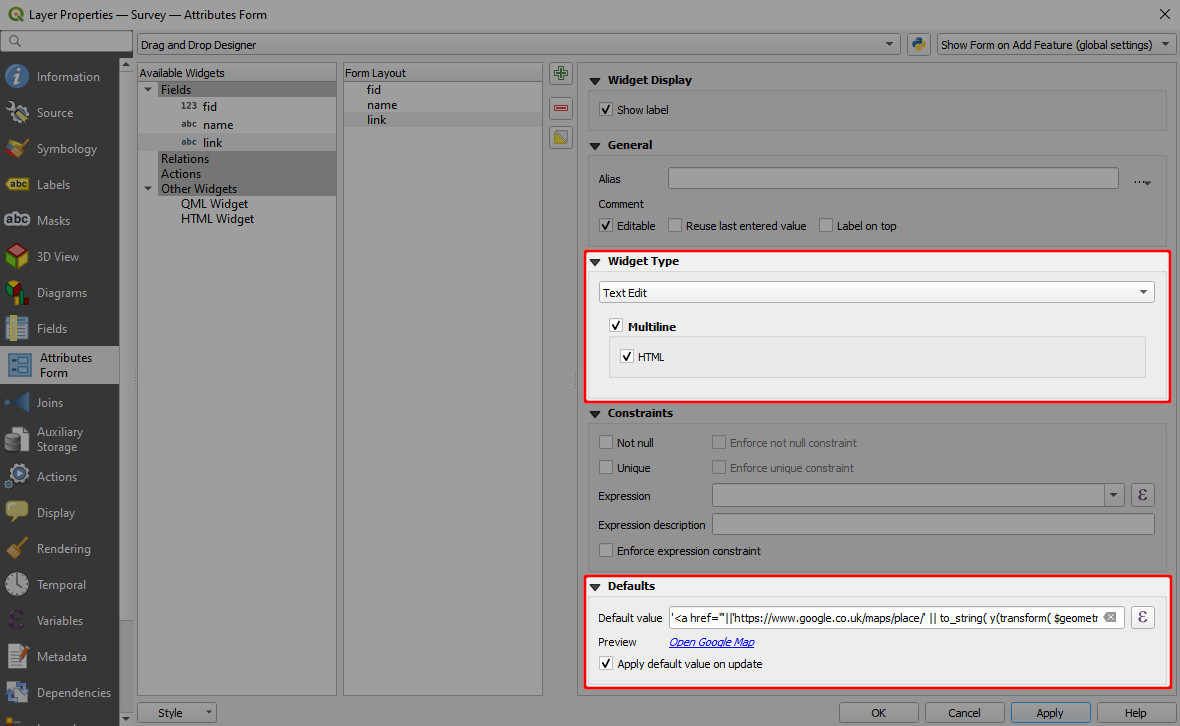
- Right-click on a layer, select Properties and go to the Attributes form tab.
- In the list of Available Widgets select the field you want to work with.
- In the Widget Display tab:
- Ensure that Text Edit is selected
- Check the Multiline and HTML options
- In the Defaults tab, use this string as Default value:
'<a href="'||'https://www.google.co.uk/maps/place/' || to_string( y(transform( $geometry, 'EPSG:3857', 'EPSG:4326'))) || ',' || to_string( x( transform( $geometry, 'EPSG:3857', 'EPSG:4326'))) || '">Open Google Map</a>' - Check the Apply default value on update option
- Apply the changes. Don't forget to save and sync your project!
When you tap a feature in the mobile app, the form will display a clickable link Open Google Map that opens the Google Map app at the position of the feature.