Appearance
Numbers
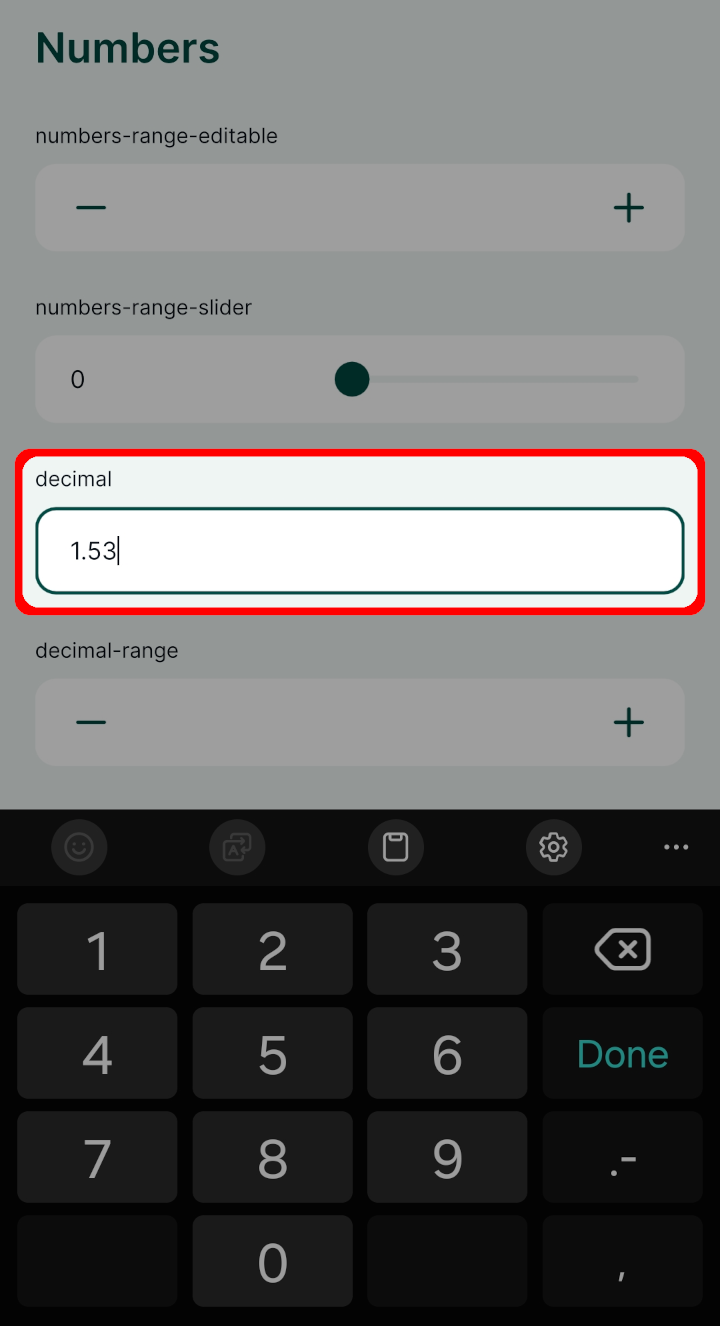
Number fields, both integers and decimal numbers, can be handled by the Range widget that offers two options supported by the mobile app: editable range and slider.
For decimal numbers, it can sometimes be useful to use the Text edit widget.
Widget | Preview in the mobile app |
|---|---|
| Editable range | 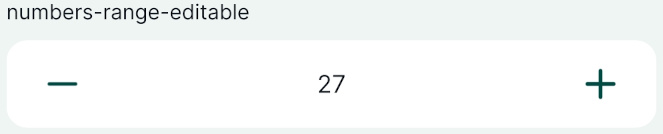 |
| Slider | 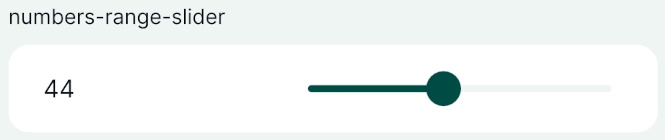 |
| Decimal numbers - Text edit | 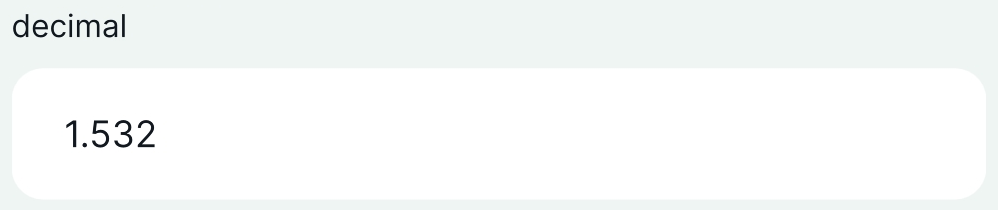 |
Example project available
This public project:  documentation/form-widgets uses various options for entering numbers. Download or clone it to see this setup.
Prefer a video? Here is a short tutorial about number widgets:
Range
To set up the Editable Range widget:
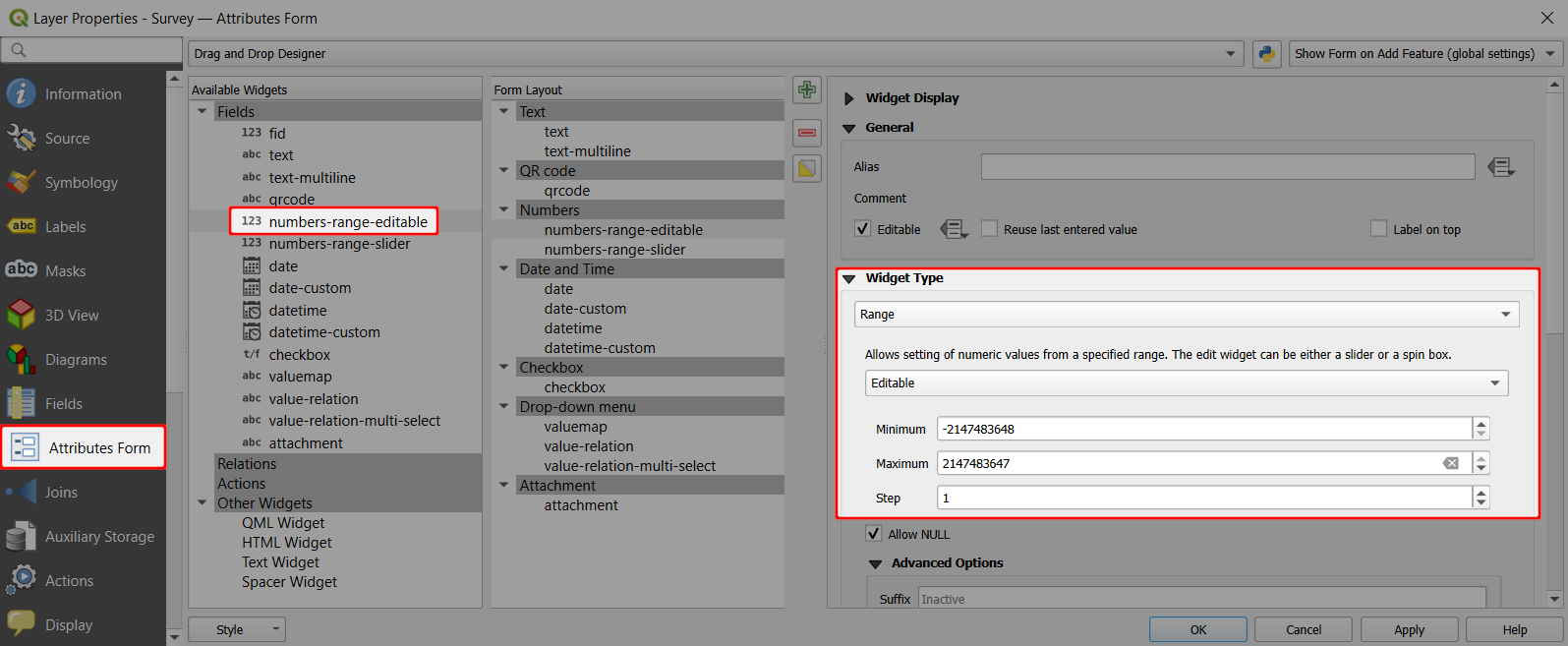
Right-click on a layer, select Properties and go to the Attributes form tab.
In the list of Available Widgets, select the integer field you want to work with (here:
numbers-range-editable).In the Widget Type tab, select the Range widget with the Editable option.
If needed, you can define the Minimum, Maximum, and Step values.
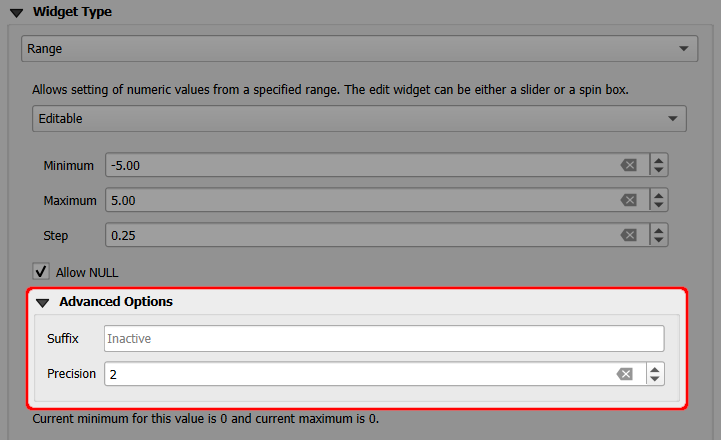
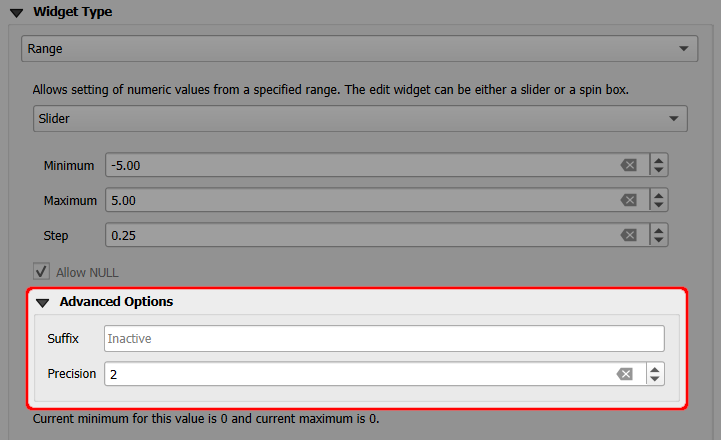
For decimal numbers, the Precision (the number of decimal digits) needs to be specified in the Advanced Options of the widget, so that the Minimum, Maximum, and Step values can be set as decimal numbers.
Apply the changes. Don't forget to save and sync your project!
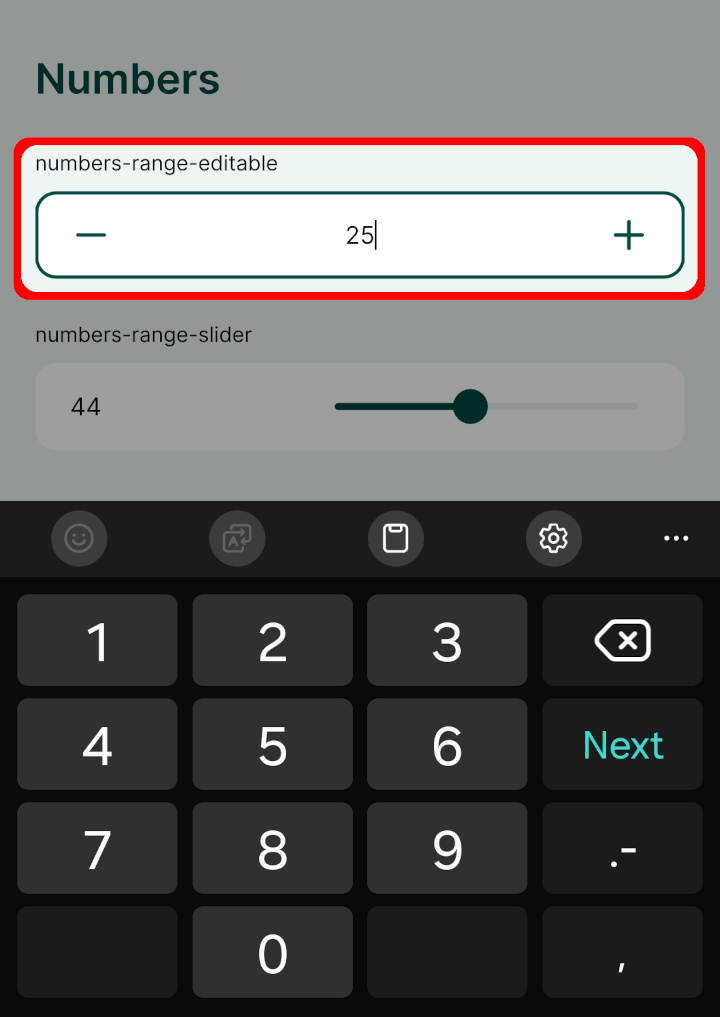
In the mobile app, the numbers can be entered manually or by using the +/- buttons:
Slider
To set up the Slider:
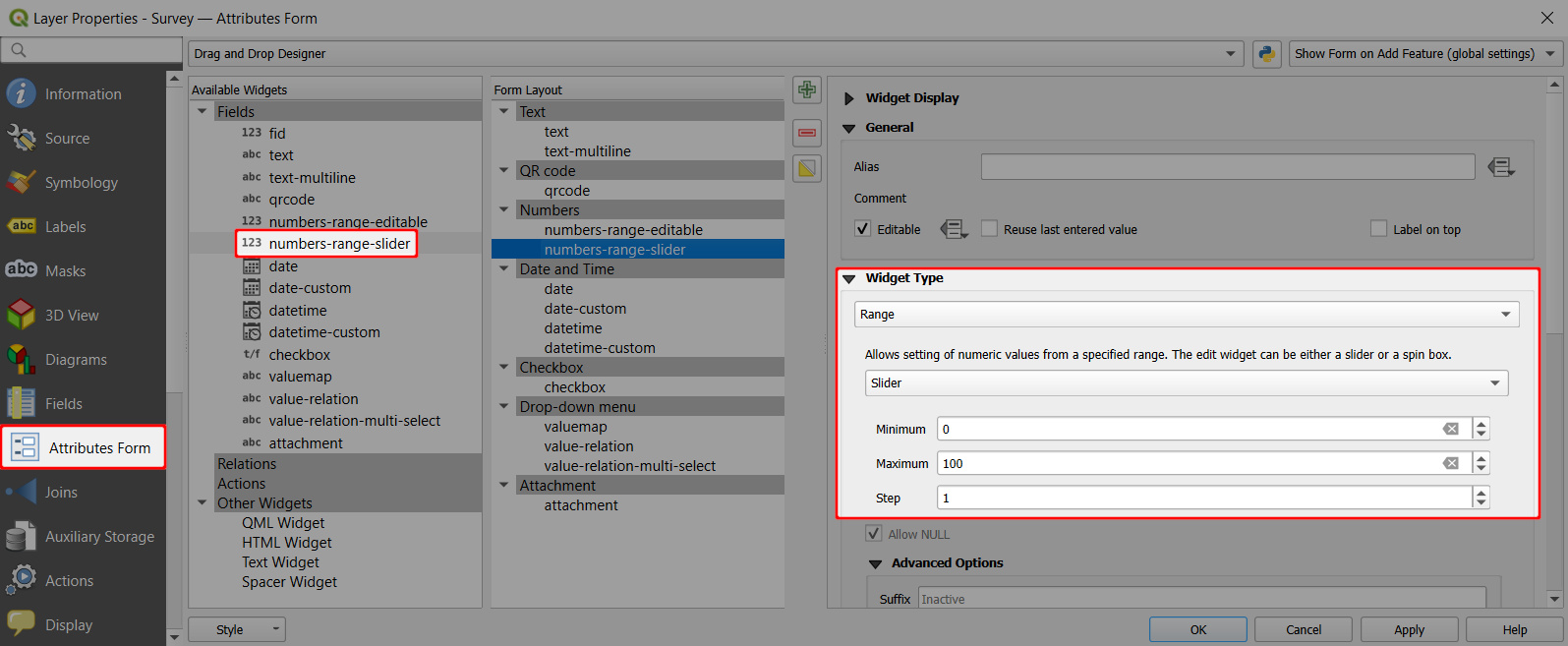
Right-click on a layer, select Properties and go to the Attributes form tab.
In the list of Available Widgets, select the numeric field you want to work with (here:
numbers-range-slider).In the Widget Type tab, select the Range widget with the Slider option.
Set the Minimum, Maximum, and Step values of the slider.
Recommended slider setup
Using a slider is most effective when users can easily choose a value. If the range between the minimum and maximum values is too large (and/or the step is is too small), it may be difficult to select a specific value on the slider, leading to issues with the mobile app.
Therefore we recommend always defining appropriate minimum, maximum, and step values for the slider.
For decimal numbers, the Precision (the number of decimal digits) needs to be specified in the Advanced Options of the widget, so that the Minimum, Maximum, and Step values can be set as decimal numbers.
Apply the changes. Don't forget to save and sync your project!
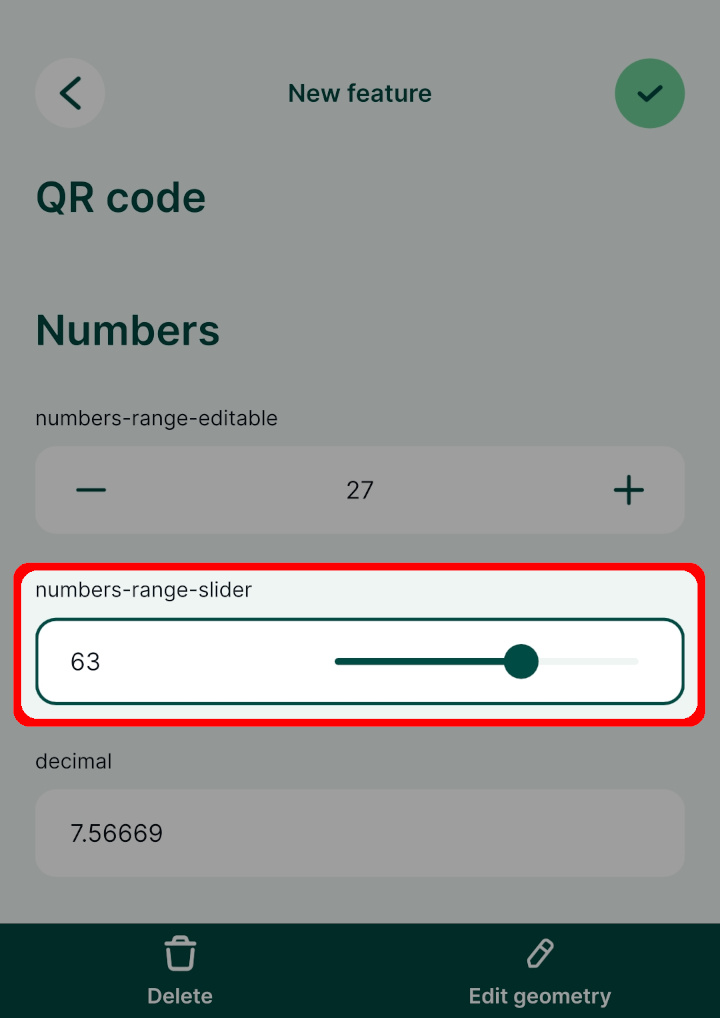
In the mobile app, the Slider looks like this. The number can be filled in by moving the slider:
Text edit
The Text edit widget can be used for a simple entry of a decimal number.
Right-click on a layer, select Properties and go to the Attributes form tab.
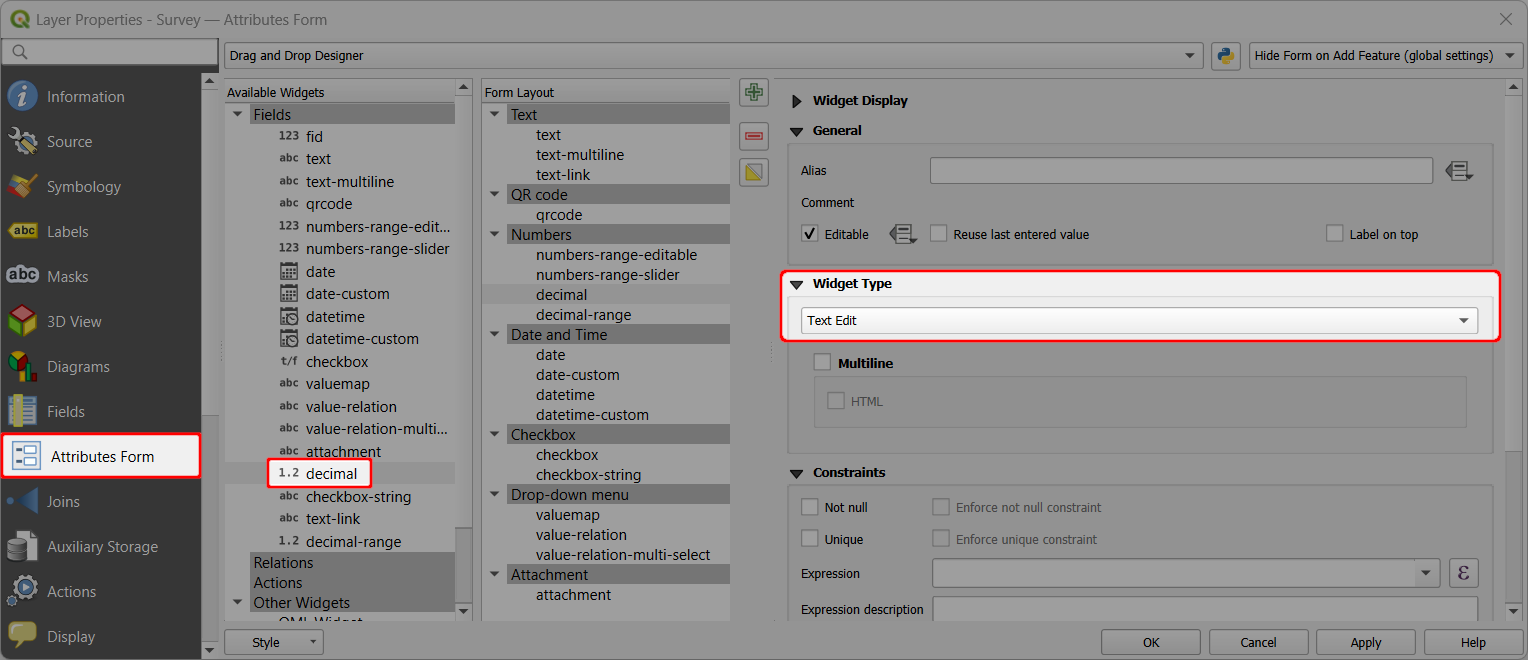
In the list of Available Widgets, select the numeric field you want to work with (here:
decimal).In the Widget Type tab, select the Text edit widget.
Apply the changes. Don't forget to save and sync your project!
In the mobile app, the Text widget for a decimal number looks like this. The number can be filled in manually using the keyboard: