Appearance
How to Open a File
A local file, e.g. a PDF stored in the project folder, can be opened from within the form using the HTML widget. There is an alternative setting that uses default values that may be useful for specific scenarios.
Public project available
Download or clone our public project  documentation/forms-display-images-and-files to explore both options and see what works the best for you.
Using HTML widget to open local files
The HTML widget can be used to open local files: for instance, a locally stored PDF file can be opened from within the form during the survey.
Example project available
This setup is used in our public project documentation/forms-display-images-and-files.
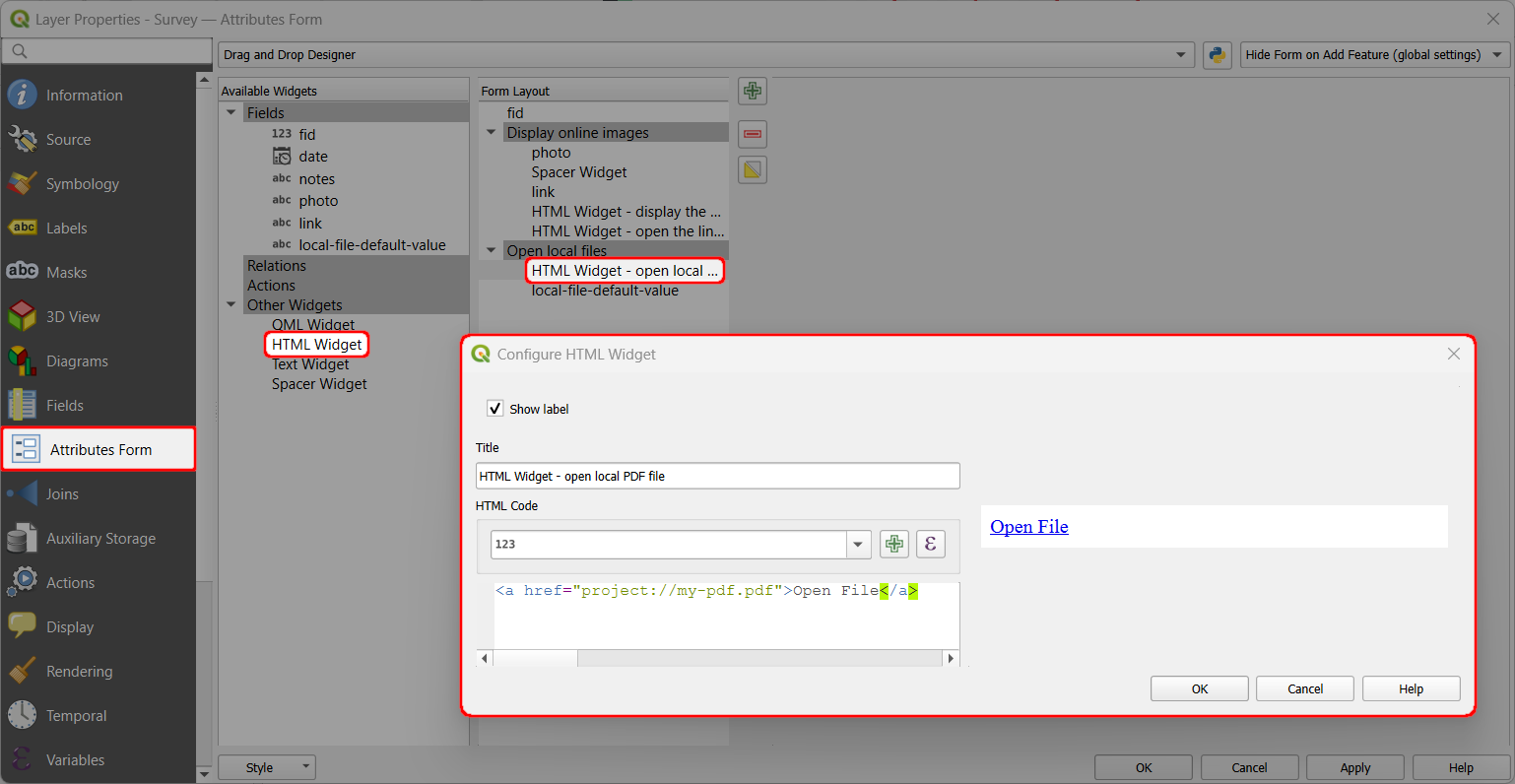
- A PDF file named
my-pdf.pdfis stored in the main project folder as it needs to be packaged with the project. - The HTML Widget is added to the Attributes Form and configured as follows:
<a href="project://my-pdf.pdf">Open File</a>
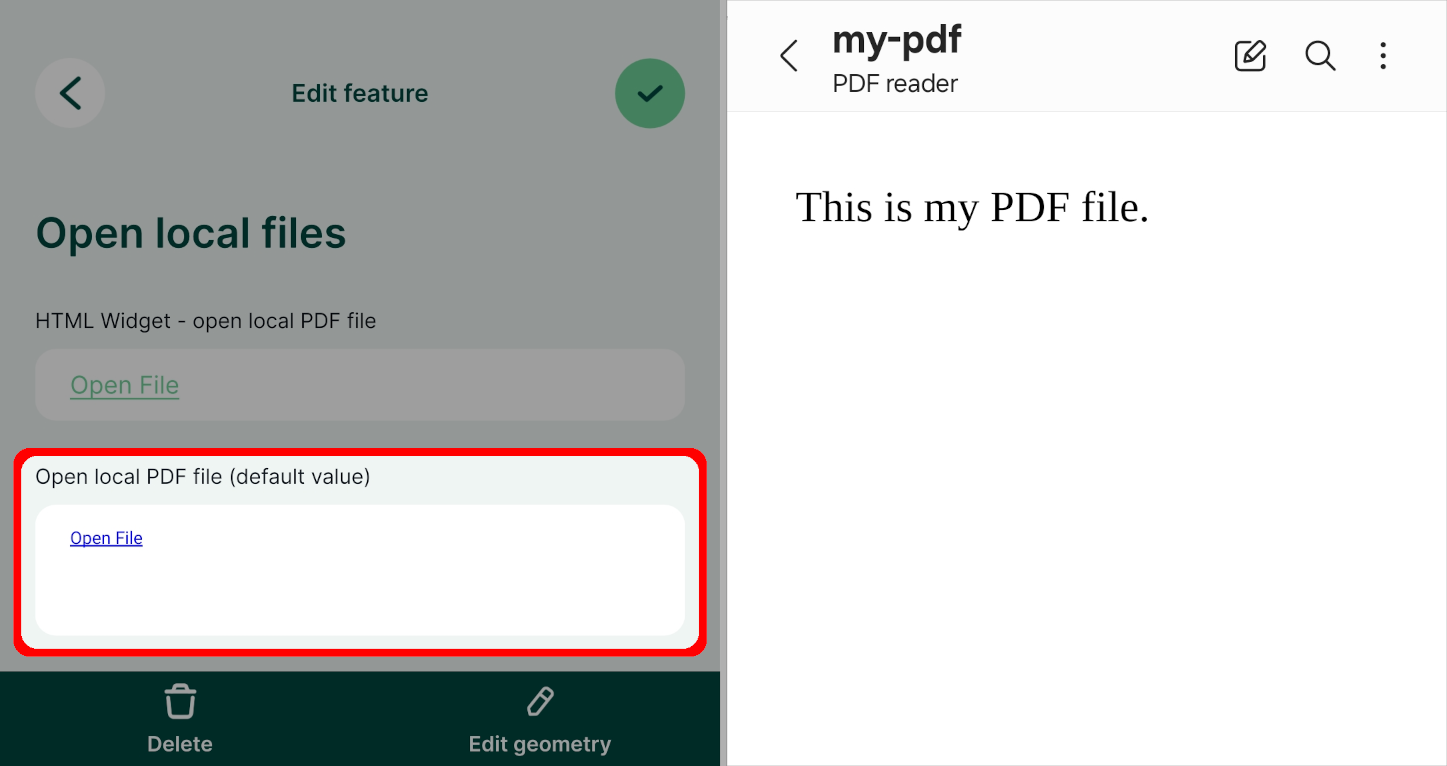
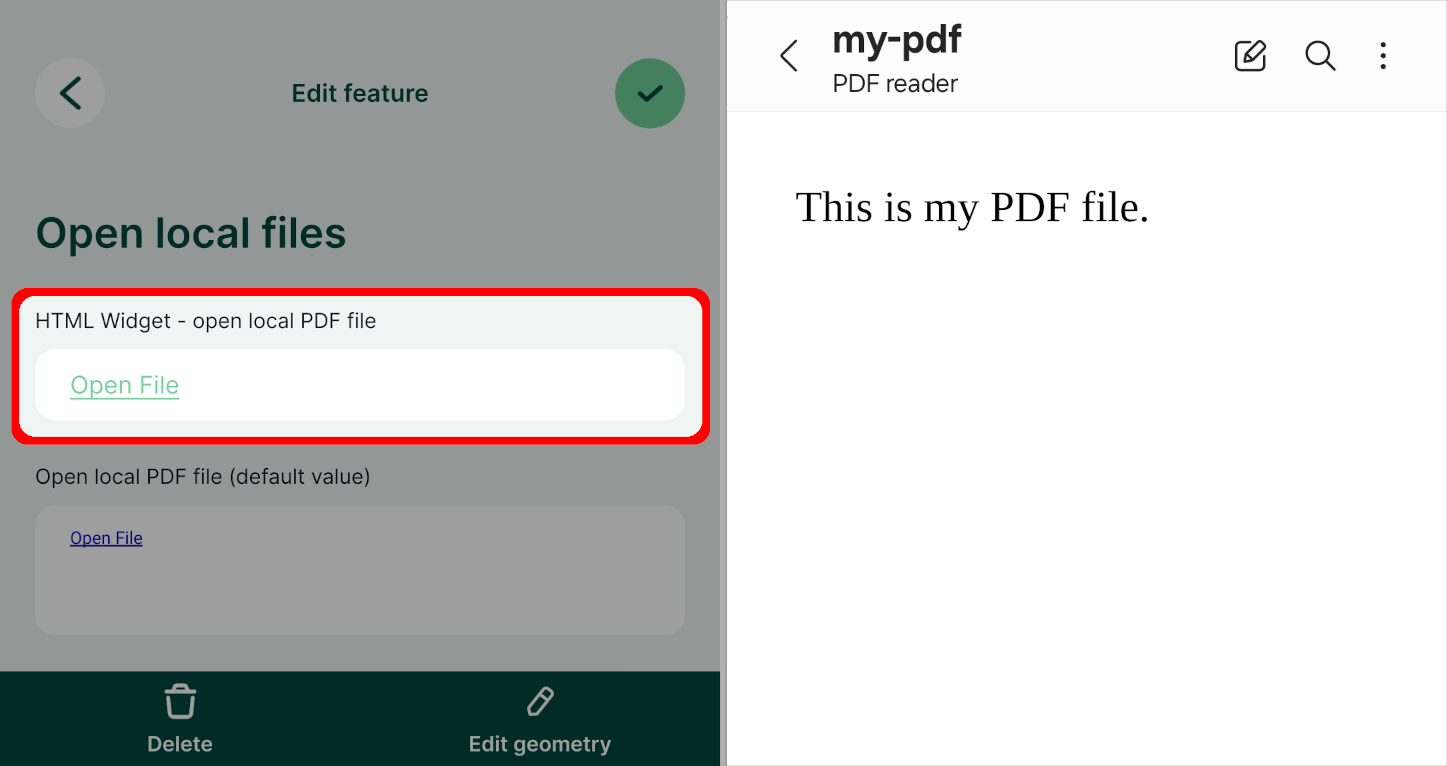
In the mobile app, you can tap the Open File link to open the PDF file using the default application of your device.
Open local files using default values Advanced
Local files (e.g. a PDF file) can also be opened from within the form using default values. This file needs to be packaged with the project, so it should be stored somewhere in the project folder.
Example project available
This setup is used in our public project documentation/forms-display-images-and-files.
- A PDF file named
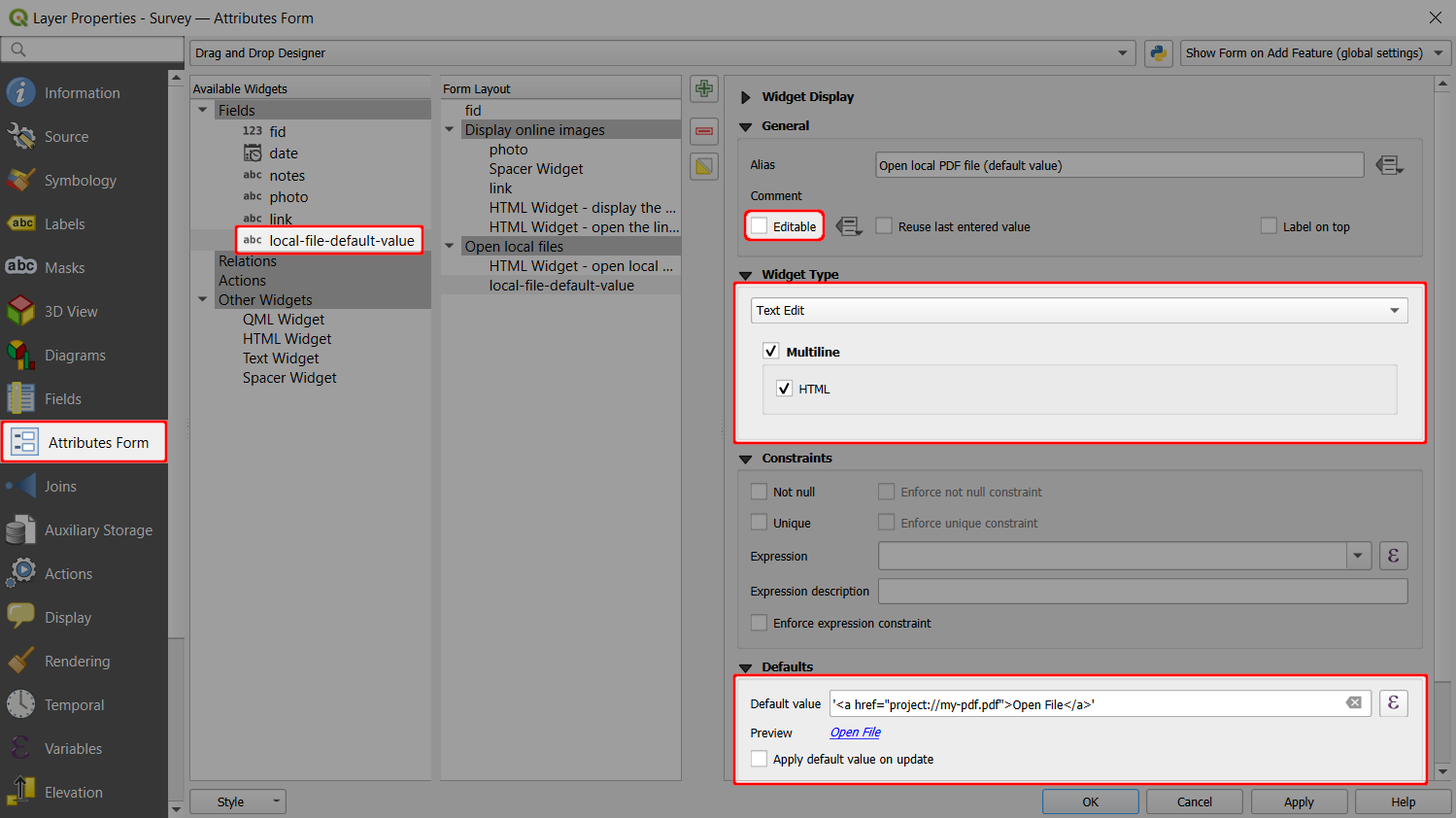
my-pdf.pdfis stored in the main project folder. - The survey layer has a field named
local-file-default-valuewith Text (string) data type.- This field is set to not editable (the form will refer to the same file for all features and does not need to be changed).
- This field uses the Text Edit widget with the Multiline and HTML options enabled.
- The default value is set to:
'<a href="project://my-pdf.pdf">Open File</a>'
In the mobile app, you can tap the Open File link to open the PDF file using the default application of your device.