
Appearance
Relations
There are cases when multiple records from one layer (or table) relate to one feature from another layer, forming one to many (1-N) relation. For instance, there may be multiple photos of one feature, multiple inspections of the same feature or multiple parts, or one feature consisting of multiple polygons with different properties. As these use cases vary, there are different options for how to set up forms for relations.
 See QGIS Documentation to learn more about connecting and editing data across layers.
 Widget | Preview in the mobile app |
|---|---|
| View from parent (relation) | 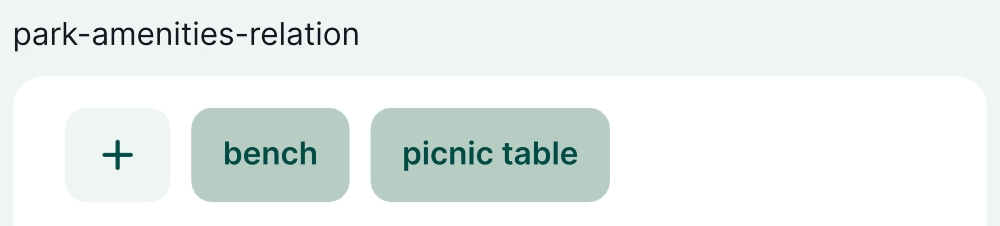 |
| View from child (relation reference) | 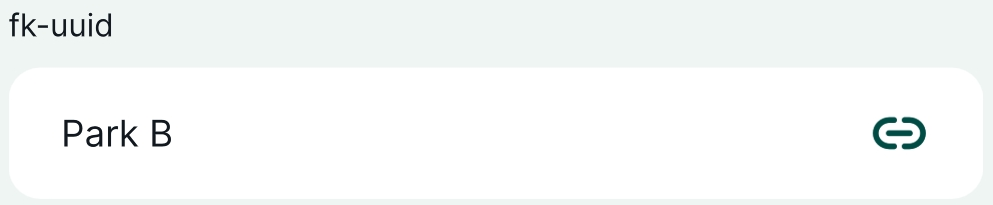 |
Example projects and guides available
You can take a closer look at 1-N relations:
- Public project
 documentation/forms-relations contains the setup described on this page as well as sample data
 - How to Link Multiple Records to One Feature explains how to add multiple records to a single feature. See also our public project: documentation/forms_one-to-many-relations
- How to Attach Multiple Photos to Features shows how to add multiple photos to a single feature. See also our public project: documentation/forms_multiple_photos
There are two ways to add features with relations in the mobile app: using the relation widget on the parent layer or using the relation reference widget on the child layer:

As an example, we will use a project documentation/forms-relations with two spatial layers: parks and amenities. One park can have multiple amenities, such as benches, picnic tables, fireplaces or water fountains. Every amenity feature can be located in one park only. Thus, the relation between these layers is one to many (1-N): one park to many amenities.
This means that parks are the referenced (parent) layer and amenities are the referencing (child) layer. They will be related based on the primary keys of parks and corresponding foreign keys of the amenities layer, linking amenities to a specific park.
Primary keys are unique IDs. While all layers have a default ID field when created (fid, id), these IDs can be changed during synchronisation in Mergin Maps, e.g. when multiple surveyors capture new features at the same time (see Behind data synchronisation for detailed explanation). As a result, child features could end up being linked to a wrong parent feature.
Therefore, we strongly recommend creating a new field for primary keys and using UUIDs generated by the uuid() function when a feature is created as described below. UUID (Universally Unique Identifier) ensures that the primary keys are unique even after synchronisation and that the correct features are linked.
One to many relation setup overview
One to many (1-N) relation needs to be set up in your Mergin Maps project in QGIS as follows:
- Create unique UUID field for your referenced (parent) layer and a field for storing foreign keys in the referencing (child) layer
- Define the relation in Project Properties
- Configure Attributes forms of both layers as needed
Generating unique IDs (UUID)
UUID as unique primary keys
UUID (Universally Unique Identifier) is generated to be unique and will not be changed when synced. Therefore, we strongly recommend using UUID to link layers.To create a field for storing unique UUIDs:
Add a new field with
Text (string)data type, here:uuid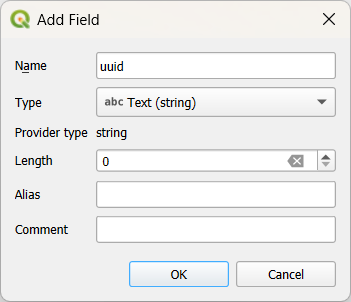
Use the
uuid()as the default value for this field in Layer Properties.This function assigns a unique identifier to every created feature, even when different surveyors create features simultaneously.
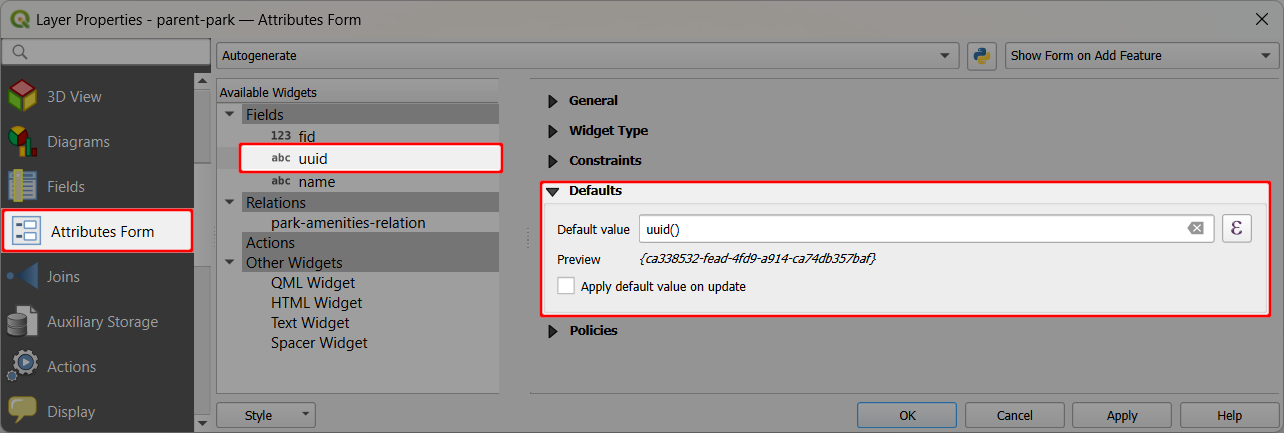
Do not use the apply default value on update option. The generated UUID should not be changed.
Field for foreign keys
To create a 1-N relation between two layers, the referencing (child) layer needs to have a field for storing foreign keys.
This field needs to have the same data type as the primary key: Text (string). Here we will use fk-uuid.
Setting up relation in QGIS
Now let's look at the 1-N relation setup in QGIS:
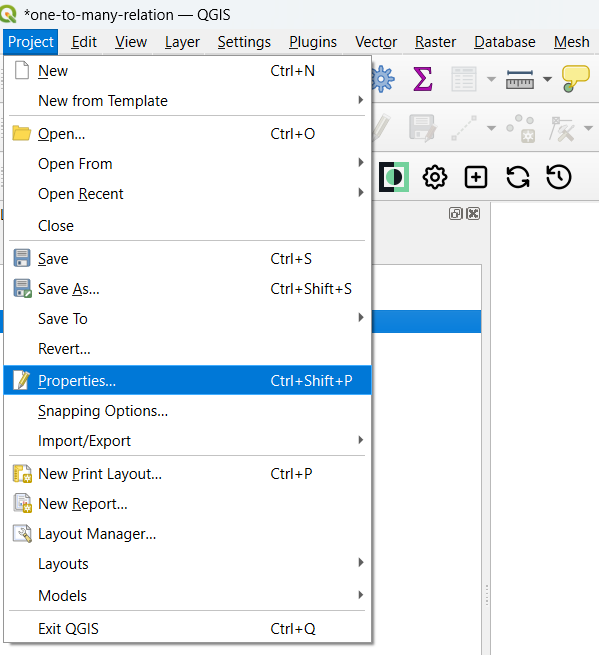
From the main menu, select Projects > Properties ...
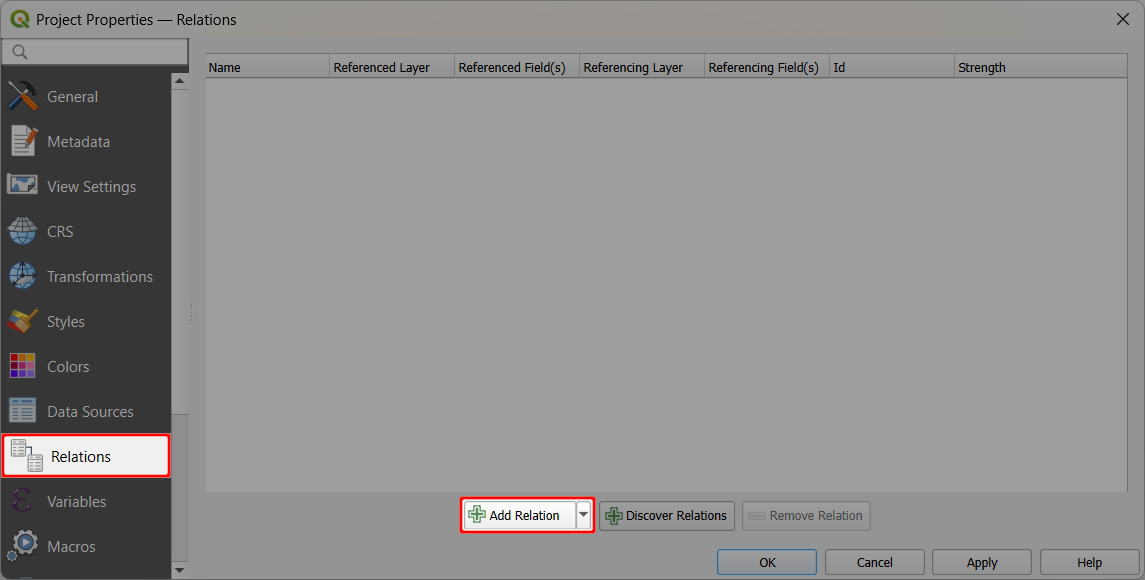
In the Relations tab, click on the Add Relation button
Specify the relation:
- Id is generated automatically
- Name is the name of the relation, here
park-amenities-relation - Referenced (parent) is the parks layer, here:
parent-park - Field 1 of the Referenced (parent) is the field
uuidthat contains the unique UUID created as described here - Referencing (child) is the amenities layer, here:
child-amenities - Field 1 of the Referencing (child) layer is the
fk-uuid, which acts as a foreign key to link amenities to parks
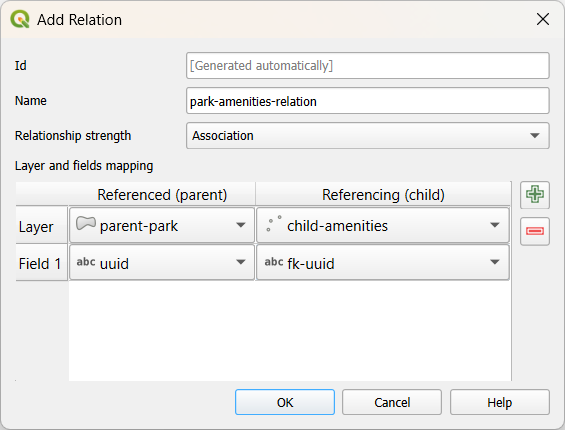
Confirm the setup by clicking OK
The one to many relation between parks and amenities is now set in QGIS. Next we can configure the forms for both layers.
Attributes forms configuration for 1-N relations
Attributes form for both linked layers can be set up as needed, depending on the preferred data collection method for the referencing (child) layer:
- Child features can be added through the form of the referenced (parent) layer, meaning you can use the attributes form of the parks layer to add/edit/remove amenities.
- Child features can be added through the form of the referencing (child) layer. A new feature can be added to the amenities layer and the link to the corresponding park feature is set manually in the attributes form.
Both options work both in QGIS and in the mobile app.
Referenced (parent) layer attributes form - relations widget
Explore the attributes form of the referenced (parent) layer parks:
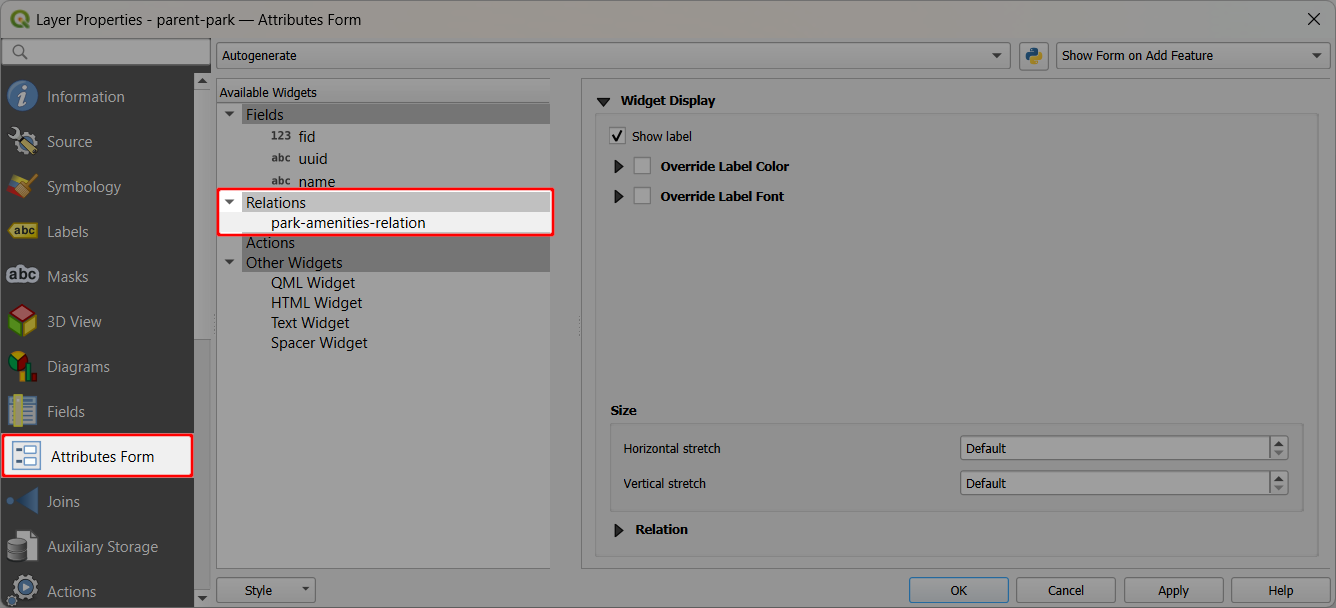
Navigate to the Attributes form tab in Layer Properties
Notice the
park-amenities-relationwas automatically added to the list of available widgets as Relations.If you use Drag and Drop Designer, you can add or remove the relation widget from the form manually.
In QGIS, the attributes form looks like this:
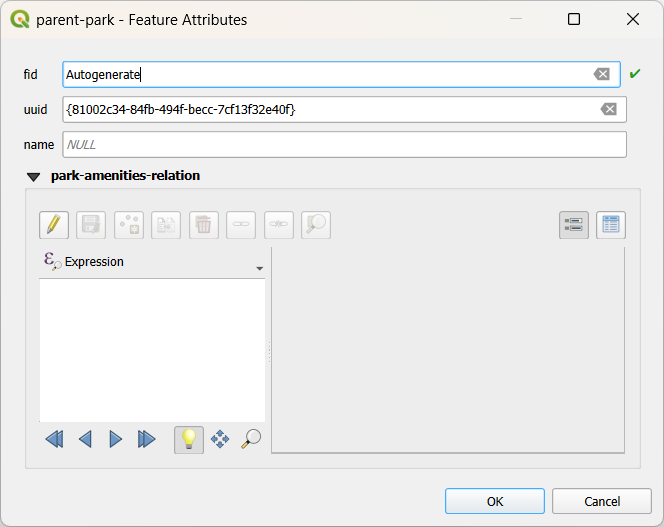
Note the editable park-amenities-relation with the option to add new (child) features to the amenities layer directly from the parks form.
Now look at this form in Mergin Maps mobile app. The referenced (parent) features have the relation widget in the attributes form. It displays all linked child features in a row.
Here, parks feature Park B already contains a link to a bench from the amenities layer. Tapping on the child feature bench opens its attributes form with the option to edit the feature.
A new child feature can be added by tapping the + button:
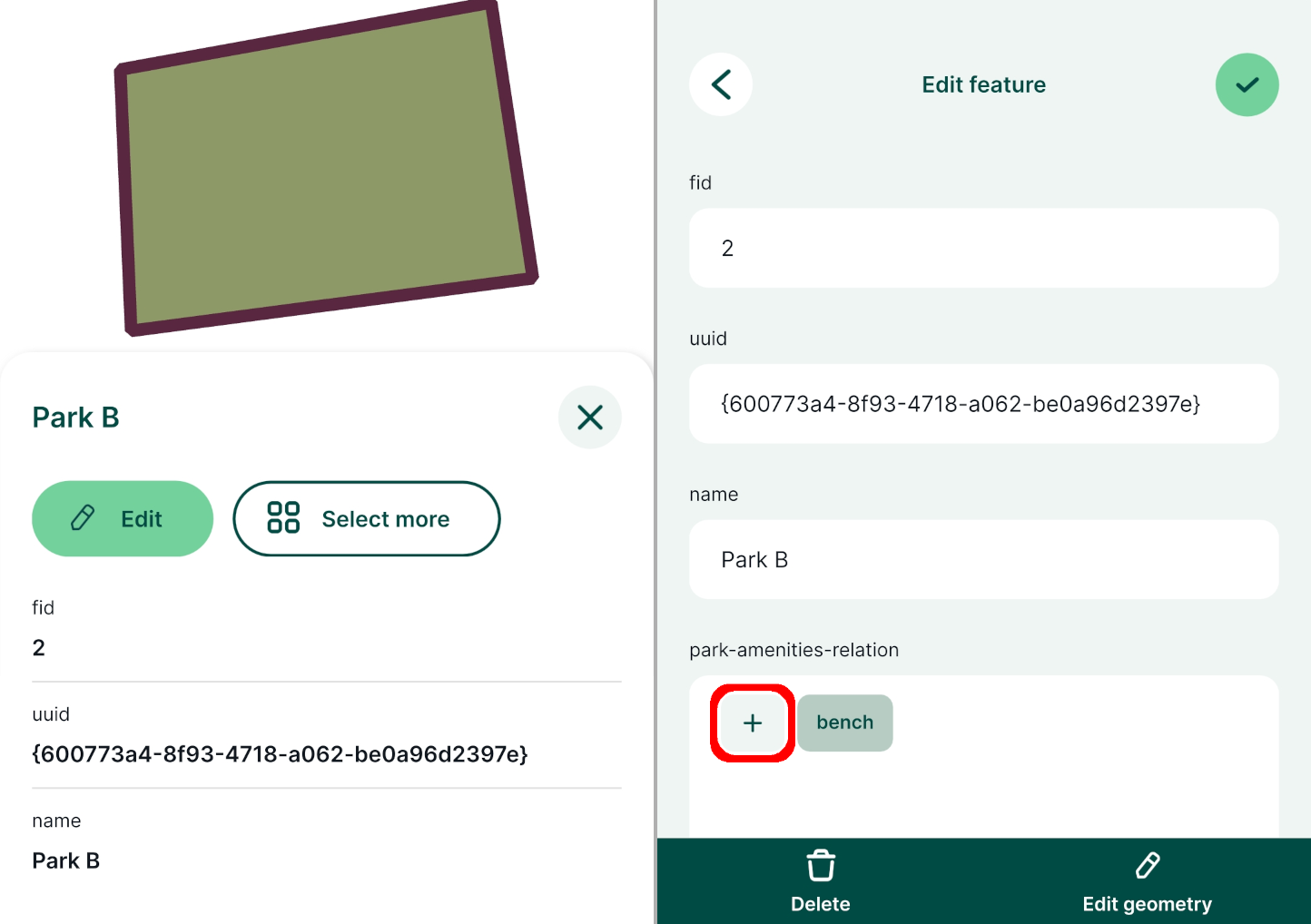
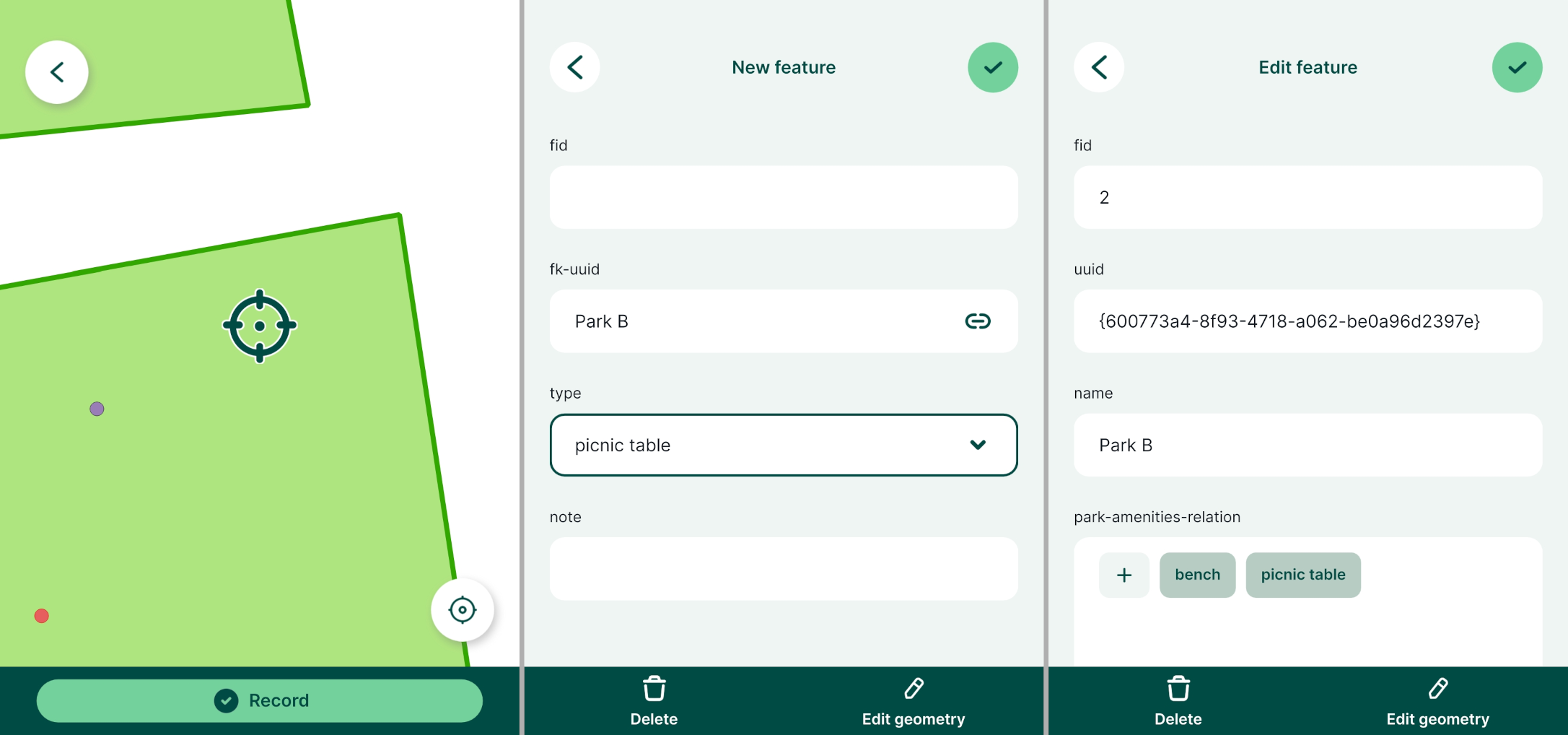
- If the referencing (child) layer is a spatial layer, you will be asked to record geometry. Here amenities are captured as points. Note that it is not possible to change the active layer.
- In the form, you can fill in information about the child feature (here we add a
picnic table). Note that the relation reference (foreign keyfk-uuid) is filled in automatically based on the parent feature (herePark B). - Save the changes. The form of the
Park Bfeature now displays one more entry in the relation widget (picnic table).
Referencing (child) layer attributes form - relation reference widget
The referencing (child) layer amenities can also have the relation added to the attributes form.
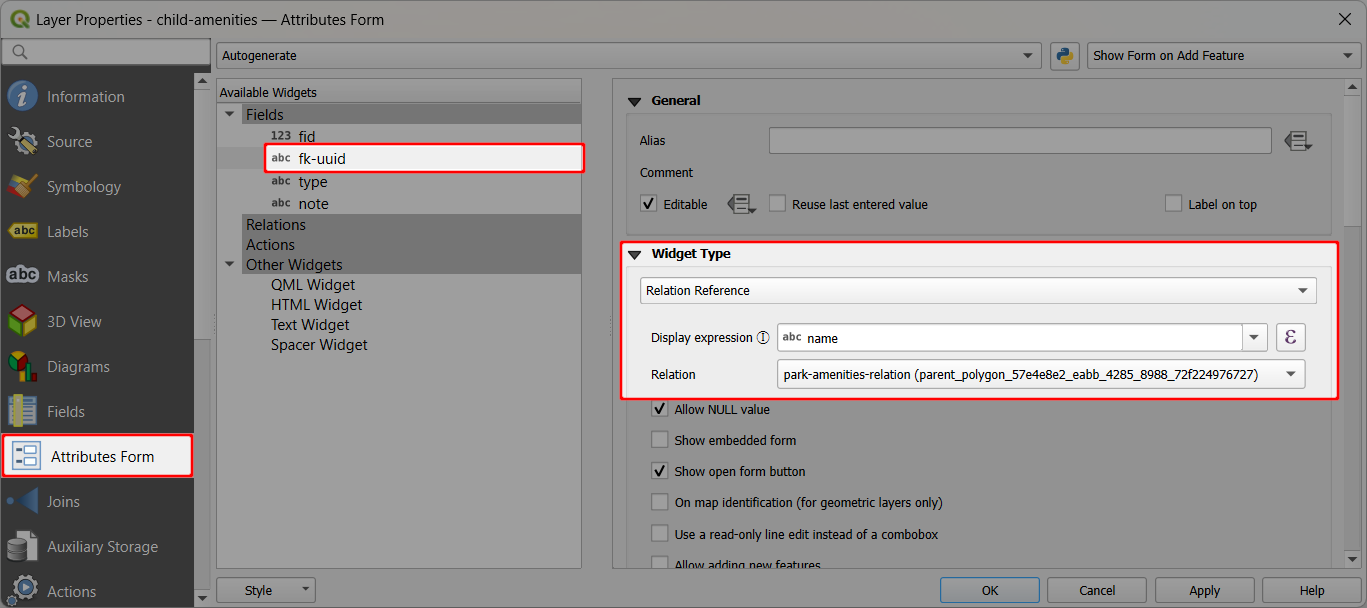
Navigate to the Attributes form tab in Layer Properties
Select the foreign key field (here:
fk-uuid) in the list of fields.Choose Relation Reference as Widget Type:
- Display expression sets the display name of referenced layer (here:
name) - Relation offers all available relations defined in the project (here:
park-amenities-relation)
- Display expression sets the display name of referenced layer (here:
In QGIS, the attributes form of the referencing (child) amenities layer looks like this. The foreign key field fk-uuid offers a drop-down menu with the list of features from the referenced (parent) layer parks.
In this case, the link between the amenity feature and the park can be set (or edited) manually.
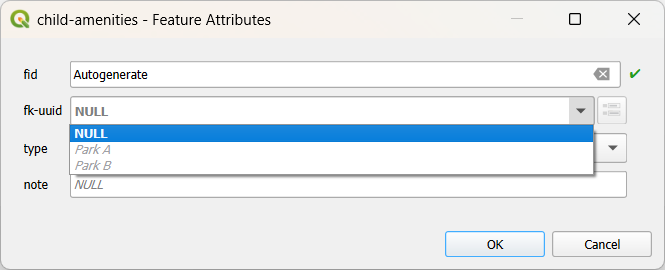
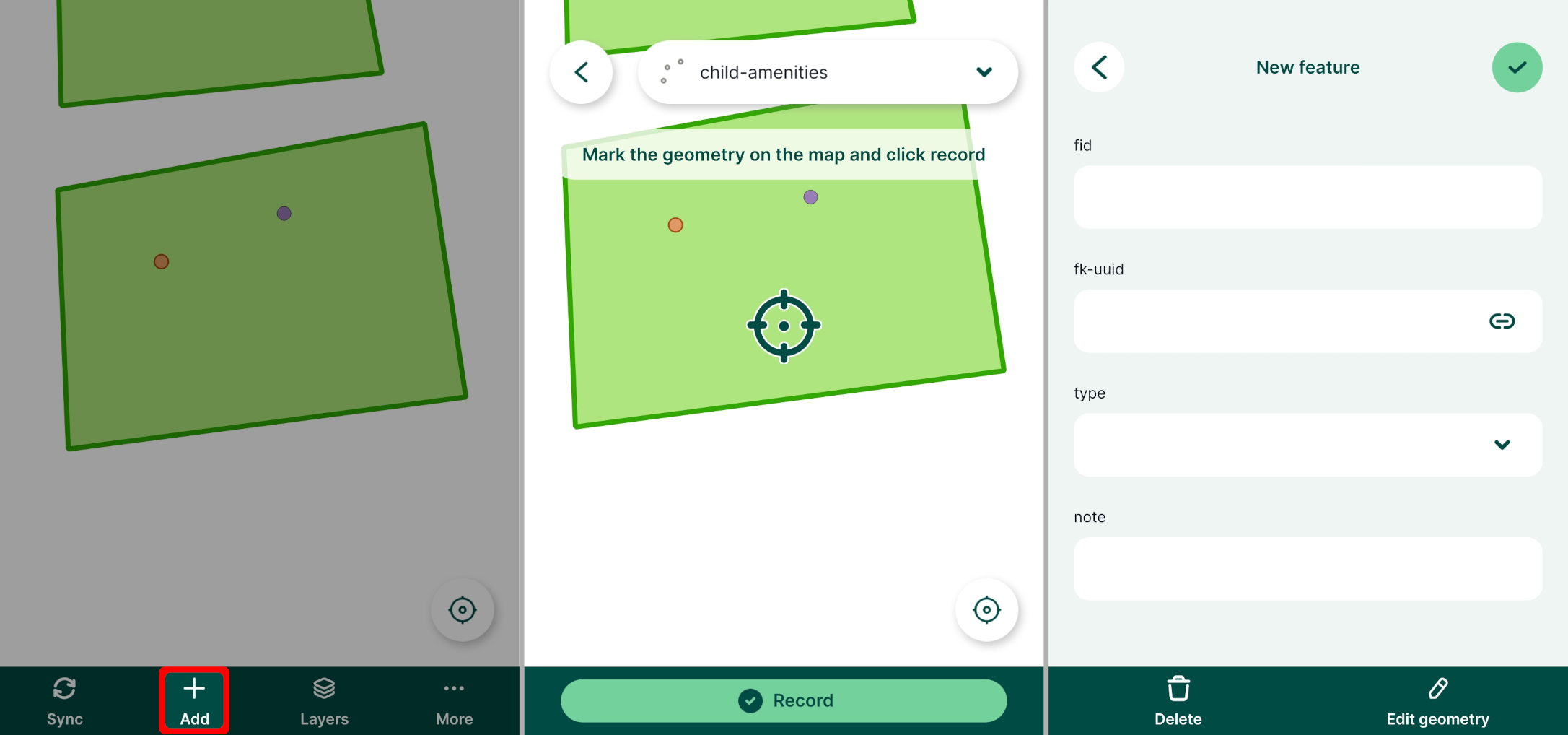
It works the same in the Mergin Maps mobile app. You can add a new feature to the referencing (child) layer:
- Tap the Add button and capture the geometry
- Fill in the Attributes form. Note that the relation reference (foreign key, here
fk-uuid) is empty and needs to be entered manually by choosing a feature from the referenced (parent) layer. - Save the changes.
Gallery?
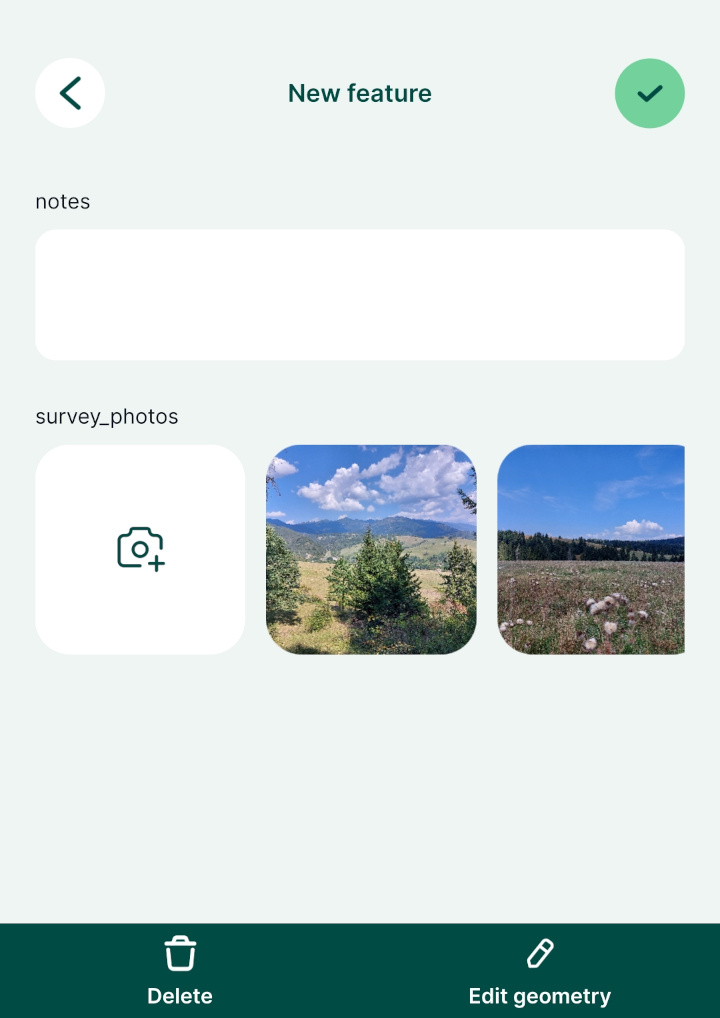
Did you follow these steps and do you see something like this? If the referencing (child) layer is set up with the Attachment widget for photos, the form in the mobile app will automatically display a gallery.
TIP
To display the relations widget without the gallery, use nogallery in the relation name or label.
Recommended setup for gallery is explained in Attaching multiple photos to one feature .