Appearance
Tabs and groups
Using QGIS Drag and Drop designer, fields can be arranged into groups and tabs.
Example project available
To see an example of tabs and groups, you can clone  documentation/form_setup.
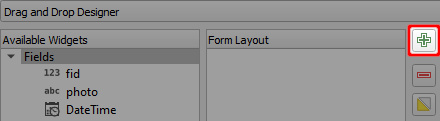
Click on the + button to add new group or a tab to the form layout
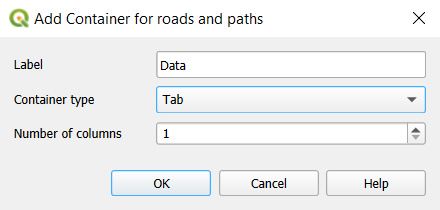
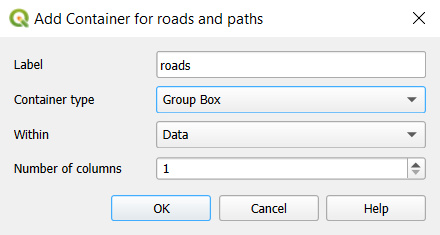
Choose the container type, add a label, and if needed, the number of columns.
A group can be placed within a tab or another group.
Drag and drop fields to tabs or groups as needed.
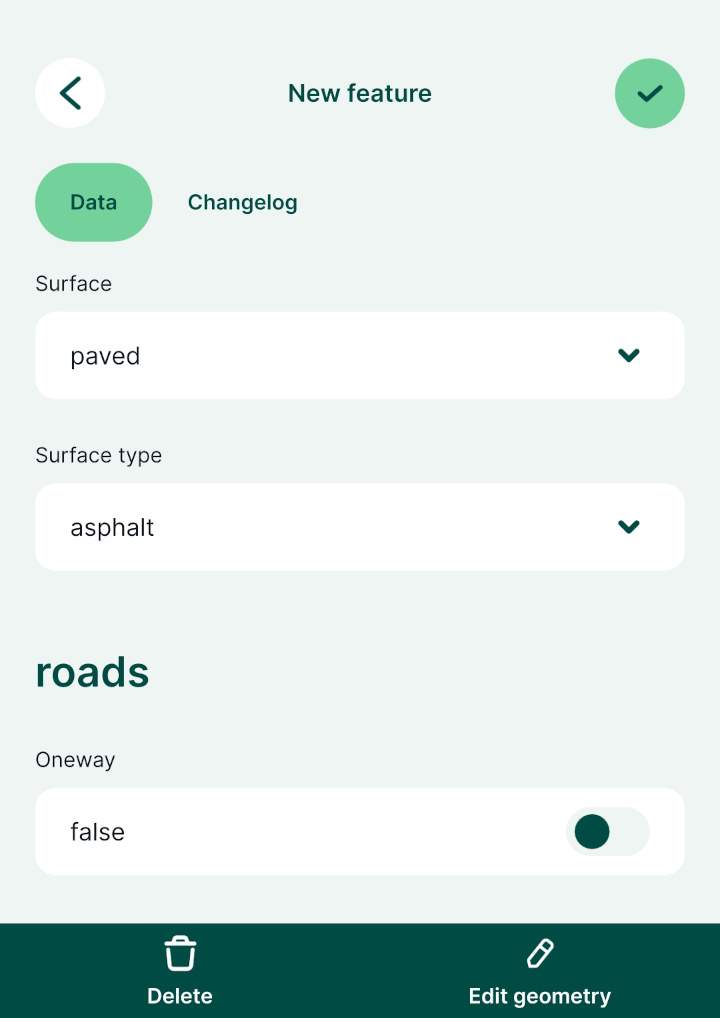
Here we have two tabs, Data and Changelog. The Data tab contains two groups: roads and paths. 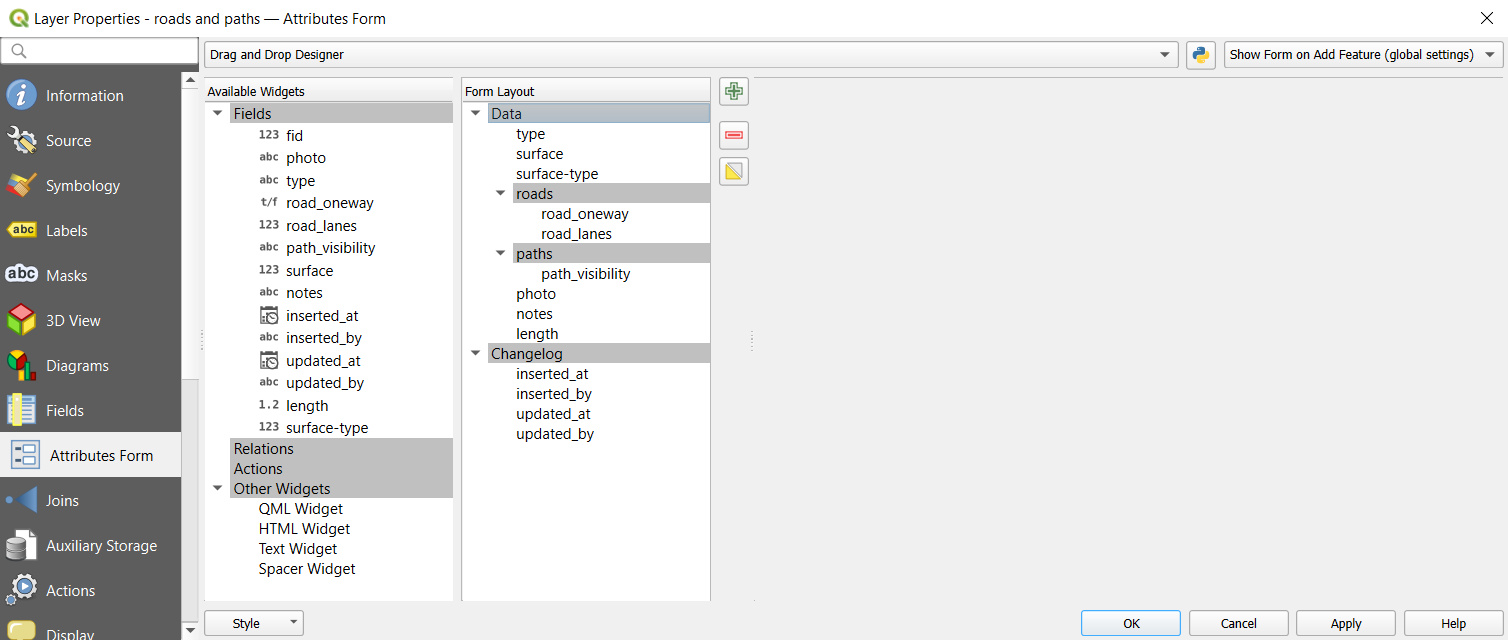
The form with tabs and groups will appear in QGIS like this: 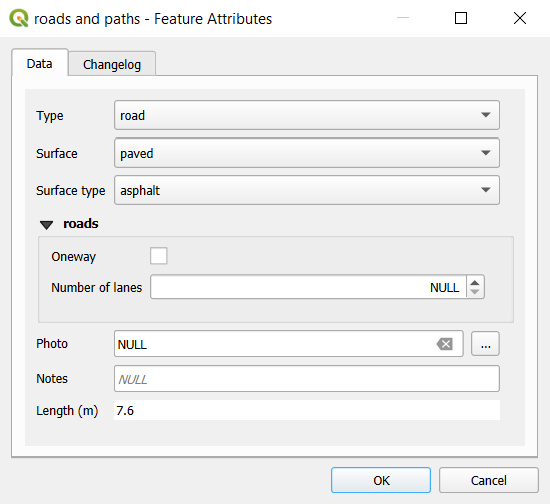
And this is how the same form looks like in the mobile app: