Appearance
Text
Adding or editing text is the most common method for inserting information within the forms. The Text Edit widget can be used for single-line or multiline text inputs for fields with Text (string) or varchar data types.
Widget | Preview in the mobile app |
|---|---|
| Text | 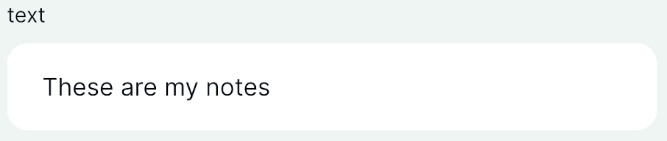 |
| Multiline Text | 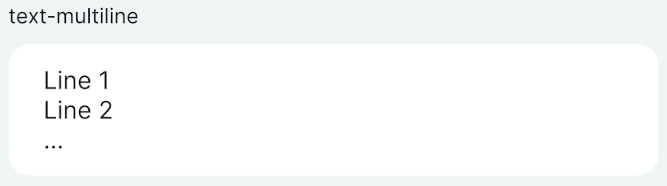 |
Example project available
Both single-line and multiline text options are used in this public project:  documentation/form-widgets. Download or clone it to see this setup.
Prefer a video? Here is a short tutorial about text widgets:
Text widget
The Text Edit widget is set by default for fields with text data type. For simple text input, you do not need to change it.
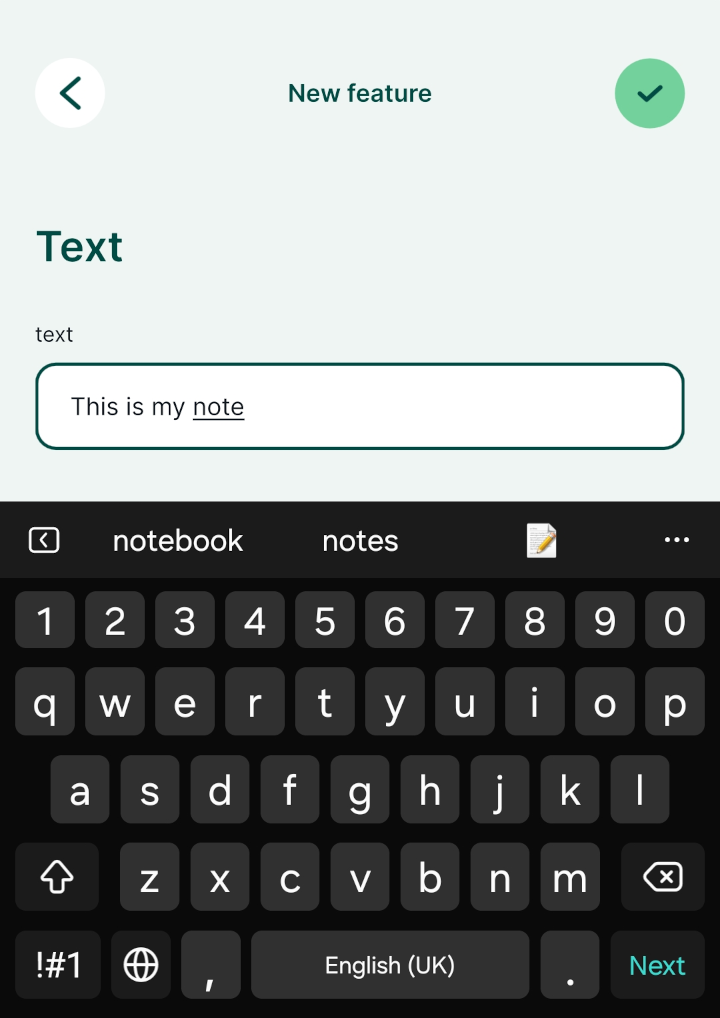
In the mobile app, the basic text field looks like this:
Multiline text
The Text Edit widget offers the option to store multiple lines within a single field.
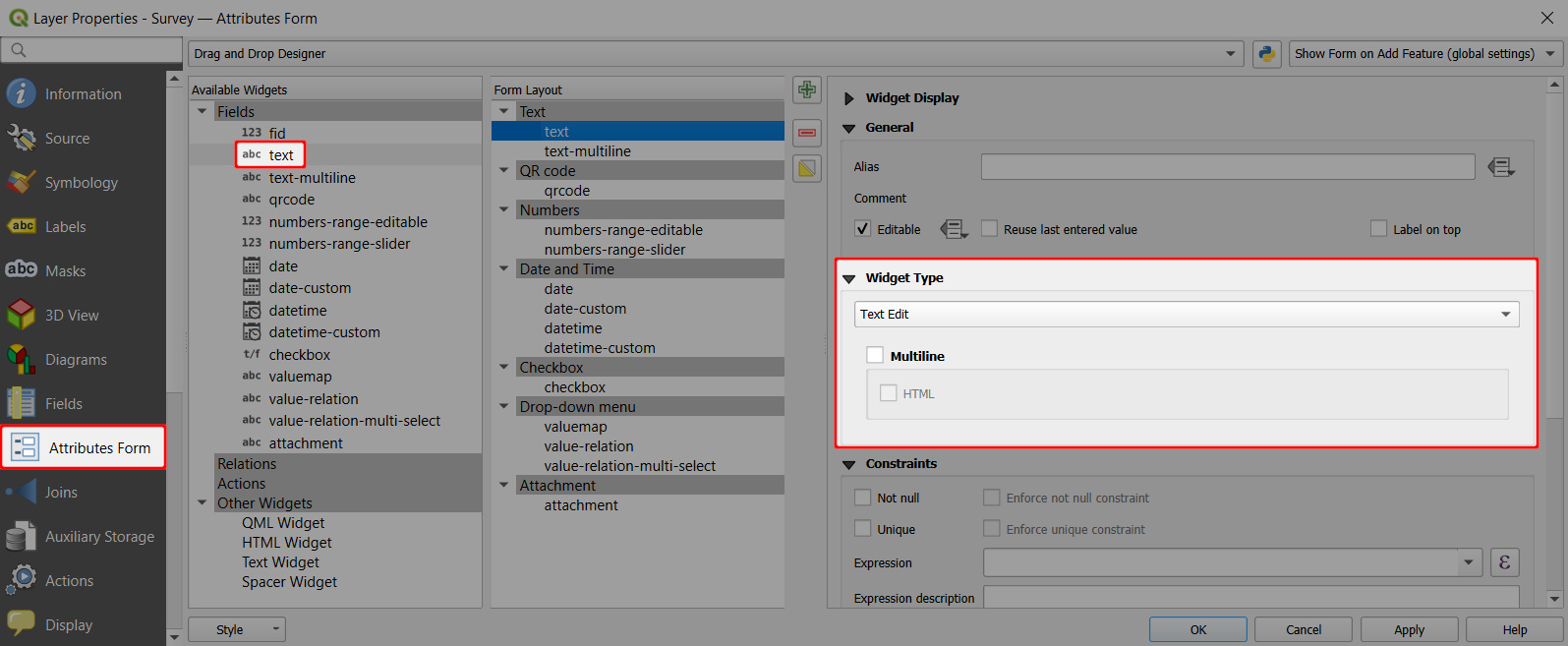
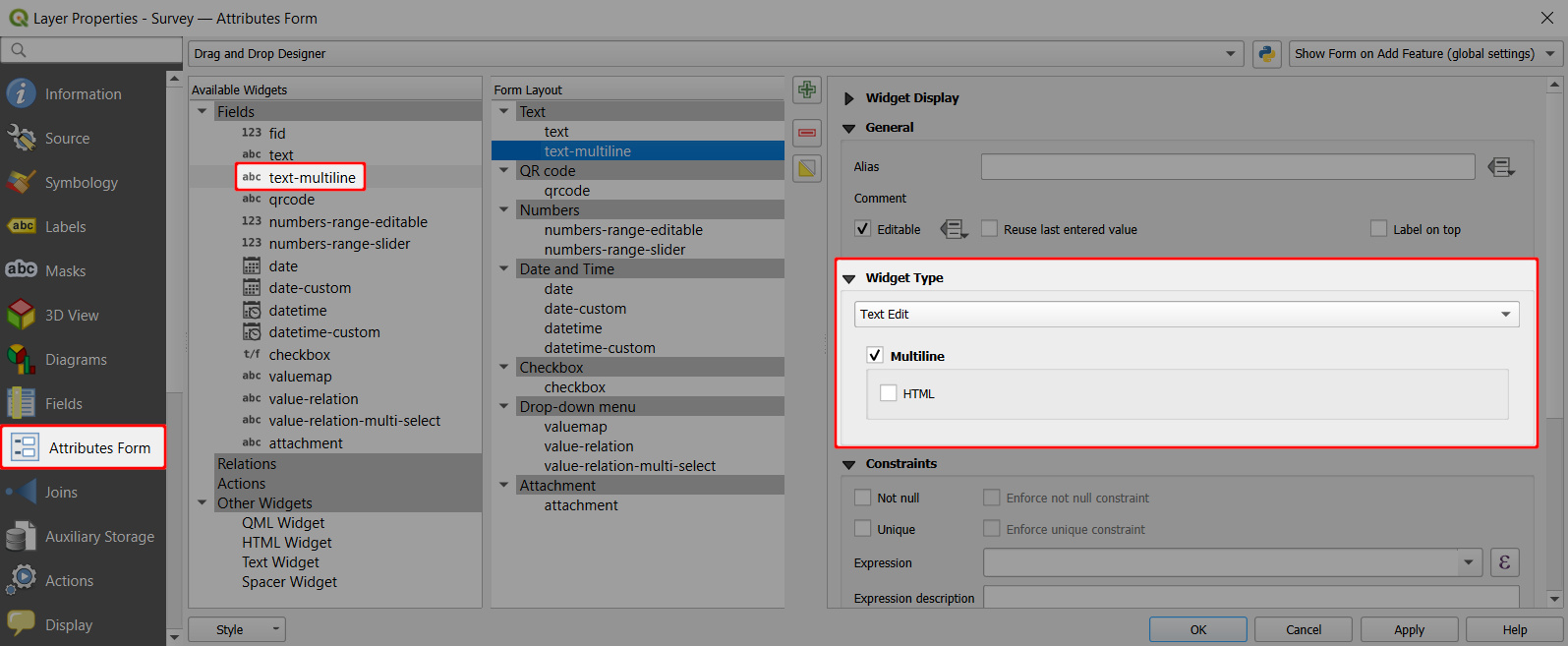
- Right-click on a layer, select Properties and go to the Attributes form tab.
- In the list of Available Widgets select the field you want to work with (here:
text-multiline) - In the Widget Type tab:
- Ensure that Text Edit is selected
- Check the Multiline option ✔️
- Apply the changes. Don't forget to save and sync your project!
In the mobile app, the multiline text edit widget looks like this: 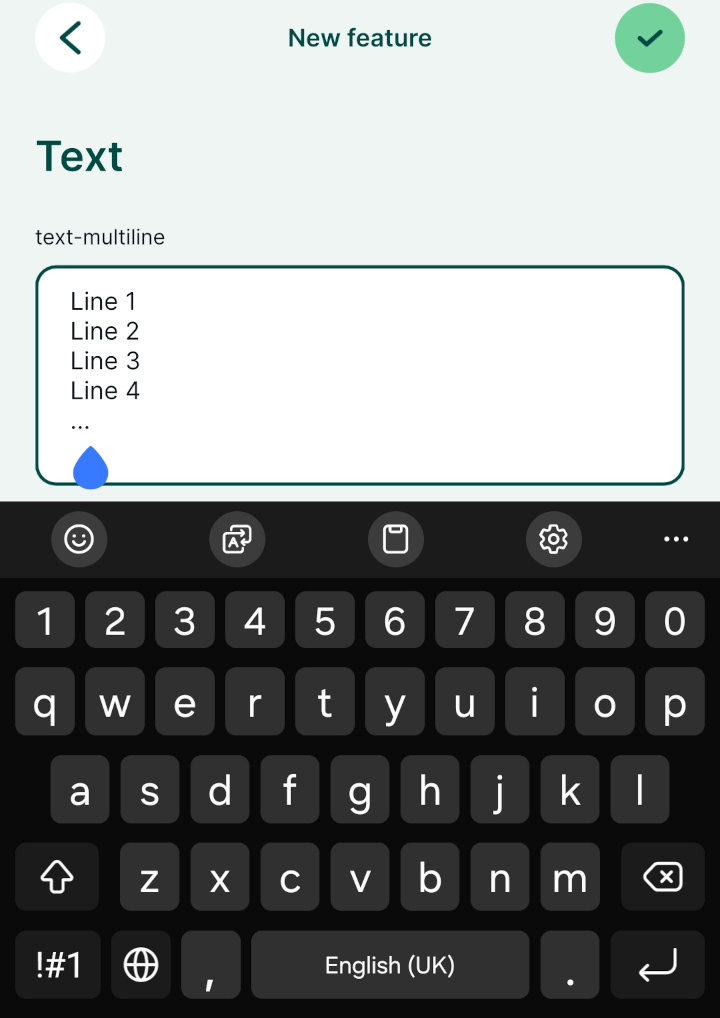
TIP
Both QGIS and Mergin Maps mobile app support the use of HTML text fields. When setting up the multiline text widget, check also the HTML option ✔️.
HTML text fields can be used to include clickable links to, e.g., open a link in a browser or open a navigation app directly from the form in the mobile app.
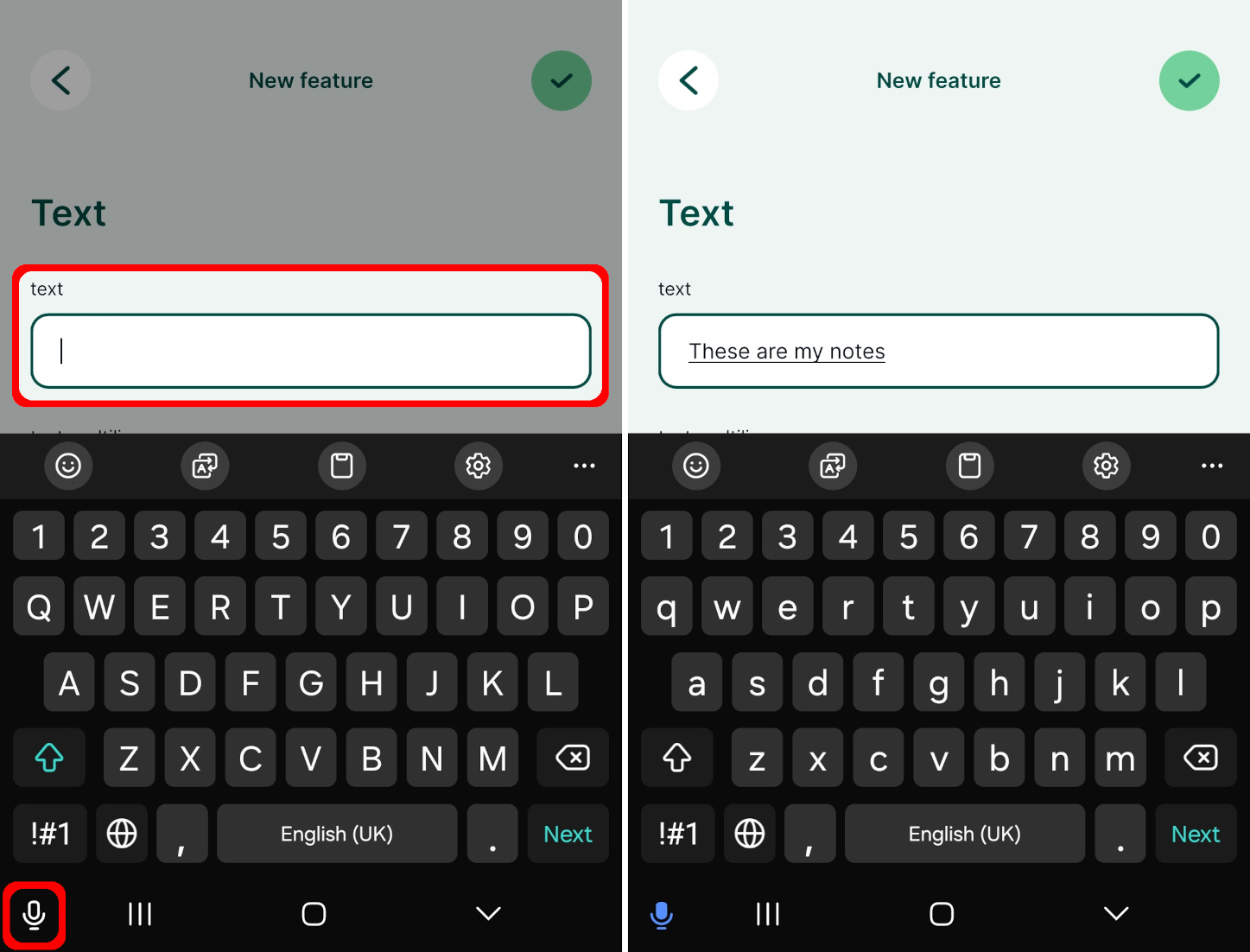
Voice input
In the mobile app, the text can be entered manually or using voice-to-text (if your mobile device supports this feature).