
Appearance
Filtering Features in Mergin Maps Mobile App
Custom filters can be added to the mobile app to easily filter features displayed on the map and in the survey layers.
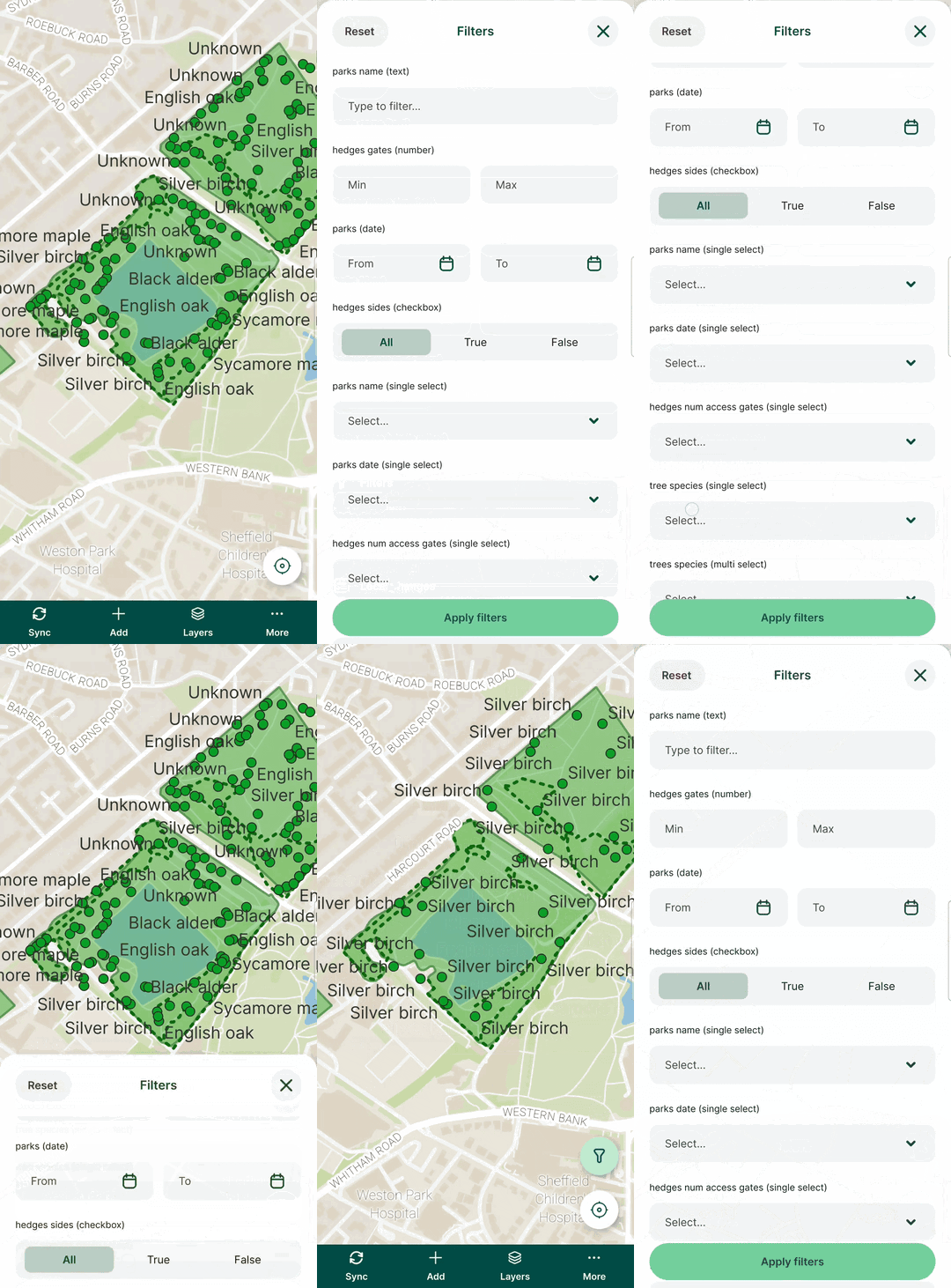
Example project available
You can explore filtering by cloning our public project  documentation/filtering
Enable and define filtering in QGIS
Filters can be enabled and defined in QGIS in Project Properties for GeoPackage layers.
Plugin upgrade
If you do not see the Filtering option in the Project properties, check for plugin upgrades.
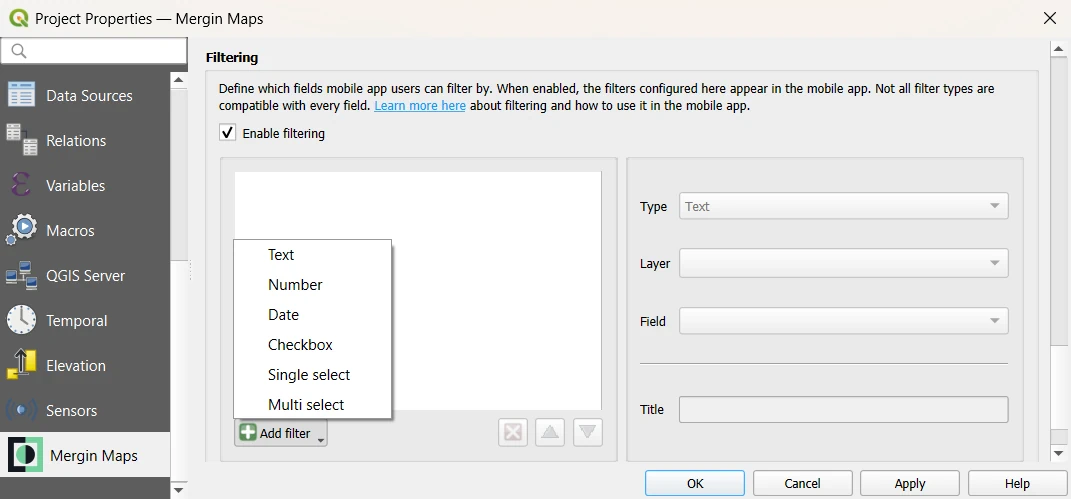
Check the ✔️ Enable filtering option in the Mergin Maps tab, click on the Add filter button and select a filter type from the list.
Then, define the filter:
- Type - choose the filter type (see Filter types for more details).
- Layer - choose from the project's GeoPackage layers
- Field - choose from the fields of the layer. Only fields with data types compatible with the selected filter type are offered.
- Title - the name of the filter, which will be displayed in the mobile app
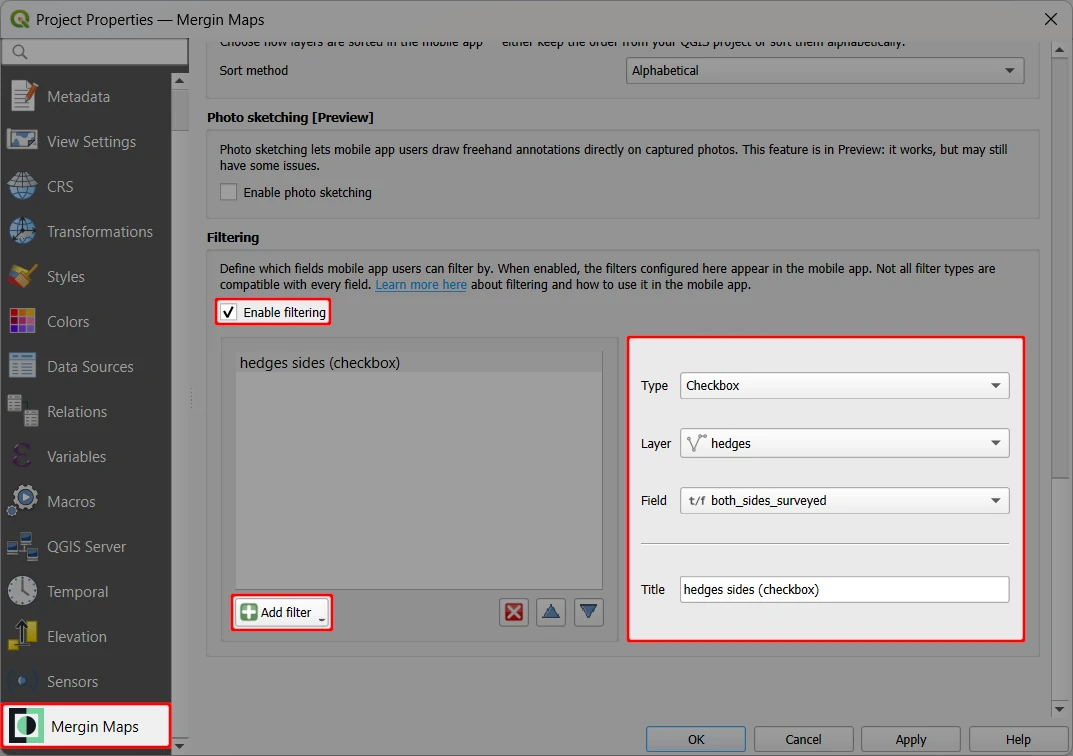
You can add as many filters as you need by using the Add filter button.
The order of filters can be changed by selecting a filter and using the Up and Down buttons. To remove a filter, select it and click the Remove button. 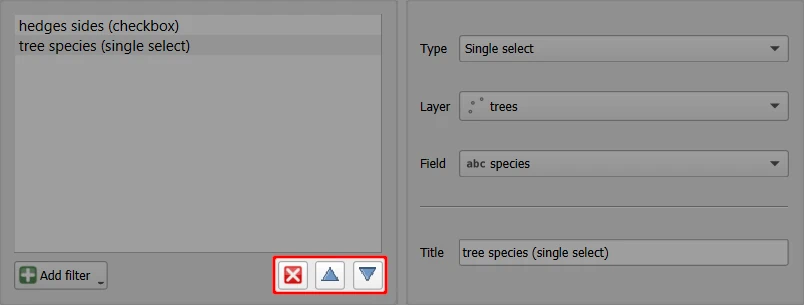
Don't forget to save your project and synchronise changes so that you can use the filters in the mobile app.
Filtering features in the mobile app
Filters defined in Mergin Maps project in QGIS can be used in the mobile app.
You can filter features across multiple layers as well as use multiple filters on one layer. The filtering affects both the map display and the feature browsing list.
Filters do not stay saved when the app is restarted.
Here is an example of how filtering works:
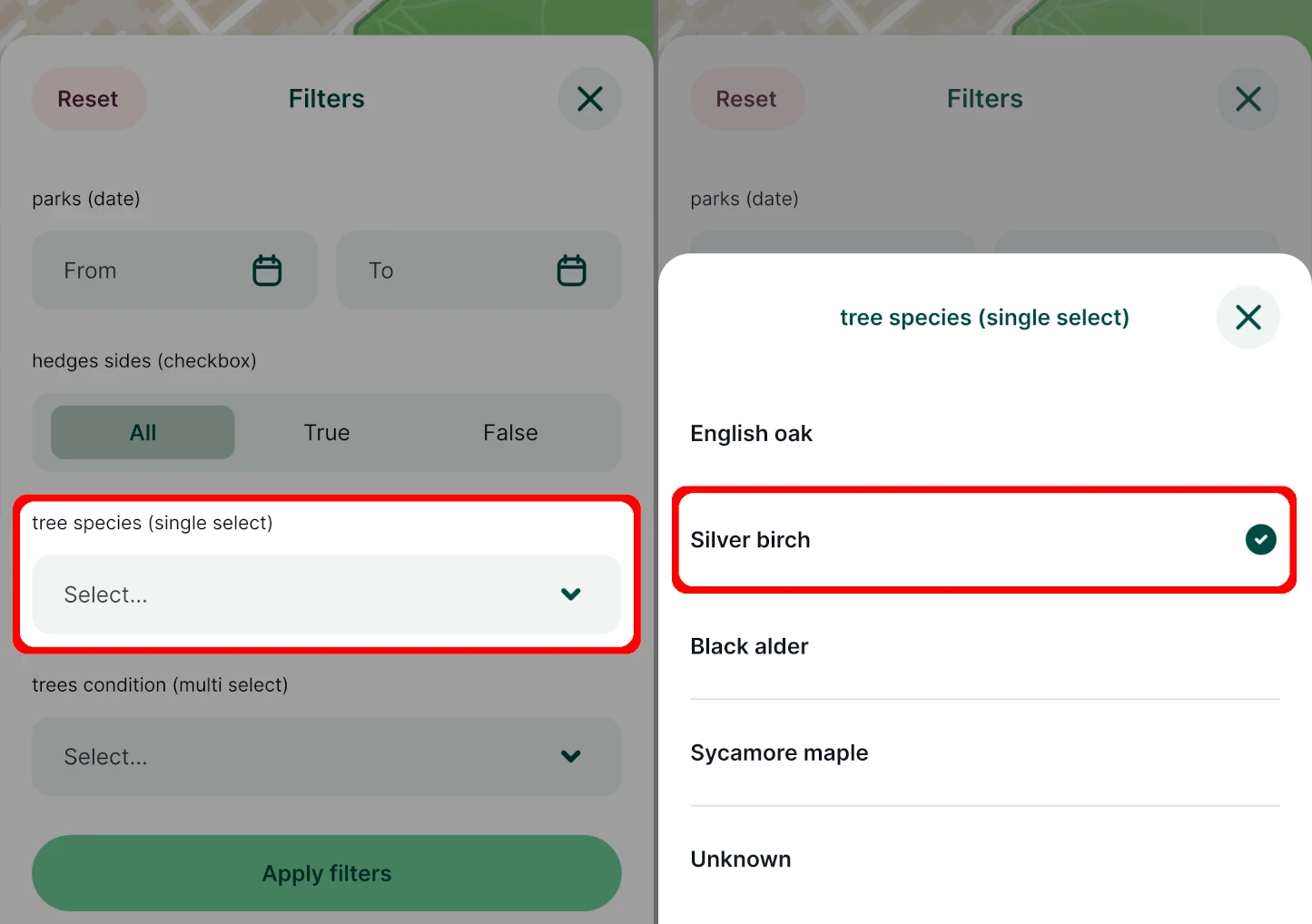
Tap the More button to open Filters defined in the project
Filtering has to be enabled in the QGIS project, otherwise this option is not displayed.
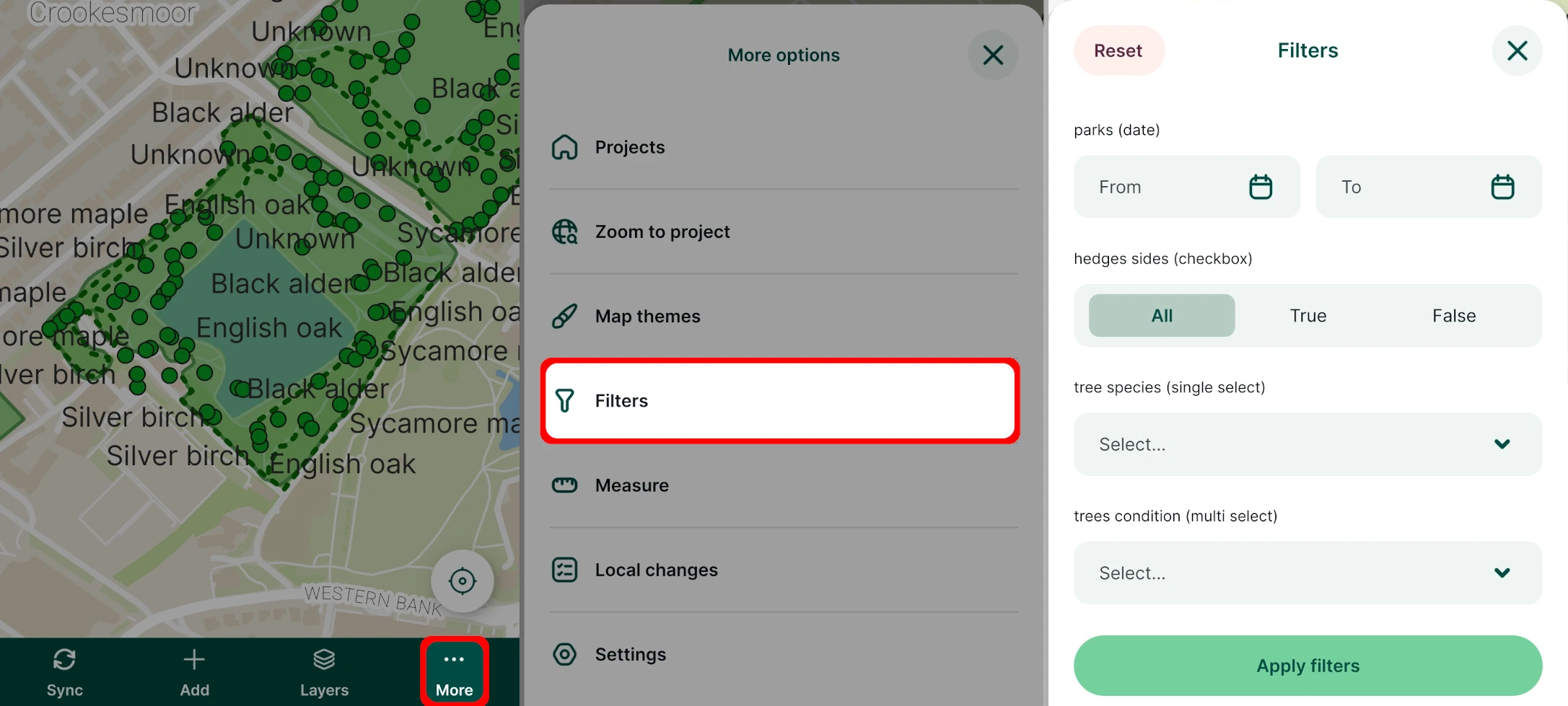
Enter or select values in the filters. You can use more filters at once.
Here, we will use a Single select filter on the trees layer and select a tree species value from the list.
Tap on the Apply filters button to confirm the filtering.
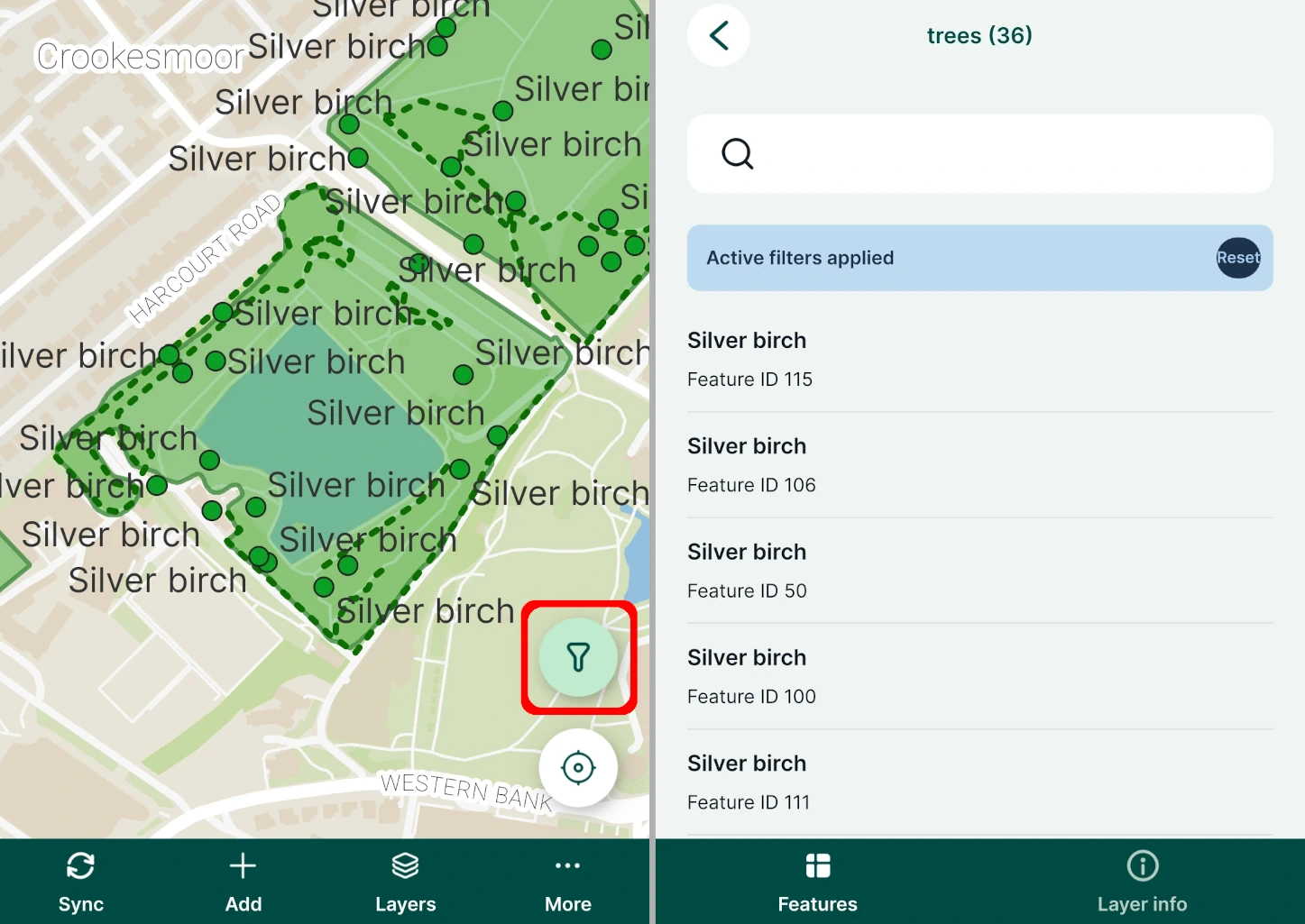
With active filters, only features that match the criteria are displayed on the map as well as when browsing features.
You can use the active Filters button to quickly access filters.
Filter types
Here is an overview of available filter types.
In QGIS, you choose from the following filter types: Text, Number, Date, Checkbox, Single select, Multi select.
In the mobile app, the respective filters look like this: 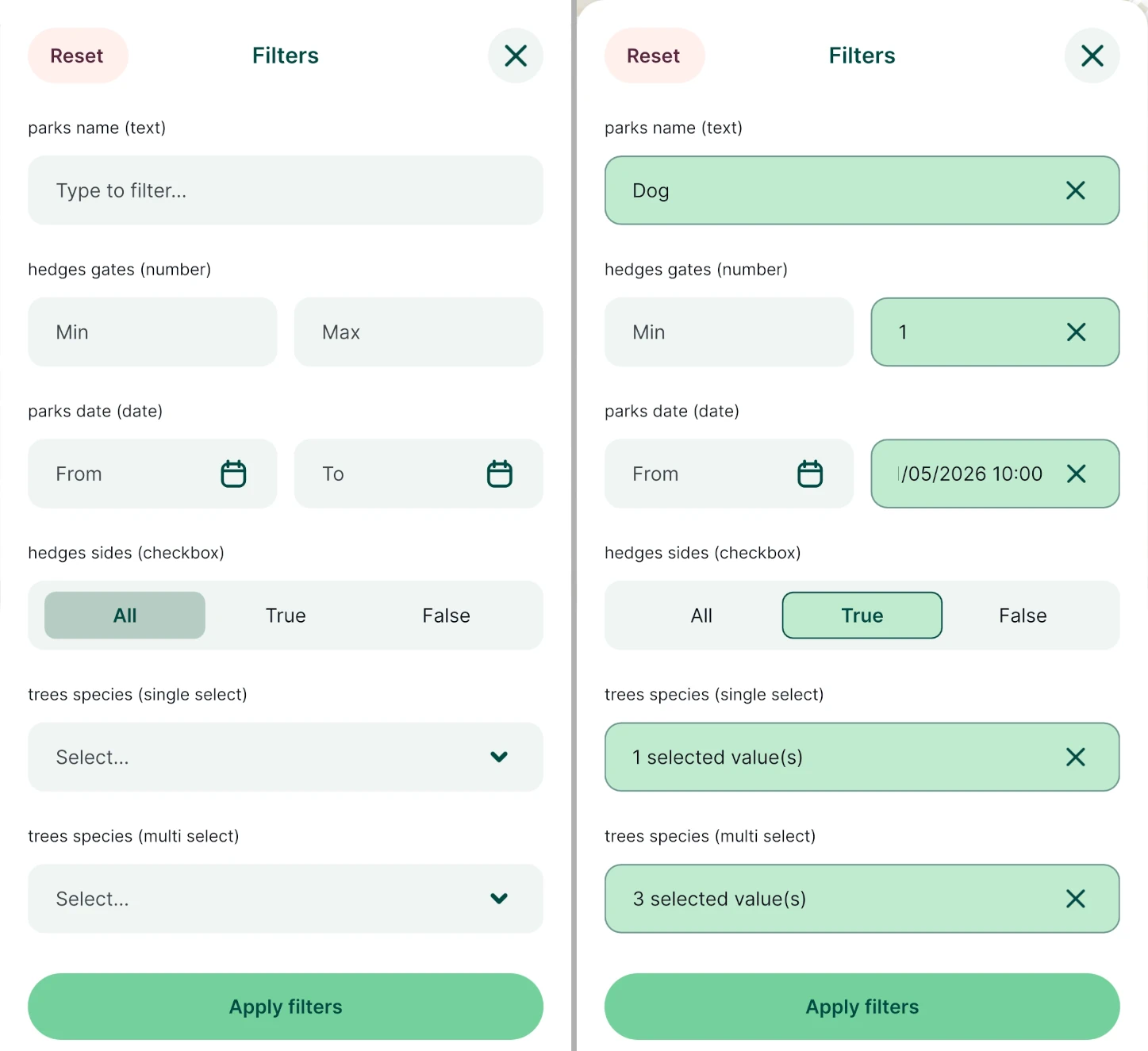
Text
The text filter can be used to find all features where the selected field contains the entered text.
Type in a word, a part of the word or a number into the filter and Apply filters to see the results.
Available for text and number field types.
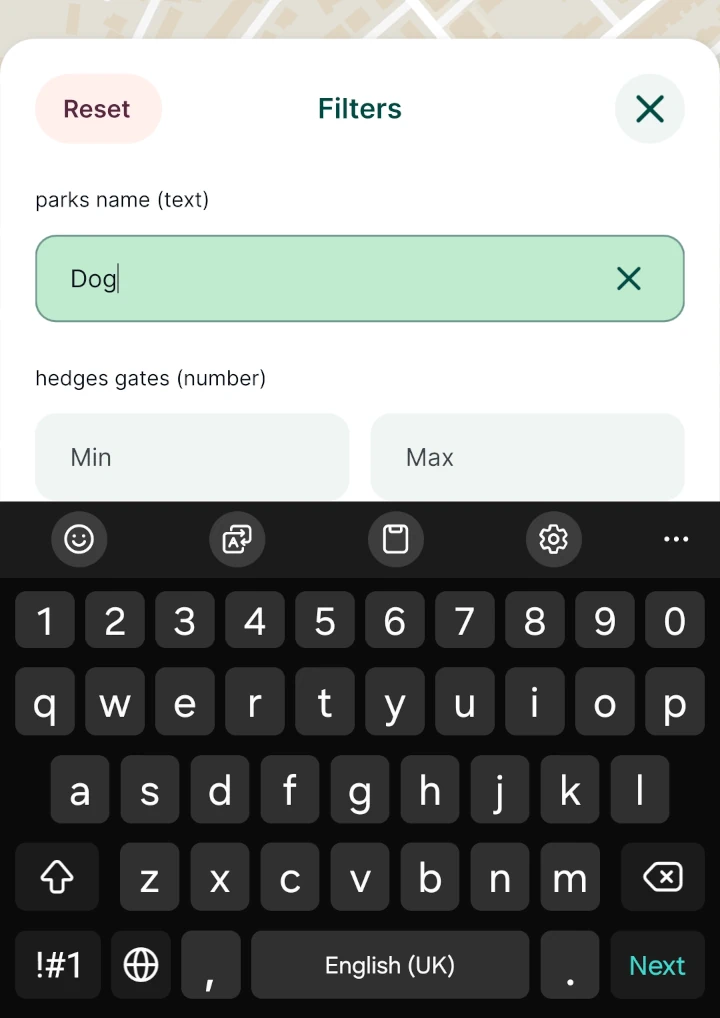
This filter uses the same logic as the SQL expression "field" ILIKE '%input%'.
Number
The number filter provides from and to number inputs.
Available for text and number field types.
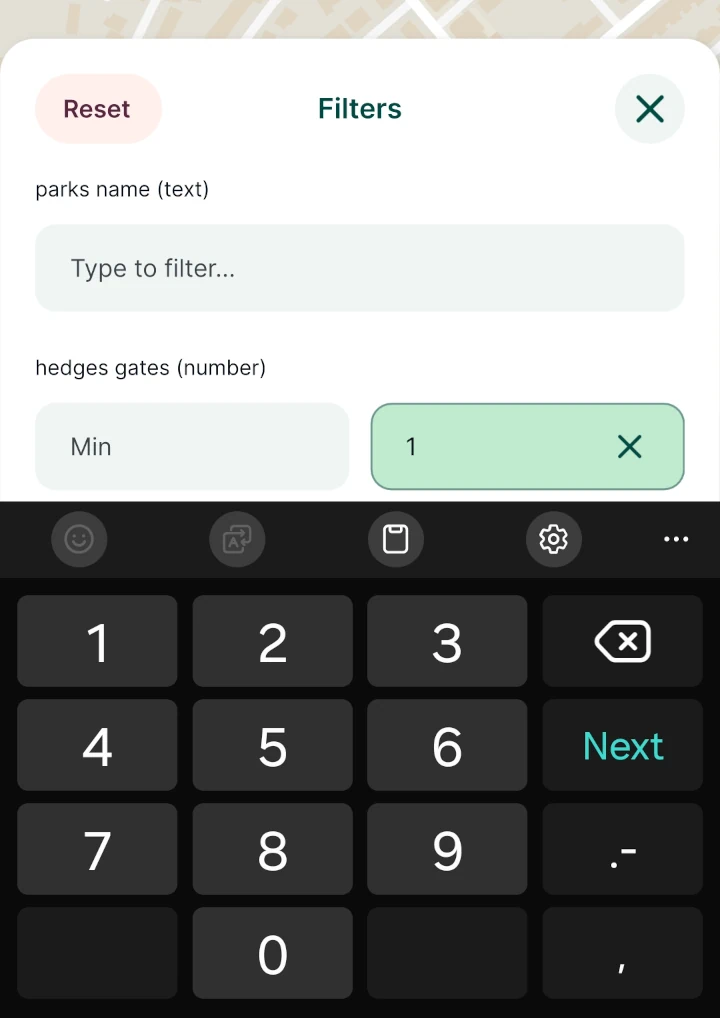
This filter uses the same logic as the SQL expression "field" >= 'input_from' AND "field" <= 'input_to'.
Date
The date filter provides from and to date calendar inputs.
Available for date field types configured with the Date and time widget.
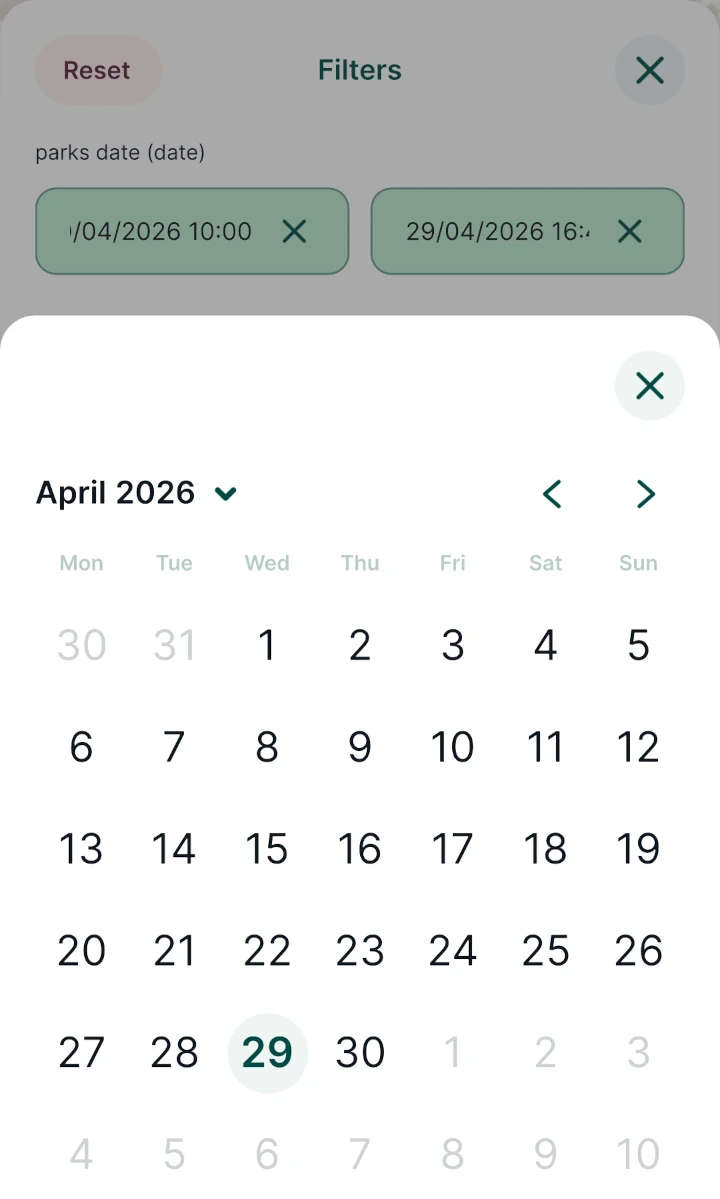
This filter uses the same logic as the SQL expression "field" >= 'input_from' AND "field" <= 'input_to'.
Checkbox
The checkbox filter provides a toggle between all, true and false values. Available for Boolean, text and integer field types configured with the Checkbox widget.
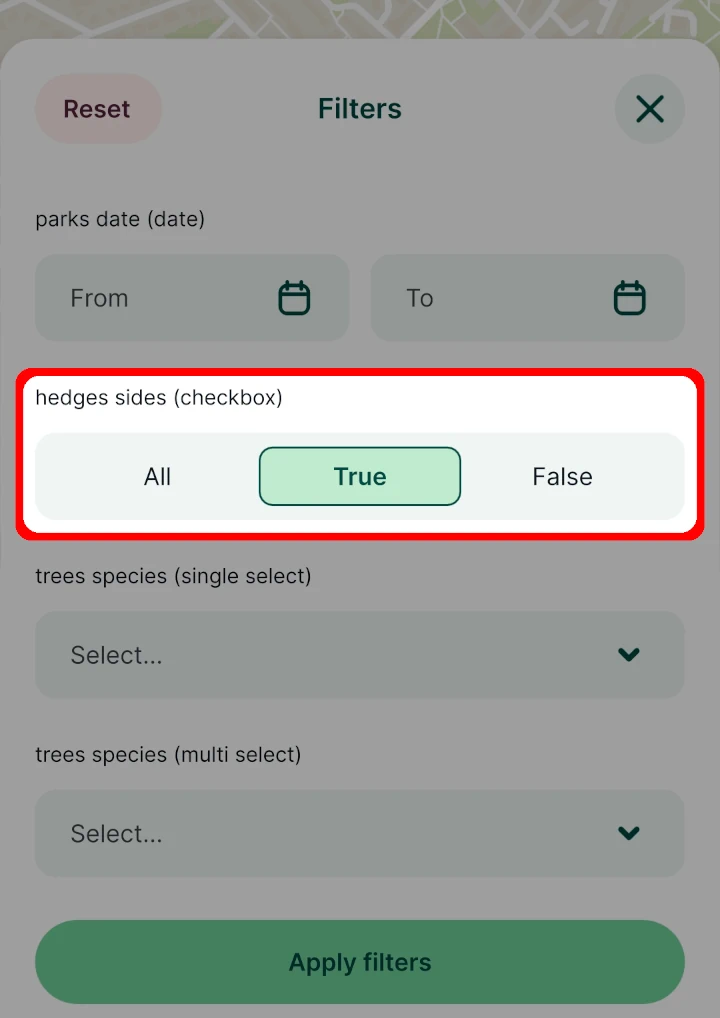
This filter uses the same logic as the SQL expression "field" == 'input'.
Single select
The single select filter provides a drop-down menu of field values. One value can be selected at once.
Available for all field types. For text, number, date and Boolean field types generates a list of used values.
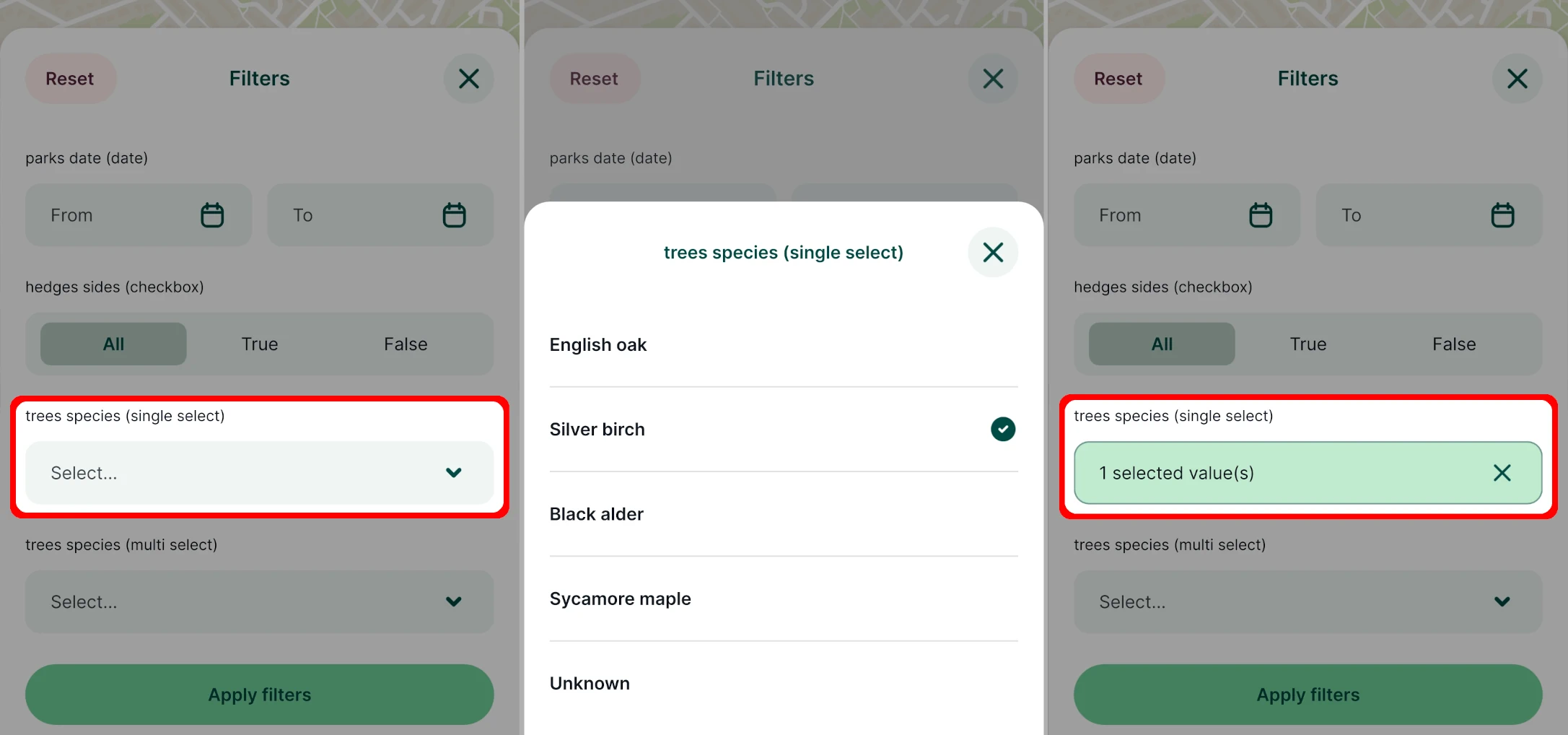
This filter uses the same logic as the SQL expression "field" == 'input'.
Multi select
The multi select filter provides a drop-down menu of field values. Multiple values can be selected at once.
Available for all field types. For text, number, date and Boolean field types generates a list of used values.
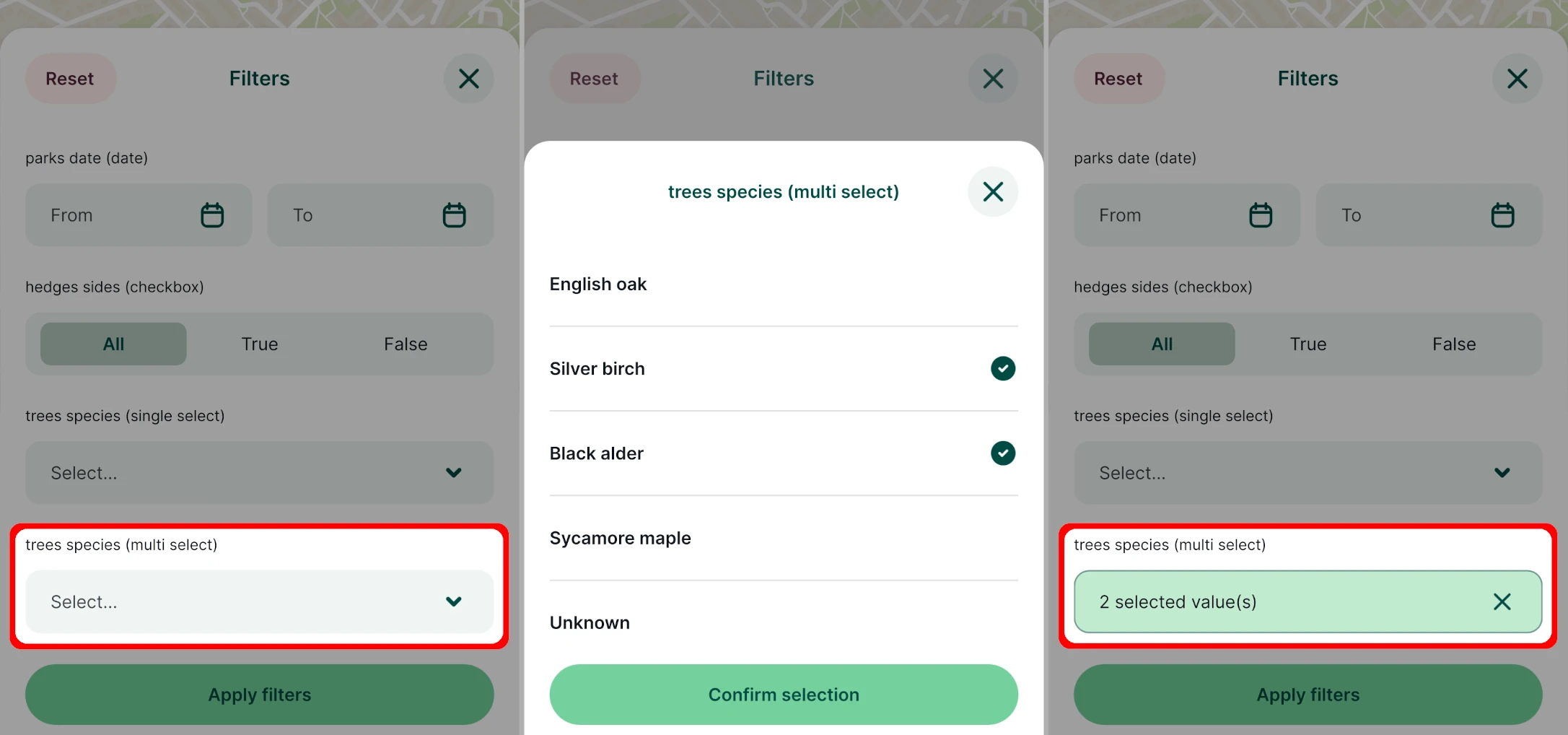
This filter uses the same logic as the SQL expression "field" IN ('input').